

Network capture
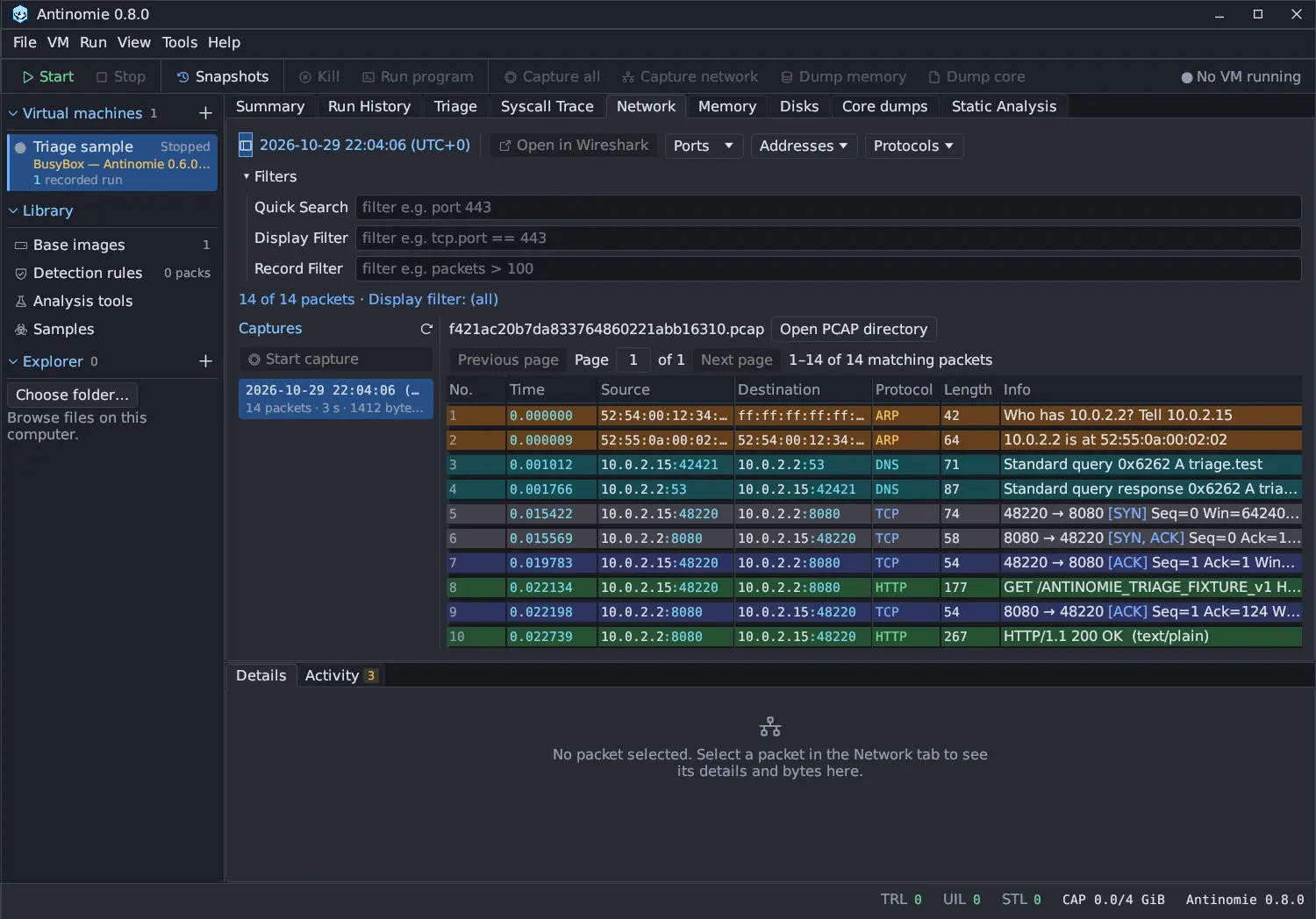
A network capture records every packet of the VM’s network interface. QEMU writes the frames to a pcap file on the host, outside the guest, so nothing inside the guest is involved and the guest cannot see it.
Requirements
Section titled “Requirements”The VM must have Isolated, Routed (route per run) or NAT (Internet)
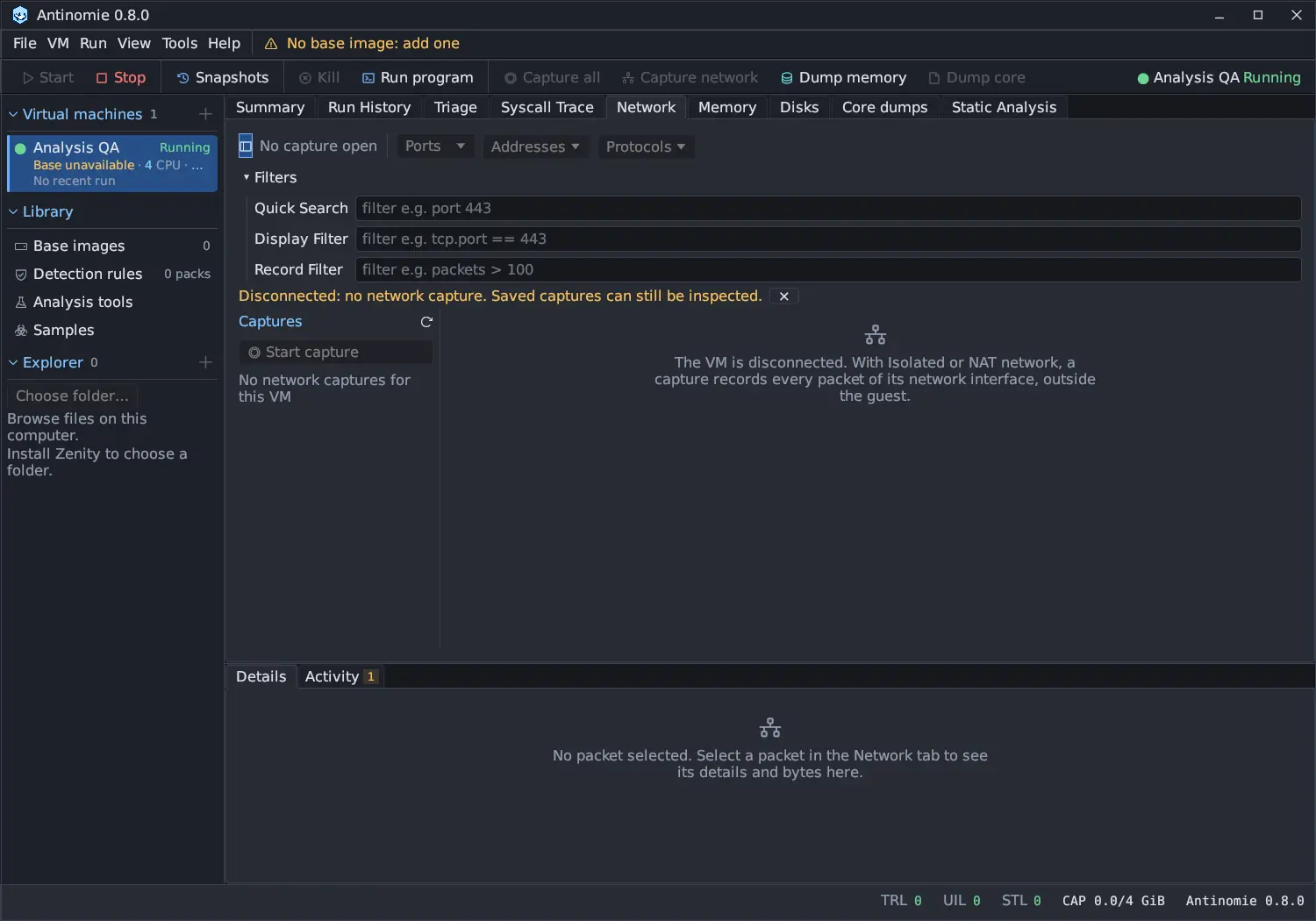
networking. A Disconnected VM has no network card and so no capture path:
the Network panel says Disconnected: no network capture. Saved captures can still be inspected. and the VM dialog says Disconnected: no network capture. Choose Isolated, Routed or NAT. See
Network isolation for what each mode allows.
Two ways to capture
Section titled “Two ways to capture”| Way | How | Scope |
|---|---|---|
| Manual | Capture network on the toolbar, Run → Capture network, or Start capture in the Network panel. Press again, or Stop capture, to finish. | Records until you stop it. Starting and stopping need no VM restart. |
| With a run | Tick Capture network from start until tree exits in Run program | Starts before the program launches and stops after the entire process tree exits |
Each start creates a separate pcap in the boot’s recording, listed as Per run in its record. Boots from before 0.3.0 kept one whole-boot pcap, shown as Whole boot. After a snapshot restore or a telemetry reconnect, captures continue in new segments and the old ones are kept.
A manual capture is independent of any run. A run’s own capture takes priority over a manual one when Triage looks for the run’s packets.
What the pcap contains
Section titled “What the pcap contains”All VM traffic during the capture: DHCP, DNS, HTTP, TLS and QUIC handshakes, and anything else. Encrypted traffic stays encrypted: the content of HTTPS and HTTP/3 is not readable, but TLS and QUIC server names are read from the handshakes.
- Packets are VM-wide. The pcap does not say which process sent a packet; do not read process ownership into it.
- Times use QEMU’s capture clock, which can differ from the host’s clock; the panel displays them in your timezone.
- One frame can hold up to 65,535 bytes.
On a Routed VM, the pcap is the guest’s own view on every route: the frames between its card and Antinomie’s gateway. The hop from the gateway onwards, such as a Tor circuit or a WireGuard tunnel, is not in it. On InetSim the DNS answers point at the fake services’ address, and on Tor, VPN and SOCKS5 they are stand-in addresses from 198.18.0.0/16 for the names the guest asked for. Network routes lists what each route’s capture shows.
Browsing and tools
Section titled “Browsing and tools”- The Network panel lists captures, shows packets and filters them with three filters.
- The packet list and each packet’s details tree come from the installed TShark, which parses the pcap in a sandbox. Without TShark the panel lists raw frames and their bytes only.
- Open in Wireshark opens the file, or streams a live capture as it grows.
- Triage › Network summarizes a run’s captures into Endpoints, Domains, URLs and TLS, with an IOC verdict on each row. Its Open Packets button shows the run’s capture in the Network panel.
- IDS scans run Suricata over the run’s capture segments.
- A Triage report can carry the run’s packet captures in its evidence bundle.
Deleting a capture
Section titled “Deleting a capture”Right-click a capture in the Network panel and choose Delete…. After a
confirmation the pcap, its summary, its .metadata folder and other
<capture>.* files beside it (such as the cached packet list) are removed, and the
freed bytes go back to the boot’s recording quota. Runs that used the capture read
it as deleted. The live capture and a capture still being written cannot be
deleted. See Network.
Packets count against the boot’s recording quota. A running capture stops when the quota is reached. Packets that no run owns are saved once, in the capture that observes them, and not again in the boot’s general archive. See Limits and quota.