

Network isolation
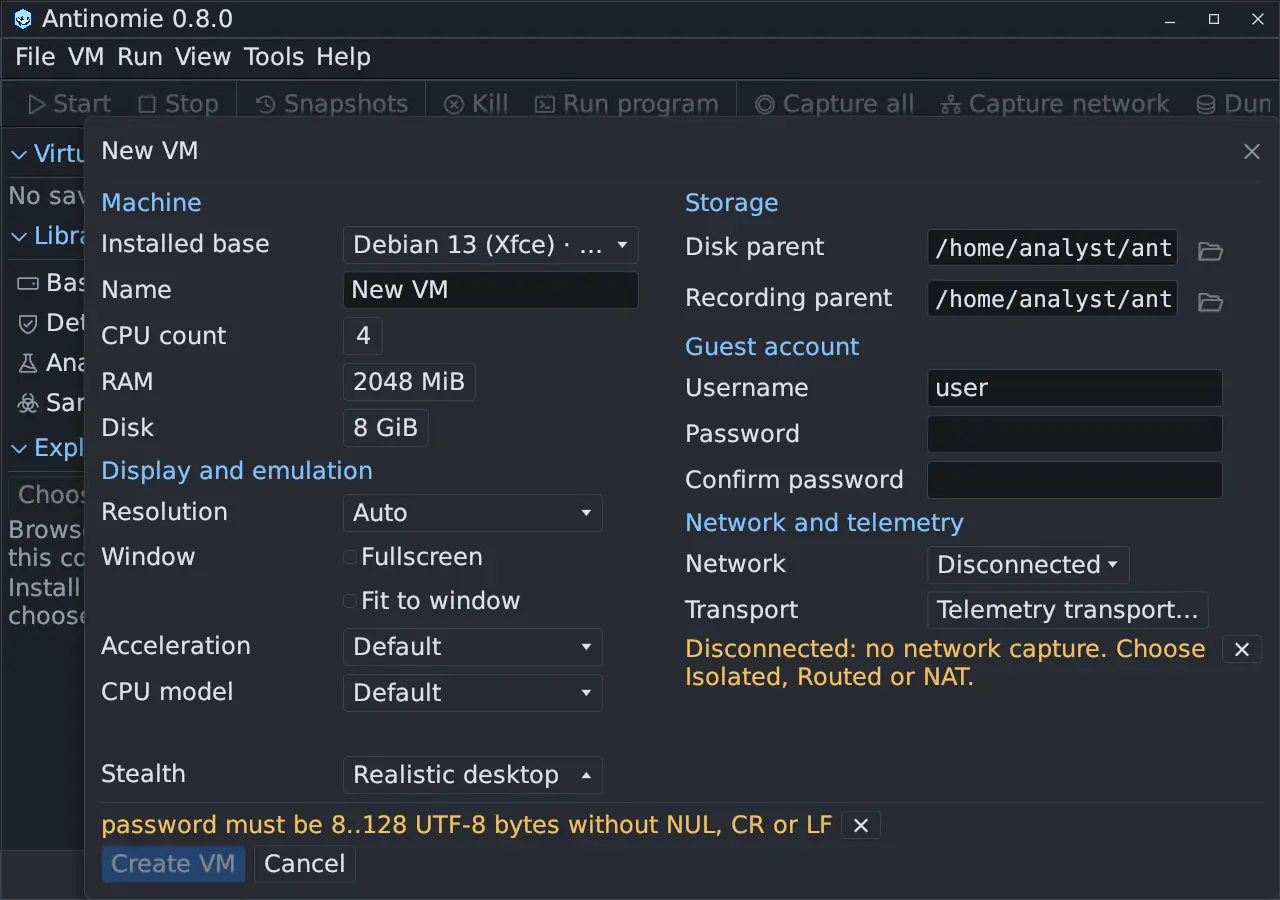
A sample you run is hostile until proven otherwise. The first control you have is the VM’s Network setting, in the VM dialog under Network and telemetry. New VMs are Disconnected.
| Mode | What the guest can do | Network capture |
|---|---|---|
| Disconnected (default) | Nothing: the VM has no network card | Not available |
| Isolated | A working network card and address; QEMU forwards nothing to the host, your LAN or the Internet | Available |
| Routed (route per run) | A card wired to Antinomie’s own gateway. Between runs nothing leaves; each run picks a route | Available |
| NAT (Internet) | Connect out to the host’s network and the Internet | Available |
The sidebar marks a VM’s network after its size (Isolated network, Routed or NAT), and its tooltip names the mode. Changing the mode applies the next time the VM boots.
Isolated uses QEMU user networking with restrict=on: no forwarding, and
no TFTP or SMB services. It lets a program bring its network stack up and try
to reach things, so you see the attempts in a capture, without a path out.
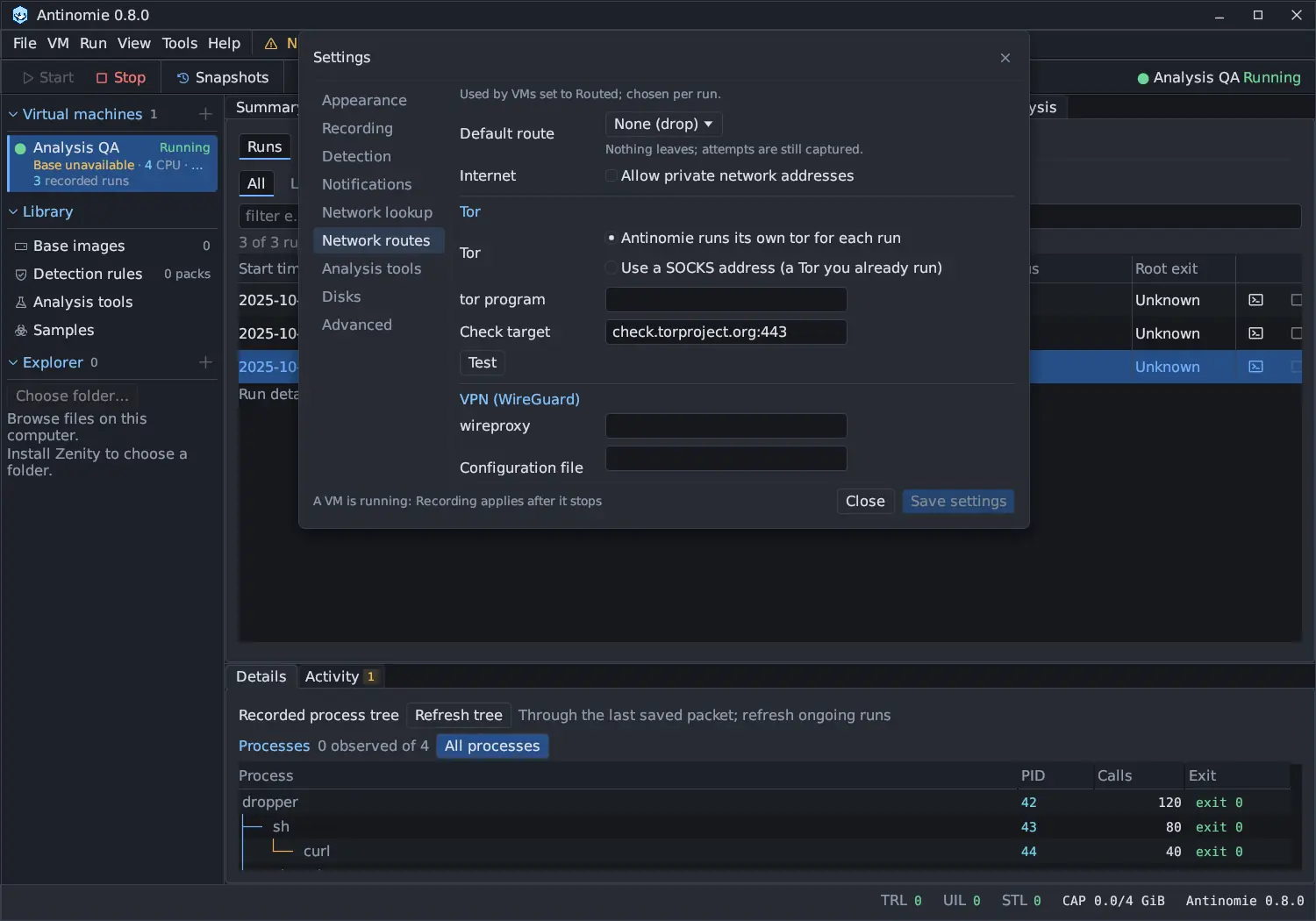
Routed puts Antinomie’s gateway between the guest and everything else, and lets each run choose a route: None (drop), InetSim (fake services), Internet, Tor, VPN (WireGuard) or SOCKS5 proxy. The default route is None (drop) until you change it in Settings › Network routes. A route that cannot start stops the run; Antinomie never falls back to another route. See Network routes.
NAT (Internet) asks for confirmation (Enable NAT? The guest can connect to the host network and Internet.) and the dialog warns NAT permits guest access to the host network and Internet. Anything the sample can reach through your
host’s network, it can reach. That includes your LAN, and, through QEMU’s
gateway address (10.0.2.2 unless a stealth profile changes the subnet),
services listening on the host’s loopback interface: a local database or
development server, a Tor or proxy you run, and the 127.0.0.1 port
Antinomie’s debugger opens during a debug session.
Routes on a Routed VM
Section titled “Routes on a Routed VM”| Route | Traffic |
|---|---|
| None (drop) | Nothing leaves; the attempts are still captured. |
| InetSim (fake services) | Names resolve to a fake address and connections reach fake services on this computer. Nothing leaves. |
| Internet | TCP is connected and DNS resolved by the host. Loopback, link-local, multicast and other special addresses are refused; private addresses are refused unless you allow them. |
| Tor, VPN (WireGuard), SOCKS5 proxy | TCP goes through the proxy, which also resolves the names. |
Only TCP and DNS are carried; other UDP is dropped, and IPv6 is not carried on any route.
Choosing
Section titled “Choosing”- Start with Disconnected. Many questions about files, processes and memory need no network.
- Use Isolated, or Routed on None (drop), when you need to see what the sample tries to contact.
- Use Routed on InetSim when the sample needs answers to go on, but nothing should leave the computer.
- Use a live route (Internet, Tor, VPN, SOCKS5) only when you need real responses, and prefer Tor or a VPN so the traffic does not leave from your own address.
- Use NAT only when nothing else will do, and then run the host on a network you can afford to expose, such as a dedicated analysis network.
The sample download window warns you when the VM you are about to send a sample into has NAT on.
Cloud metadata on a Routed VM
Section titled “Cloud metadata on a Routed VM”With a Cloud VPS profile, the gateway of a Routed
VM answers the provider’s metadata address on every route, None (drop)
included, and hands out canary credentials that are new for each run. Nothing
listens on the host and no real metadata service is asked. The canaries are
fake and say so (ANTCANARY), but on a live route a sample that sends one
reaches the endpoint it chose.
What isolation does not do
Section titled “What isolation does not do”- A network setting does not stop a sample from attacking the hypervisor. Antinomie uses virtualization and kernel instrumentation; it does not promise immunity to VM escapes. See Handling samples on the host.
- The Routed gateway is host code that reads guest-controlled frames without a sandbox, as your user.
- Network captures record only what the guest sends and receives. They do not show what happens on a physical network you exposed with NAT, or the hop from the gateway to Tor, a VPN or a proxy.
- The guest system itself (Debian’s time synchronisation, for example) also uses whatever network you connect.
- Antinomie’s own downloads (bases, tools, rules) go through your host, not the guest. Rule downloads stay off until you allow them. See Detection rules.
- The debugger’s server listens on the host’s loopback address and a private Unix socket, never on the guest’s network, and accepts only processes of your user. On NAT the guest can still reach the loopback port, as above. See Debugger.
See the security model for the full picture.