

Debugger
The debugger stops, steps and inspects one guest process from the guest kernel. Nothing runs inside the guest: there is no gdbserver, no agent and no ptrace. The app shows the session in a Debugger tab and also offers it to gdb, IDA, Ghidra or radare2 as a gdb remote server on your computer. It needs a guest base with revision 17 or newer (a base built for Antinomie 0.7.0 or later) and x86-64 programs. This page describes Antinomie 0.8.0, which is in development; the current release is 0.7.1. The debugger is the same in both.
Saved process cores are not opened in the debugger; they keep their own viewer in Core dumps.
Attaching
Section titled “Attaching”There are two ways to start a session:
- Run → Attach debugger… opens the process picker. Choose the process and press Attach debugger. The process keeps running until a debugger connects.
- Debug on start, under Debugger in Run program, stops the new program before its first instruction (the loader’s, for a dynamic program) and opens the debugger on it. The program waits until a debugger continues it or detaches. It needs Run in: App terminal; a desktop launcher runs a shell wrapper, which is what would stop. Run History lists Debug on start under Analysis enabled for the run.
Attach debugger… is disabled, with the reason on hover, while the VM is not running, while a VM RAM dump is being written, on a base older than revision 17, and while another session is attached: one process is debugged at a time.
The Debugger tab
Section titled “The Debugger tab”A session opens a Debugger · PID tab right after Static Analysis and shows it. Detaching, the process ending, the run ending or the VM stopping closes the tab. It is never restored with the saved layout.

While the tab shows, Details and Activity fold down to their tab strip so the listing gets the height. The split comes back when you switch to another tab.
Header
Section titled “Header”The header shows the process (PID … · x86-64), a thread selector, and a status
line such as Running, Stopped: swbreak @ 0x401136, Exited with
status 0 or Killed by signal 9. The run controls are:
| Button | Does |
|---|---|
| Continue | Resumes every thread |
| Step | Runs one instruction of the selected thread; the other threads stay stopped |
| Stop | Stops every thread of the process |
| Refresh | Reads the registers and memory again |
| Detach | Removes the breakpoints; the process keeps running |
| Detach and kill | Ends the process with SIGKILL, after you confirm it |
Endpoint shows the command to paste into a terminal, for example
gdb -ex 'target remote 127.0.0.1:PORT', with a copy button. Other ways to
connect adds the same command through the session’s Unix socket
(target remote | socat - UNIX-CONNECT:…, which needs socat).
Listing and registers
Section titled “Listing and registers”The main view is the disassembly around the instruction pointer, decoded with
the same decoder as the static listing, with a ▶ on the current instruction.
Instructions before the current one are a best guess, because x86 instruction
lengths vary. Click the dot in the gutter beside an instruction to set or remove
a breakpoint there. There is no function sidebar: the debugger reads windows of
memory and has no symbols to name functions by.
Registers sits beside the listing, with rflags decoded (for example
[PF ZF IF]), fs_base, gs_base and orig_rax. Registers and code are read
only while the process is stopped.
Under the listing is a strip of panes: Threads, Processes, Breakpoints, Memory, Stack, Signals and Console. Each is folded until you click its name and opens or folds on its own; which ones are open is remembered. Open panes share the width and the area can be dragged taller.
| Pane | Shows |
|---|---|
| Threads | Thread, State (running, stopped, or stopped with its signal) and PC. Click a thread to select it. |
| Processes | The program and the children of its forks, with PID, Parent and State, Show and Let go, and the At a fork choice |
| Breakpoints | Add a breakpoint by address (0x401136) as the kind chosen in Add as, enable or disable it, or remove it. Columns On, Address, Kind and At PC. |
| Memory | Reads 256 bytes at an address you enter, as hex rows |
| Stack | 256 bytes from rsp |
| Signals | The signal handling table, below |
| Console | A gdb console attached to this session, below |
The tables sort from their headers. Breakpoints can be changed only while the process is stopped, and the panel reads memory in bounded ranges, at most 4 KiB per request.
Add as chooses the kind of breakpoint the Add button makes:
| Kind | Uses |
|---|---|
| Software | A breakpoint byte patched into the code (the default) |
| Hardware | One of the CPU’s debug registers; nothing is written to memory |
| Watch write | Stops when the 8 bytes at the address are written |
| Watch read | The same as Watch access: the debug registers have no read-only mode, so it also stops on writes |
| Watch access | Stops when the 8 bytes at the address are read or written |
Hardware breakpoints and watchpoints share the four debug registers. A kind the guest does not offer is greyed, with the reason on hover, such as This guest has no watchpoint registers.
One controller at a time
Section titled “One controller at a time”The tab drives the process until a debugger connects. A connecting debugger, external or the console, takes control: the process is stopped for it, as gdb expects, and the tab becomes read-only. A chip says gdb is driving; panel is read-only and the status line says Controlled by gdb (read-only here until it disconnects). When gdb disconnects, the process keeps running and the tab drives again. Breakpoints set in the tab stay set.
The server listens on a private Unix socket and an ephemeral 127.0.0.1 port,
nothing else, and accepts only processes of your user. A client that detaches or
disappears leaves the process running with its breakpoints removed, and the
server keeps listening. The server ends with the process or the VM.
gdb console
Section titled “gdb console”The Console pane runs host gdb in a terminal, connected to the session with
target remote 127.0.0.1:PORT like any external gdb. Opening the pane starts gdb;
while it is connected gdb controls the process and the rest of the tab is
read-only.
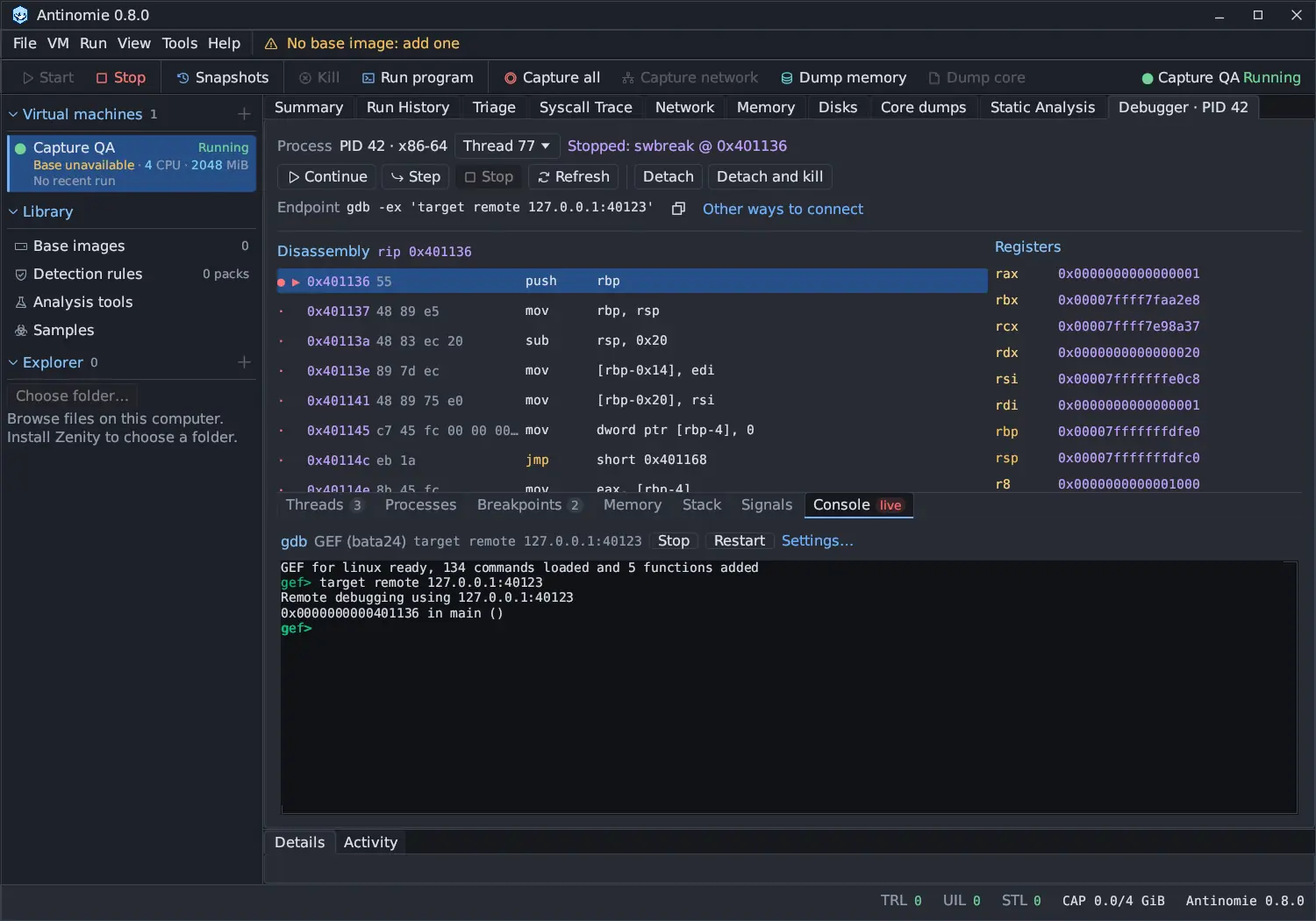
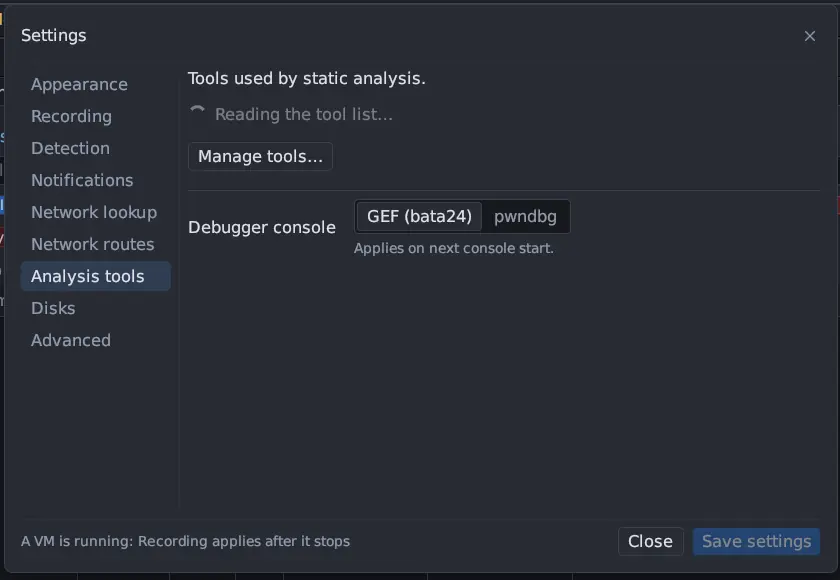
The front end is GEF (bata24) by default, or pwndbg. Choose it in Settings → Analysis tools → Debugger console; the choice applies the next time the console starts. Settings… in the pane opens that page.
The console is a terminal: select, copy and paste work as in a run’s terminal.
- GEF (bata24) runs on this system’s gdb, which needs Python support. If gdb is not found, the pane says so.
- pwndbg brings its own gdb. A pwndbg installed on the system is used before
Antinomie’s portable copy. It runs with a private home folder, so a
~/.gdbinitthat loads another pwndbg does not stop it.
Both are managed tools in Library › Analysis tools,
downloaded from their upstream releases and checked by SHA-256. A missing front
end is named in the pane with an Install… link to that page. gdb starts with
-nx and debuginfod off, so it does not read your own gdbinit or go to the
network by itself.
The pane can be folded and reopened while gdb keeps running (its tab shows live). Stop quits gdb and the process keeps running; Restart starts gdb again and reconnects it. When the session ends, gdb is told to quit, which detaches it.
Breakpoints, steps and watchpoints
Section titled “Breakpoints, steps and watchpoints”- Breakpoints set in the tab are software breakpoints.
- From gdb,
hbreak,watchandawatchuse the four hardware debug registers, shared by all of them and by the tab’s hardware breakpoints and watchpoints. A fifth is refused and gdb carries on.rwatchis not supported: x86 has no read-only watch. stepiover asyscallstops on the next instruction, and overrep movsbretires the whole copy.- gdb lists every thread and steps one thread at a time. Position independent and dynamic programs are placed from the auxiliary vector.
Forks and execs
Section titled “Forks and execs”gdb’s follow-fork-mode, detach-on-fork, catch fork, catch exec and vfork
work as they do against gdbserver. A followed fork holds the child at the fork as
a second inferior. An exec is reported with the new program’s path and the
session continues in the new image; the old image’s breakpoints are dropped.
In the tab, At a fork in Processes is Do not follow, Follow the parent (the default), Follow the child or Ask at each fork, with Let the other process run (on by default). With Ask at each fork the program stops and a banner offers Follow parent and Follow child. Let go in the table stops debugging one process, which then runs free. The choice is remembered for later sessions.
Non-stop
Section titled “Non-stop”set non-stop on in gdb stops and runs threads one at a time (continue -a,
interrupt), and memory can be read while threads run.
Signals
Section titled “Signals”A signal about to be delivered to the program stops it first. The Signals
pane is the tab’s handle table for the 31 standard signals, with Signal,
Stop, Print, Pass and Changed columns. It starts with gdb’s
defaults: SIGALRM, SIGCHLD, SIGURG, SIGVTALRM, SIGPROF, SIGWINCH and
SIGIO do not stop, are not printed and are passed; SIGINT and SIGTRAP stop
and are not passed; the rest stop, print and pass. A quiet signal is passed on and
noted under Recent signals. Reset to defaults restores gdb’s table. Your
changes are remembered and sent at the start of each session. A gdb client keeps
its own handle table.
What the program sees
Section titled “What the program sees”The program sees no tracer:
TracerPidstays 0 and its ownPTRACE_TRACEMEstill succeeds.- Breakpoints and steps raise no
SIGTRAP, and the trap flag is hidden from its registers and frompushf. - Reading its own code through
/proc/self/memshows the original bytes, and hardware breakpoints leave nothing in memory. The program cannot read the debug registers.
What it can still see: a direct load from its own code can see a software
breakpoint byte while the program runs. Use hbreak when that matters.
Stop, cores, snapshots and reconnects
Section titled “Stop, cores, snapshots and reconnects”- Ending the run stops a debugged program at once, whether it runs or sits at a breakpoint.
- A process core can be taken while the debugger holds the program stopped. See Core dumps.
- Snapshots are allowed while a debugger is attached. After a restored snapshot or a transport reconnect the app takes the guest’s sessions back: stopped threads stay stopped and breakpoints stay in place. A restore drops a connected gdb, whose picture is from another time, and the tab reads the state again.
- While a RAM dump is being written the VM is paused, and the tab’s polling waits.
Limits
Section titled “Limits”- x86-64 only; one debugged program at a time.
- Four hardware breakpoints and watchpoints in all; no
rwatch. - A clone that shares memory without being a vfork is not followed, and a vfork child shares its parent’s breakpoints until it execs, so a breakpoint the parent hits while the child runs is missed.
- Each request to the guest costs about 4 ms.