

Network
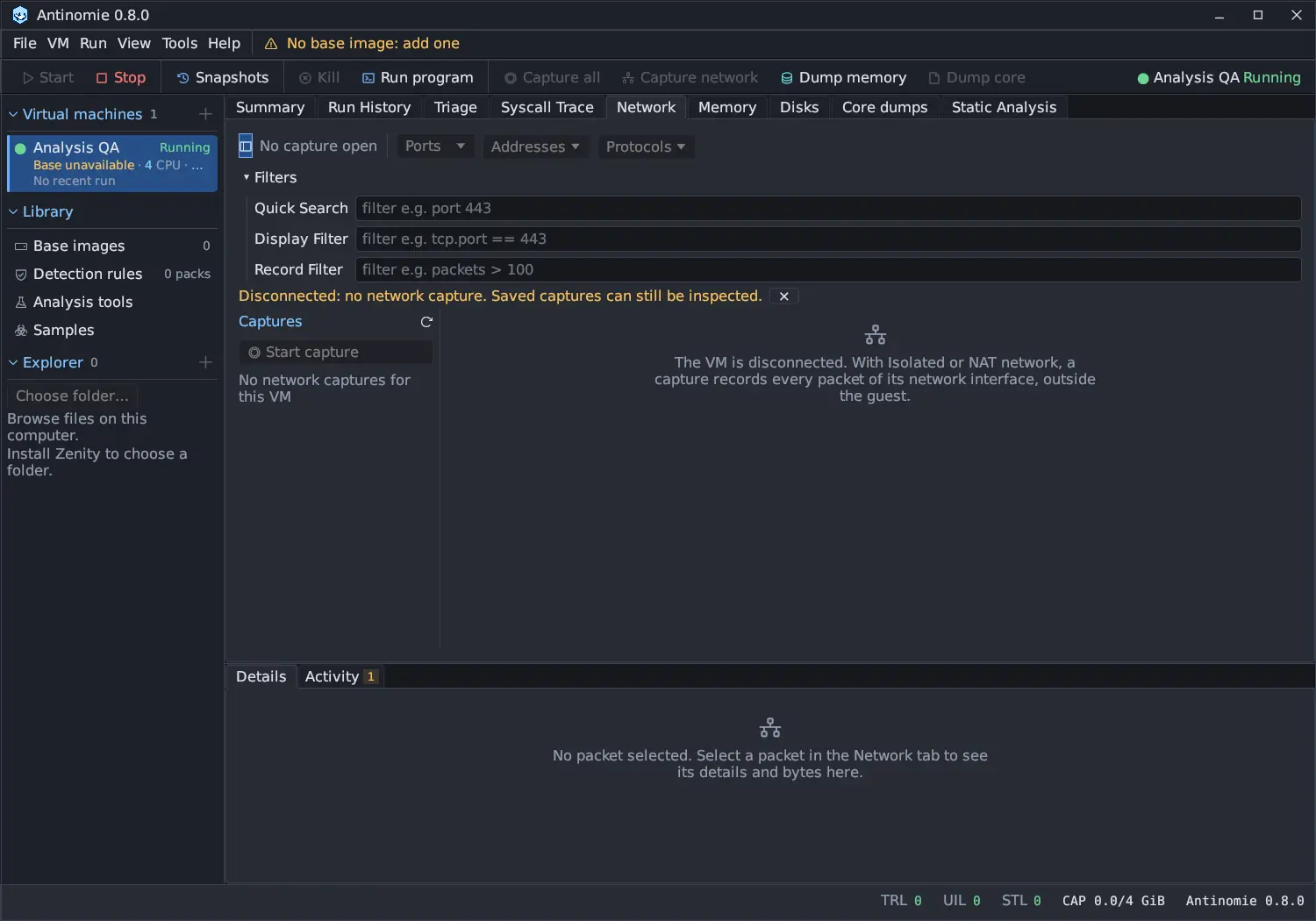
The Network panel records the VM’s network traffic from outside the guest and lets you browse it. Capturing needs a VM with Isolated, Routed (route per run) or NAT (Internet) networking; a Disconnected VM has no capture path, but its saved captures can still be inspected. See Network capture for what a capture is and Network routes for where a Routed VM’s traffic goes.
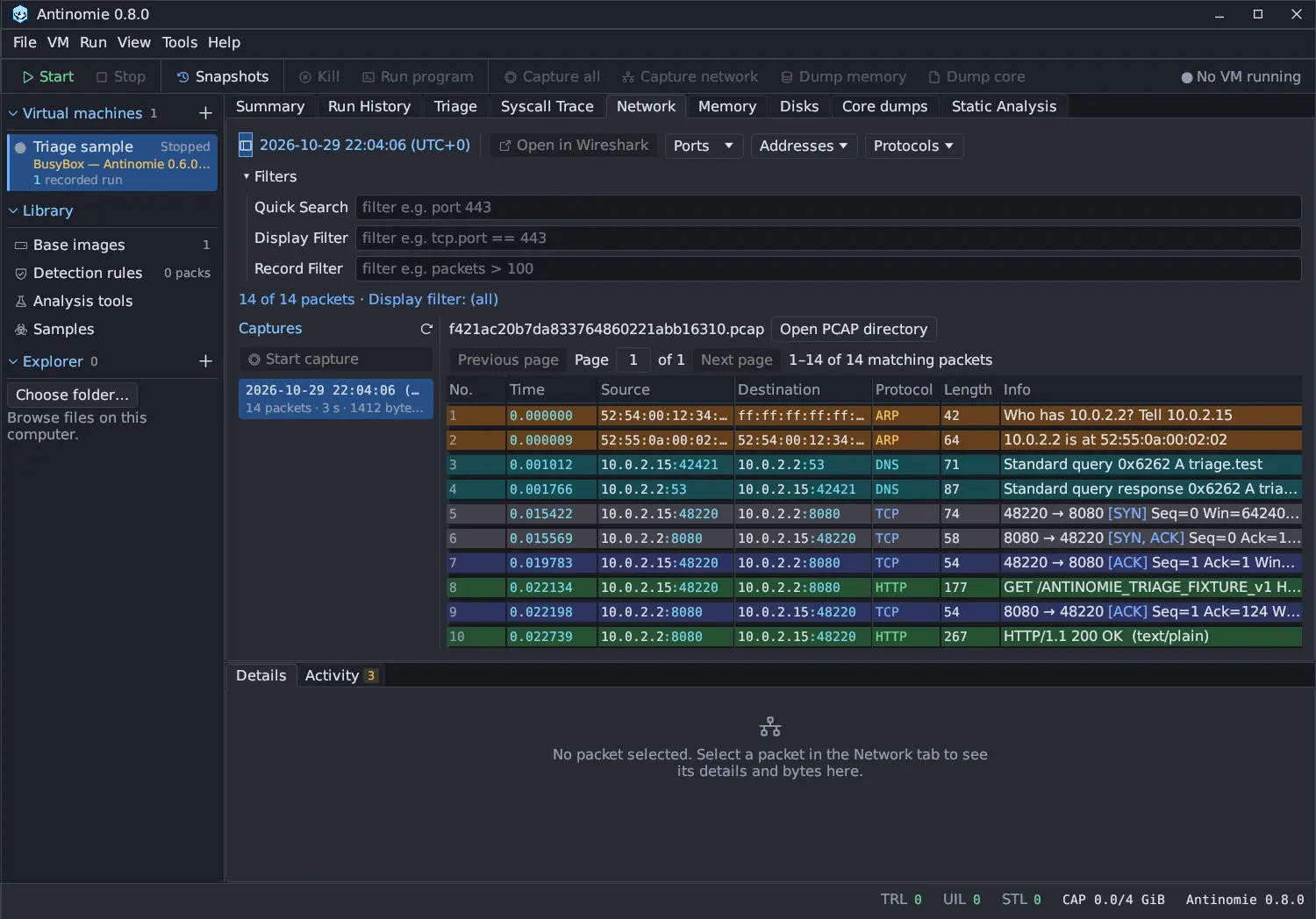
The packet list and the details of a packet come from the installed TShark; the app does not decode packets itself. See Without TShark.
Capture list
Section titled “Capture list”The left list, Captures, holds the running capture first (marked Live capture), then earlier ones by local start time. The refresh icon reloads it, and the sidebar icon hides or shows the list. With no captures it says No network captures for this VM.
- Start capture and Stop capture (or Capture network on the toolbar) control a capture of the running VM. Each start creates a separate pcap in the boot’s recording.
- Click a capture to open it. Its record, with name, capture ID, tags, state (Live, Completed or Unfinished (the app ended first)), scope (Per run or Whole boot), boot, start and stop times, duration, packets, size, PCAP file and metadata folder, appears in Details.
- Right-click a capture for Rename…, Edit tags…, Open result directory, Open PCAP directory and Delete….
Deleting a capture
Section titled “Deleting a capture”Delete… asks for confirmation, naming the capture and its size, and says it
can’t be undone. The pcap goes with its summary, its .metadata annotation
folder and any other <capture>.* file beside it, such as the parsed-list
cache. The boot’s recording quota gets the freed bytes back. Runs that listed the
capture read it as deleted: Run History and Triage counts refresh, and
Detection says Evidence missing. Each deletion is an Activity entry.
Delete… is disabled, with a tooltip, for the live capture (“Stop the capture first”) and for a capture that is still being written. The deletion is done by the backend, only inside the VM’s recording folders.
Filters
Section titled “Filters”A collapsible Filters section has one labelled row per filter. Each box shows a grey example.
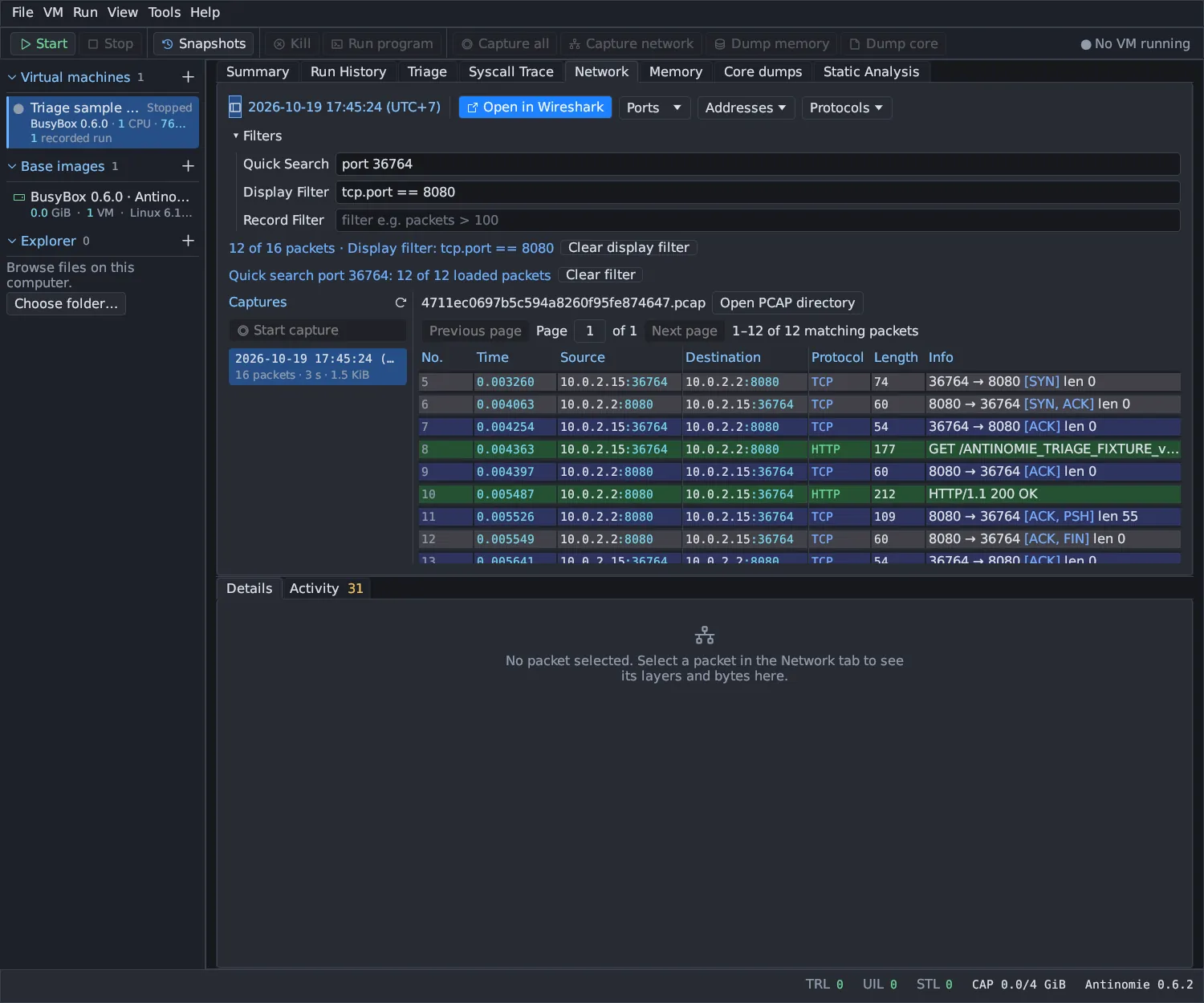
| Row | Filters | Reference |
|---|---|---|
| Quick Search | The page of packets on screen, with a simple syntax | Network filters |
| Display Filter | The whole capture, with Wireshark syntax run by TShark | Network filters |
| Record Filter | The list of captures, by name, tags, state and so on | Network filters |
The Ports, Addresses and Protocols dropdowns list what is on the page on screen, with packet counts. Choosing one fills Quick Search.
Packets
Section titled “Packets”| Column | Meaning |
|---|---|
| No. | Frame number |
| Time | Seconds since the first packet of the capture |
| Source, Destination | Endpoints |
| Protocol | Protocol as Wireshark names it, coloured like Wireshark |
| Length | Frame length |
| Info | Wireshark’s summary of the packet |
TShark labels every protocol it knows, for example all TLS versions and handshakes, HTTP/2, QUIC Initial packets with their server name, SSH, SMB and DNS on any port.
- Click a packet to show it in Details. Click an address, port or protocol in a row to filter by it.
- Right-click a packet for Display filter, which builds a clause from its frame, addresses, transport and ports (Apply as filter, Add AND, Add OR, Exclude), and for quick filters such as Filter by port 443 or Filter by protocol DNS.
- Packets are shown 500 to a page: Previous page, Page N of M, Next page, and the range of matching packets. Follow live keeps a live capture on the newest page.
- Open PCAP directory reveals the pcap file.
The packet table does not sort by its headers; packets stay in capture order.
On a Routed VM, the packets are the guest’s view of its traffic with Antinomie’s gateway. On InetSim every name resolves to the fake services’ address, and on Tor, VPN and SOCKS5 to stand-in addresses from 198.18.0.0/16; the DNS answers and the HTTP Host or TLS server names show which host a connection was for.
Parsing
Section titled “Parsing”When you open a capture, TShark prints its packet list once, on its own thread. The first page appears within a moment and the list fills as parsing goes on, with TShark is parsing the capture: N of M packets and a Stop parsing button. Stopping keeps what was parsed (Parsing was stopped after N of M packets.). Only the page on screen is held in memory.
The parsed list of a finished capture is cached beside it in
<capture>.pcap.view, so it reopens quickly. The cache is used only for the same
pcap (size and modification time) and the same TShark version, and it is deleted
with the capture. A live capture is re-read about once a second, and only its new
frames are parsed.
Packet details
Section titled “Packet details”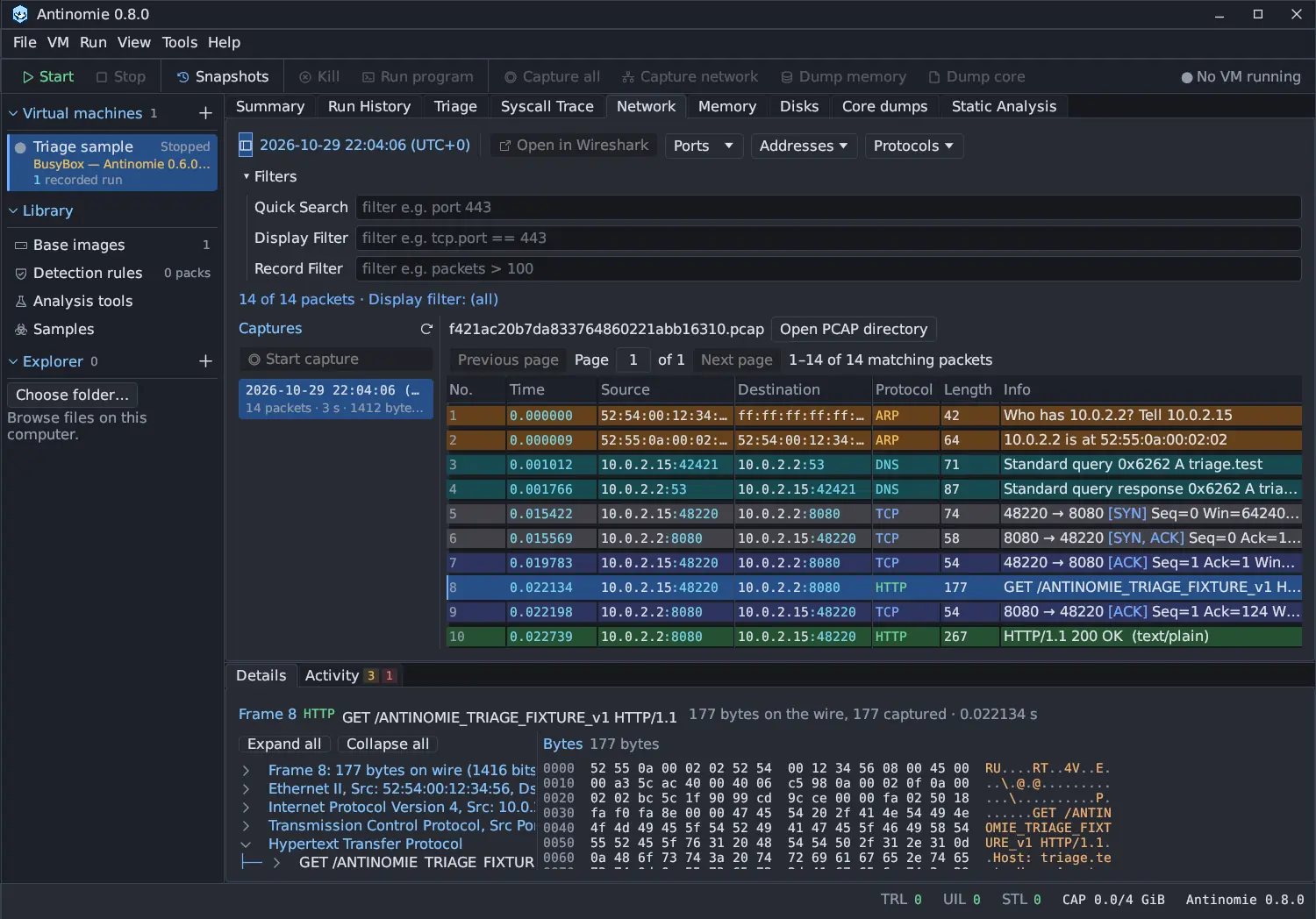
Details shows the selected packet: the frame number, protocol, info, its length on the wire and captured, and its time. Below that:
- On the left, TShark’s details tree of the packet, as Wireshark shows it, with Expand all and Collapse all. A line you open stays open in the next packet. The tree is cut at 20,000 lines and 24 levels; a cut tree says Deeper or later lines were left out (size limits).
- On the right, the frame’s Bytes. Choosing or hovering a line of the tree marks its bytes, using TShark’s own offsets; an offset that does not fit the frame is not marked.
TShark reports byte ranges of reassembled or decrypted data relative to that data, so such lines can mark the wrong bytes of the frame. Earlier segments of a reassembled stream do not show “reassembled in” links.
Encrypted traffic is not decrypted. Without keys the tree shows what TShark parses: TLS handshakes with ALPN, cipher suites and certificates, JA3 and JA4 when the installed TShark computes them, QUIC Initial server names, cleartext HTTP/2 and SSH banners.
TShark runs in the analysis sandbox, with no network and bounded time, memory and output, and its output is validated before it is shown.
Without TShark
Section titled “Without TShark”Without TShark the panel says TShark not installed — install it from Tools. Raw frames and their bytes are shown without protocol decoding. It still lists the raw frames (number, time and length) and shows their bytes, but no protocol, info or details tree, and the Display Filter is unavailable. In this mode at most 200,000 frames are listed; a note says so and Open in Wireshark shows all of them.
From Triage
Section titled “From Triage”Triage › Network has an Open Packets button that shows the run’s capture here. Double-clicking a row in Endpoints, Domains, URLs or TLS, or Open original packet in its Details, opens its packet. See Triage network. The sample window lists each network capture a sample’s runs left under Output files, with an action that opens it here.
New in 0.8.0Open in Wireshark
Section titled “Open in Wireshark”Open in Wireshark opens the capture in an installed Wireshark. For a live
capture it streams the packets as the file grows. The button is disabled with
Wireshark is not installed when wireshark is not found; Tools → App
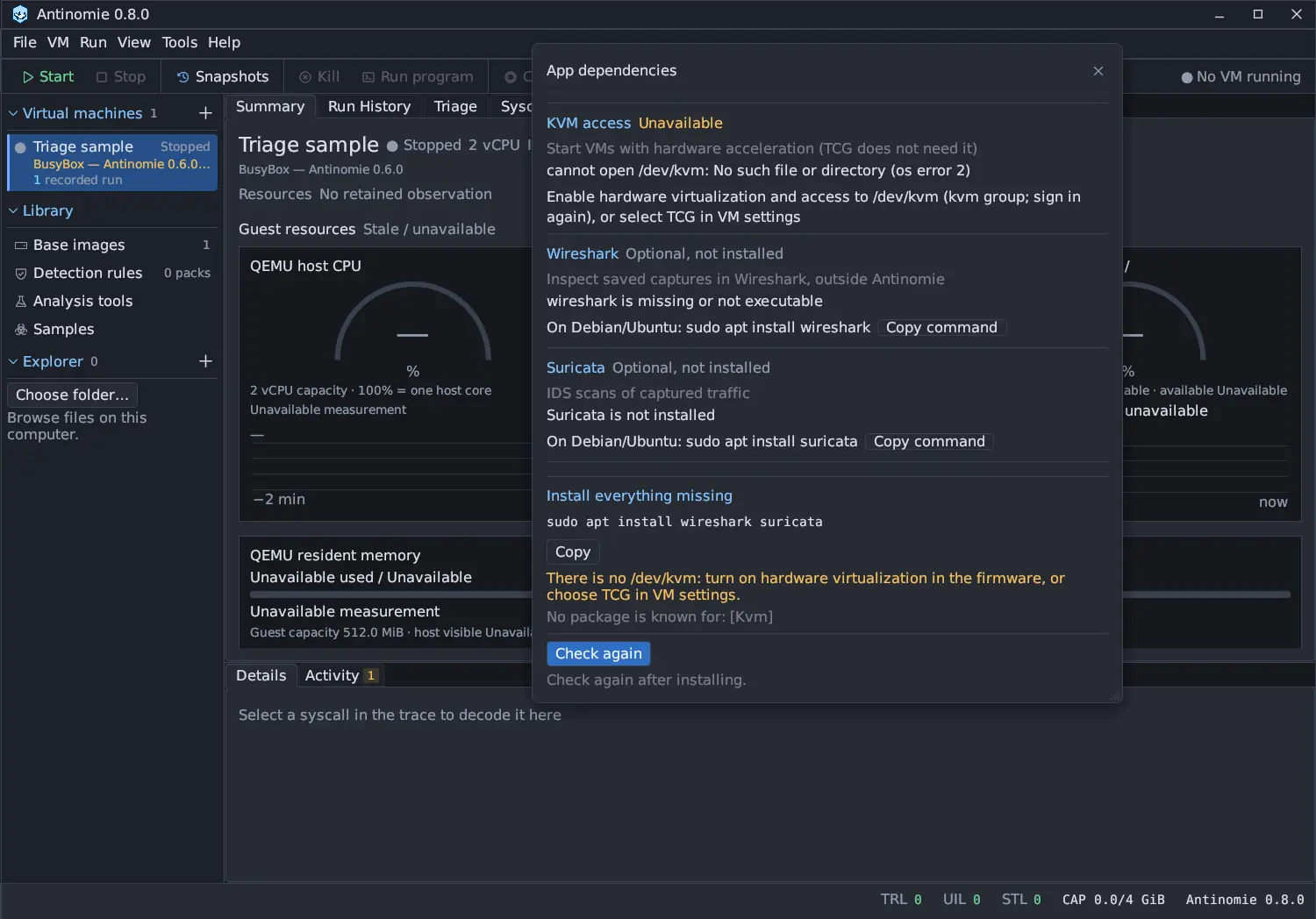
dependencies lists Wireshark as optional, with the command that installs it.
The pcap itself is never modified. Wireshark runs as your user without a sandbox, so open only captures you are prepared to trust that far. See Export and other tools.