

Run History
Run History lists everything recorded for the selected VM, including earlier boots. Its two tabs are Runs and Captures. This page describes Antinomie 0.8.0, which is in development; the current release is 0.7.1.
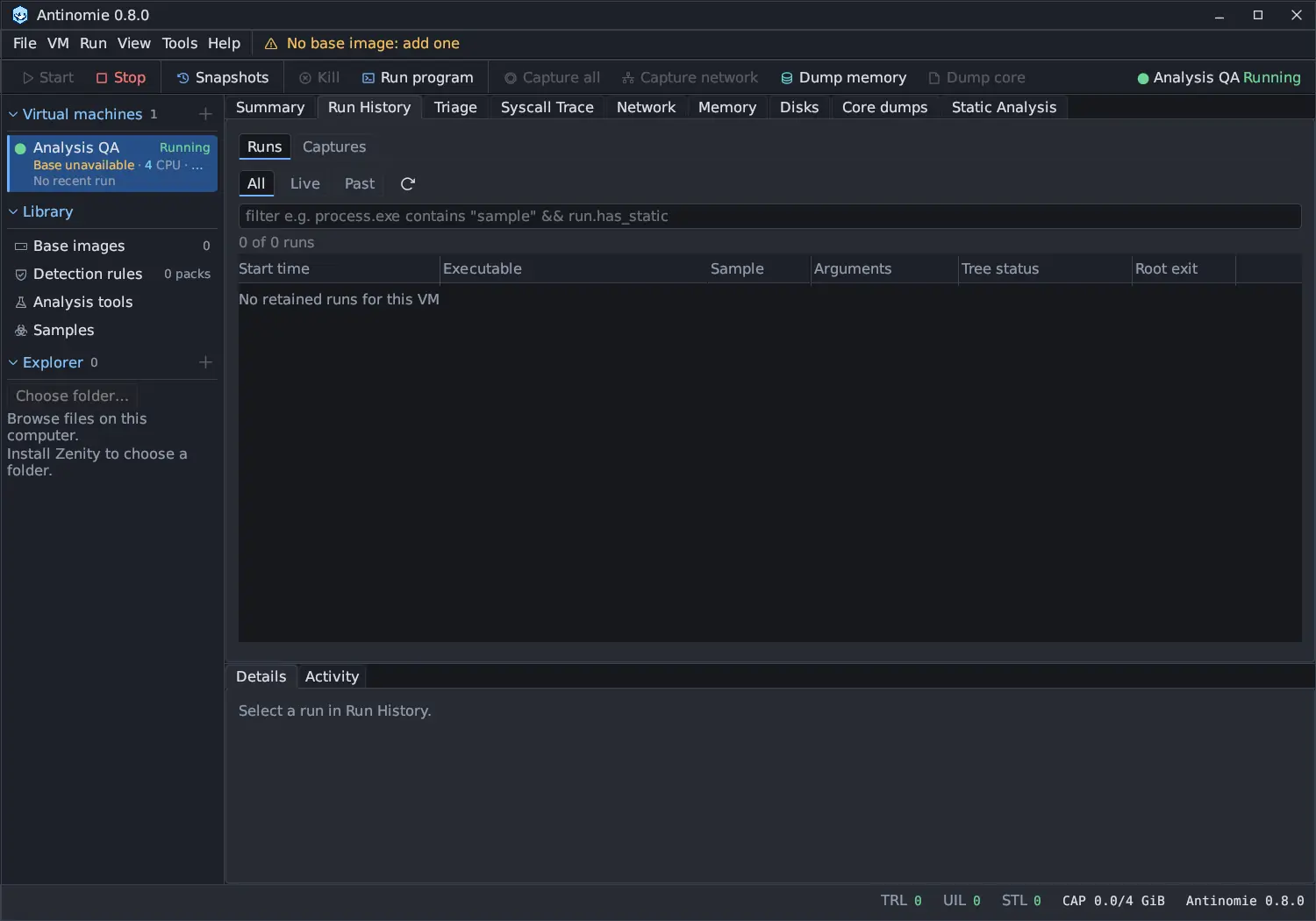
![Run History on the Runs tab with All selected: a filter box, 3 of 3 runs, and columns Start time, Executable, Sample, Arguments, Tree status and Root exit; the runs /opt/miner/xmrig, /usr/bin/curl and /tmp/dropper [static analysis] are Finished, each with a terminal and a stop icon; Details below shows the recorded process tree dropper, sh and curl with PID, calls and exit 0.](/_astro/polish-history.CdyN5s2w.webp)
| Column | Meaning |
|---|---|
| Start time | When the run started |
| Executable | The program, marked [static analysis] when a report exists |
| Sample New in 0.8.0 | The library sample the run executed, by its name (hover for its SHA-256), or - for another program |
| Arguments | The launch arguments |
| Tree status | The run’s state, with Saving stopped if its recording stopped |
| Root exit | How the launched root process ended, such as Exit 0 |
Runs are listed newest first. Click a column header to sort by it: the first click sorts ascending, the next descending, and an arrow marks the column. Right-click a header to return to the recorded order. Hover Tree status for the run’s task counts and flags, and Root exit for the wait status.
The last column has a terminal icon, which reopens the run’s terminal, and a stop icon, which ends a live run and its descendants.
Above the table, All, Live and Past narrow the list and the refresh
icon reloads it. The filter box takes
Run History filter expressions, such as
sample == "install.sh", and shows how many runs match, for example
3 of 12 runs.
Click, double-click and right-click
Section titled “Click, double-click and right-click”- Single click, or the arrow keys, Home and End once the pane has focus, selects a run. The selection is shared with the run dropdowns of Triage and Syscall Trace.
- Double click selects the run and opens Triage.
- Right-click offers Rename…, Edit tags… and Open result directory, then each filterable field with Apply as filter, Add AND, Add OR and Exclude.
A filter never deselects the run you chose. If the filter hides it, the panel says The selected run is hidden by this filter and offers Clear filter.
Stopping a run
Section titled “Stopping a run”The stop icon, like Kill on the toolbar, sends SIGTERM to the run. On a base
built for 0.7.0 or later, the guest waits a grace period of 4 seconds and then
sends SIGKILL to every task of the run that is still alive, including setsid()
children and orphaned grandchildren, repeating it every 250 ms while any remain.
The guest kernel does this itself, with no process of its own. A process core
being copied is not interrupted; the SIGKILL waits for it, at most 15 seconds
more.
When the escalation happened, the Tree status hover says Stop needed SIGKILL after the grace period. Root exit is the program’s own wait status: Signal 9 after an escalation, Signal 15 or its own exit code when it obeyed SIGTERM. A base built before 0.7.0 sends SIGTERM only.
Run details
Section titled “Run details”The selected run’s details appear in Details:
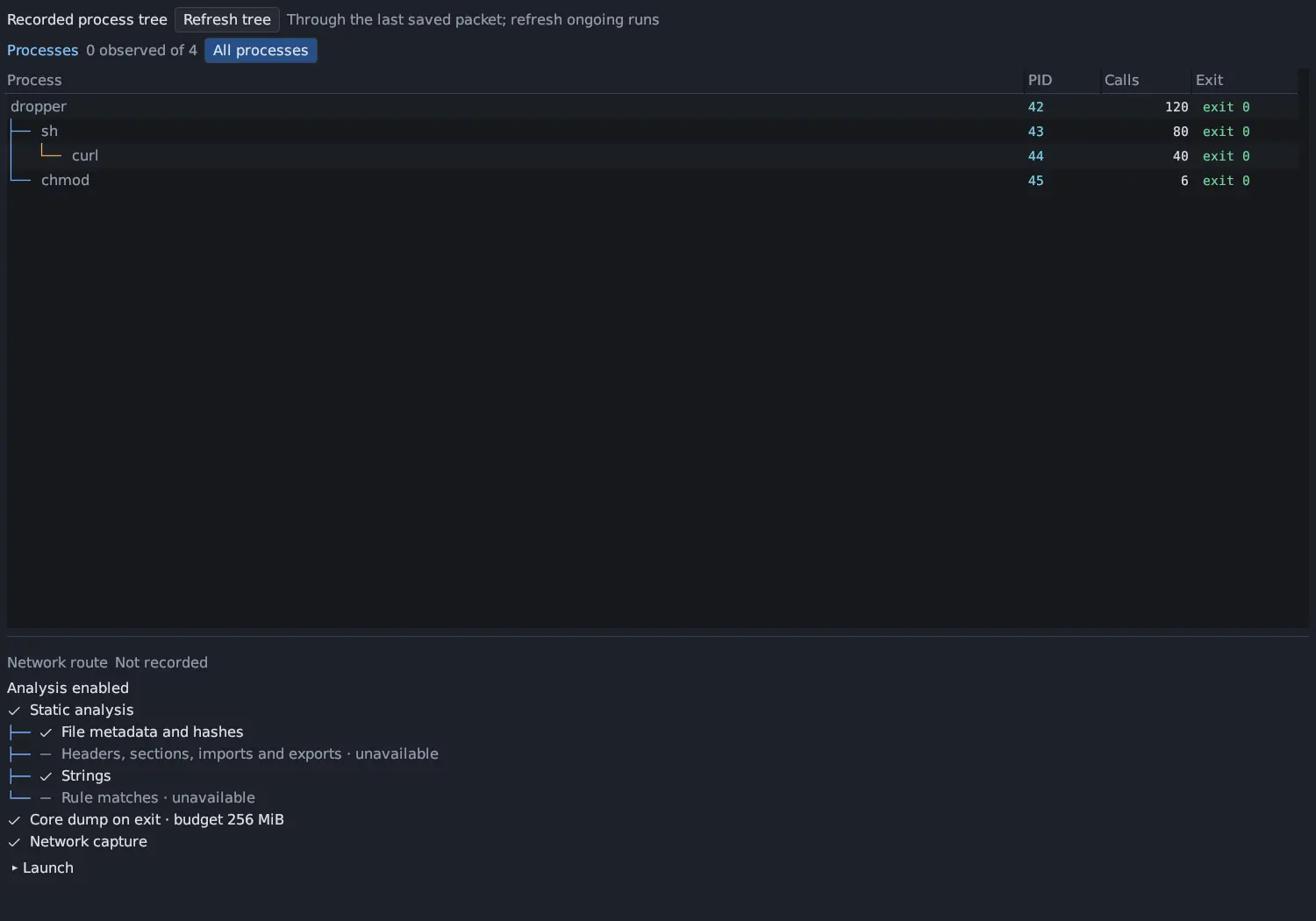
- Any warning or note about the recording, such as Saving stopped. See Recording incomplete.
- The Recorded process tree, with Refresh tree for runs that are still
going. Click a process to open Syscall Trace filtered to it
(
process.pid == N; clear the filter to see all calls again). A capture made before Antinomie 0.3.0 has no tree. - Network route: the route the run used and what the gateway counted, or Not recorded for runs from before routes existed. See Network routes.
- Machine New in 0.8.0: the machine the
guest looked like, such as
looks like a …with the profile’s model; hover it for the board, product, disk, memory and network card the stealth profile showed. See Stealth profile. - Analysis enabled, as a tree: Static analysis with each check below it, then Memory dump on exit, Core dump on exit (with its budget), Debug on start and Network capture. A check that produced no result, and a capture that was deleted or failed, is greyed with the reason.
- A Launch fold: executable, arguments, working directory, environment, UID / GID, boot, session and recording folder.
![Run History of a real run: 1 of 1 runs, /tmp/triage-sample [static analysis] with its Sample name, Tree status Finished and Root exit Exit 0, and the terminal icon; Details shows Recorded process tree with Refresh tree, Processes 3 observed of 3 and the tree triage-sample (PID 105, 104 calls), sh (106, 74 calls) and sleep (107, 54 calls), each exit 0.](/_astro/real-run-history.-AF95Skc.webp)
The process tree grows with the window, can be resized by dragging the bar under it (double-click resets it), and scrolls on its own in both directions. The Details panel scrolls, keeps its place while the same run stays selected, and returns to the top when you choose another.
After a reconnect or a snapshot restore
Section titled “After a reconnect or a snapshot restore”A run that lives through a transport reconnect keeps its ID: the selection, an open terminal and a pending stop still mean it. Run History lists it once, as its newest recording segment, with a note per reconnect such as Recording continues after a transport reconnect (recording segment 2); the earlier part is kept in the recording of boot …. Triage, its file lifecycles, the detection journal and the network evidence read every segment of the run, oldest first.
Restoring a snapshot starts a new run record, with the note Continues run … after the guest was restored from a snapshot.
Captures
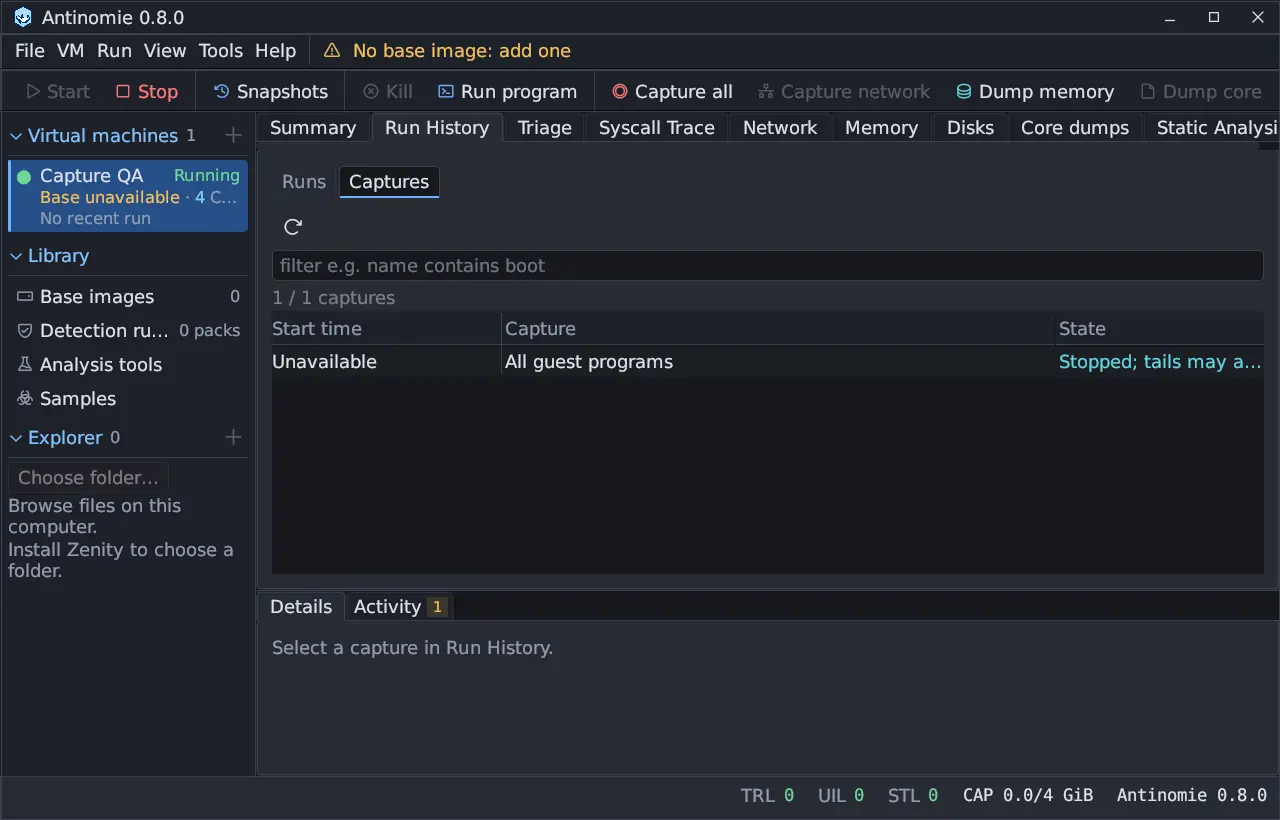
Section titled “Captures”The Captures tab lists the Capture all and Attach to process
recordings of the VM. Its columns sort by header like the runs. Its filter box
takes the same evidence fields as other
record tables, for example name contains boot. Selecting a capture makes
Syscall Trace show it, and its processes appear in the trace’s process menu.
Details show the capture. Network captures are not listed here; they are on the
Network panel.
Runs of one sample across VMs
Section titled “Runs of one sample across VMs”Run History shows one VM. To see every run of a sample, whichever VM it ran in, open the sample in Library → Samples: its Runs tab is Run History across every VM, limited to that sample, with the environment each run started in. See The sample window.