

Triage processes
The Process section of Triage has one segmented control with three views, Process tree, Suspicious activity and Graph, the first two with their counts. The suspicious count is coloured by the worst tier among the rows. The eBPF section sits beside it. This page describes Antinomie 0.8.0, which is in development; the current release is 0.7.1.
Process tree
Section titled “Process tree”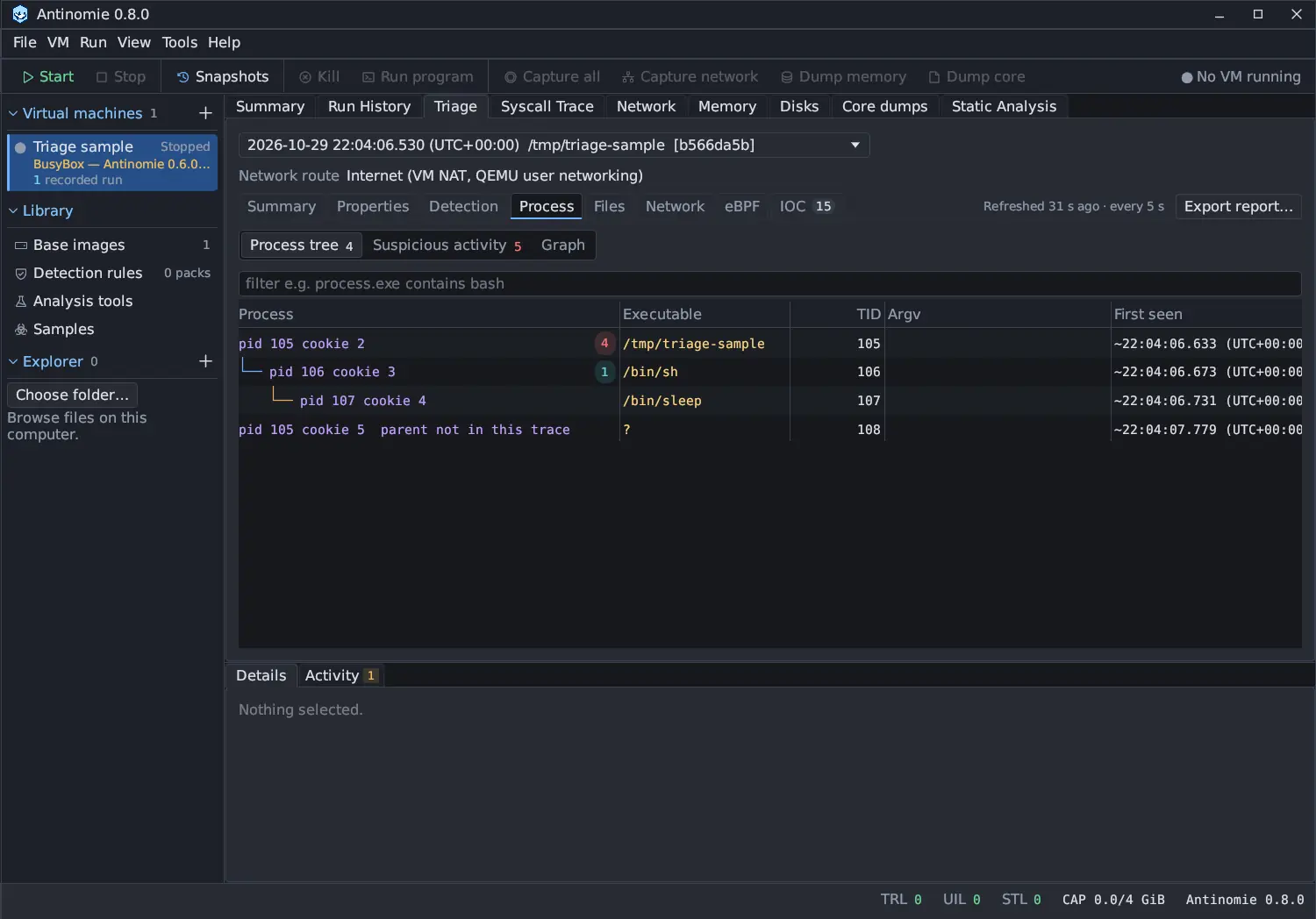
The tree shows the run’s processes, drawn with tree-style branches. Columns:
Process, Executable, TID, Argv, First seen, Last seen,
Task outcome and Exec history.
- A process is a new child when a
fork,vfork,cloneorclone3creates one. AclonewithCLONE_THREADis a thread and stays inside its parent. Aclone3whose flags were not captured creates no parent and child edge. - Executable is the latest successful captured exec path, and Exec
history keeps earlier ones. When an exec’s path was not captured, the
process is named by the image the guest says it loaded, never by its
parent’s; with neither it reads
?. Task identity uses the task cookie, not the PID alone, so a reused PID does not merge two processes. - A task whose parent was not recorded says parent not in this trace.
- Task outcome is how the task ended, separately from the run’s tree status.
- A process with suspicious observations shows their count as a small chip in
its Process cell, coloured by the worst tier among them (HIGH red, MEDIUM
amber, LOW cyan). Click the process to open Suspicious activity filtered to
it. Filter on it with
process.suspicious > 0orprocess.worst_tier == high. - A filter leaves a tree of the remaining rows. Sorting makes the list flat, and restoring recorded order brings back the indentation.
- The task identity count on Summary includes threads; it is not a process count.
A run that lived through a transport reconnect is read whole: its recording segments are read oldest first into one tree.
A process’s Details
Section titled “A process’s Details”Select a process to see in Details its Suspicious observations (up to 12, each with its tier, rule and summary; click a rule to open its syscall in Syscall Trace), or None recorded for this process., and three jumps:
| Button | Opens |
|---|---|
| Filter Trace to this process | Syscall Trace filtered to this process (process.cookie == N, or process.pid == N without a cookie) |
| Files it touched | Files → Opened files filtered to process.pid == N |
| Suspicious activity | Suspicious activity filtered to process.pid == N; disabled when the process has none |
Suspicious activity
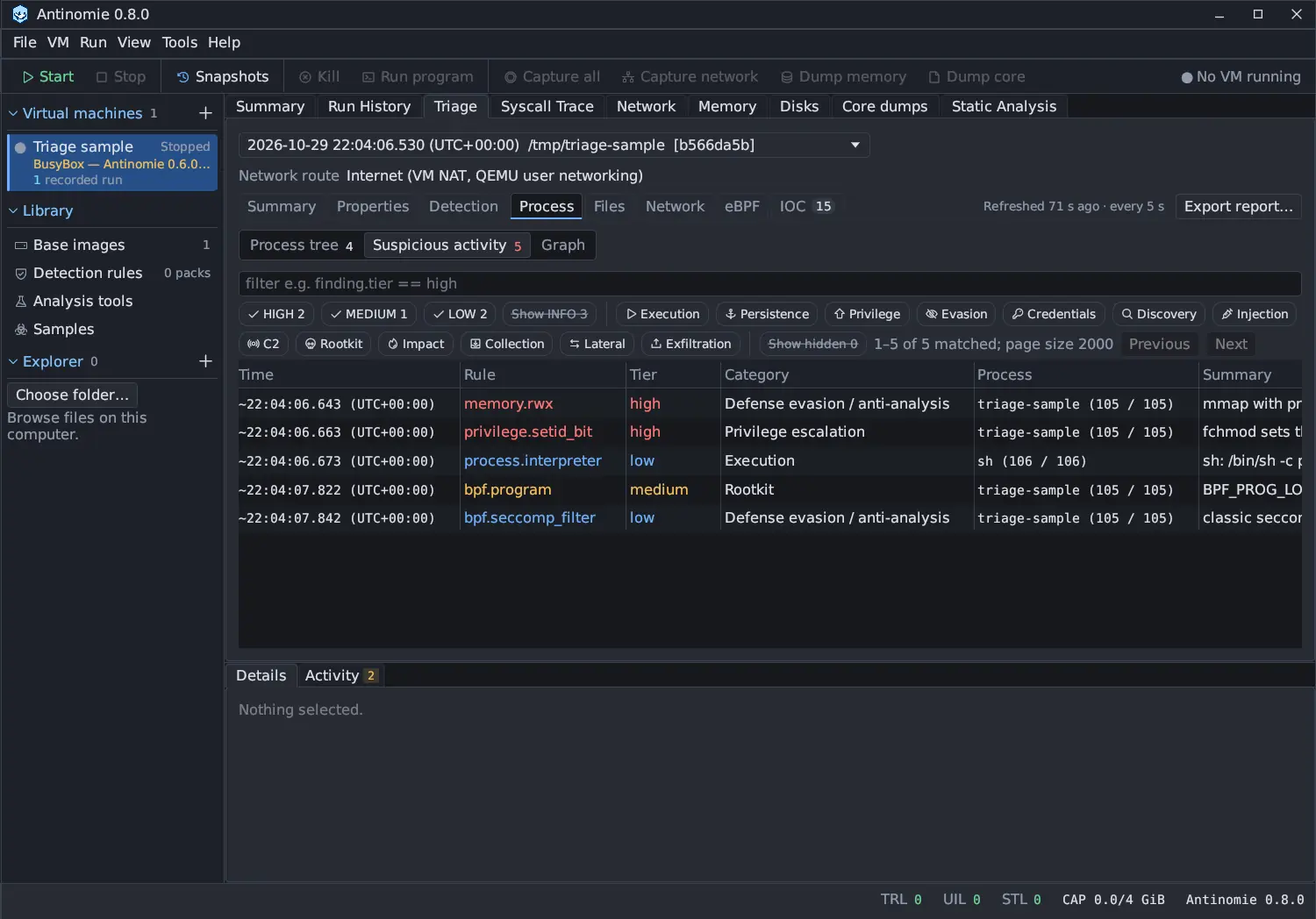
Section titled “Suspicious activity”Suspicious activity lists behaviour recognised in the run’s system calls, kernel records and packets. Each row is an observation to investigate, not a verdict that the sample is malicious.
Antinomie 0.8.0 has 136 rules (0.7.1 has 134; 0.8.0 adds
credential.canary_used and credential.cloud_credentials for the
cloud VPS profiles). Each rule has:
- a tier: HIGH, MEDIUM, LOW or INFO, how unusual the behaviour is for ordinary software;
- a category, what the behaviour is for, one of thirteen;
- the ATT&CK techniques (and detection strategies) it maps to, in the
Source column, such as
MITRE ATT&CK T1620 · DET0300.
See Tiers and categories and every rule in Suspicious activity rules.
Repeats fold into one row with a Count, a failed attempt or a program that does the thing as its job lowers the tier by one, and activity outside the run’s tree is hidden. Details says why a row has its tier. See Noise handling.
| Column | Shows |
|---|---|
| Time | When the row was first seen (shown first) |
| Rule | The rule id, such as memory.rwx |
| Tier | The row’s tier after context |
| Category | Such as Defense evasion / anti-analysis |
| Process | The process name with its PID and TID |
| Summary | What was observed |
| Count | How many matches folded into the row |
| Source | The ATT&CK reference, or Observed behaviour; no ATT&CK technique |
| Confidence | high when the call’s entry and exit were completely recorded, limited otherwise |
| Evidence | The call (or packet) to open |
| Version | The rule’s version |
| Outcome | Such as 3 succeeded or a failed result |
The chips
Section titled “The chips”| Chip | Does |
|---|---|
| HIGH, MEDIUM, LOW | With none selected, all show. Click one to show only that tier; click others to add or remove them. Each shows its count. |
| Show INFO | INFO matches are always counted; their rows are built only when this is on. The calls stay in the recording either way. |
| Category chips | Execution, Persistence, Privilege, Evasion, Credentials, Discovery, Injection, C2, Rootkit, Impact, Collection, Lateral, Exfiltration, each with the icon its markers have in the graph. Selecting works as for tiers. |
| Show hidden (Show hidden / capped) | Shows the rows hidden because the process is outside the run’s tree. Its tooltip also says how many frames of VM housekeeping the built-in suppression list skipped. |
Evasion lists the anti-analysis checks the sample made through system calls
(machine identity, CPU, MAC address, uptime, TracerPid, container markers, long
sleeps) with the answer the guest gave, and a heuristic note on what the sample
did in the next 30 seconds. CPUID and RDTSC checks run inside the program,
leave no system call and are not visible.
A row’s Details
Section titled “A row’s Details”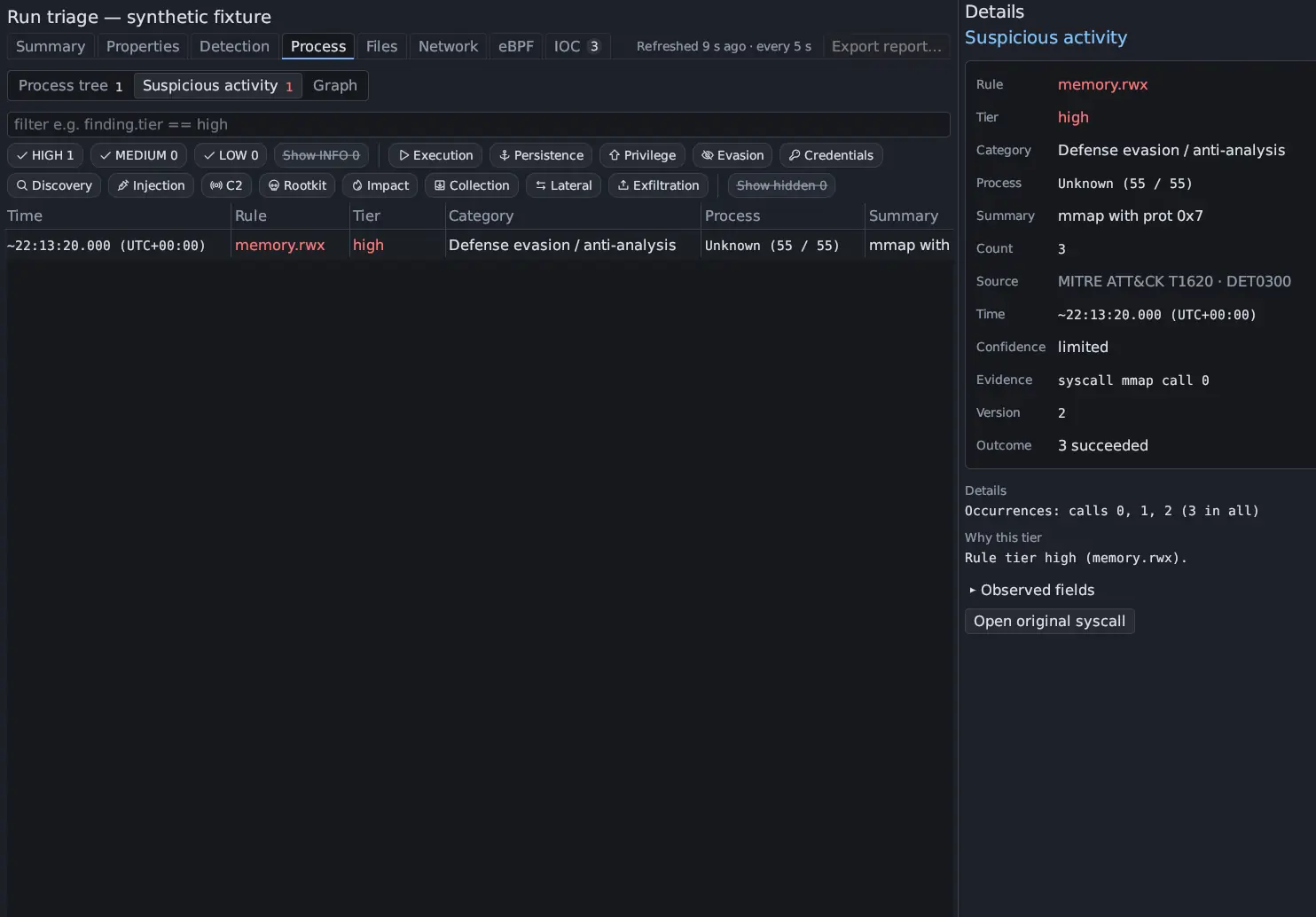
Click a row to read it in Details: every column, the Occurrences behind a folded row, Why this tier (the rule’s tier and every change, with the reason), the observed fields and Open original syscall. Double-click a row to open its call in Syscall Trace, or its packet in Network for a row found in packets. Filter fields are in Triage table filters.
A matched indicator of compromise appears here too, as c2.ioc_match, so it
shows in the graph and the Summary. See Network.
Tools → Settings… → Notifications → Toast for live HIGH findings (off by default in 0.8.0) raises a toast for the first HIGH finding of each rule while a run is still going. See The workspace.
The activity graph
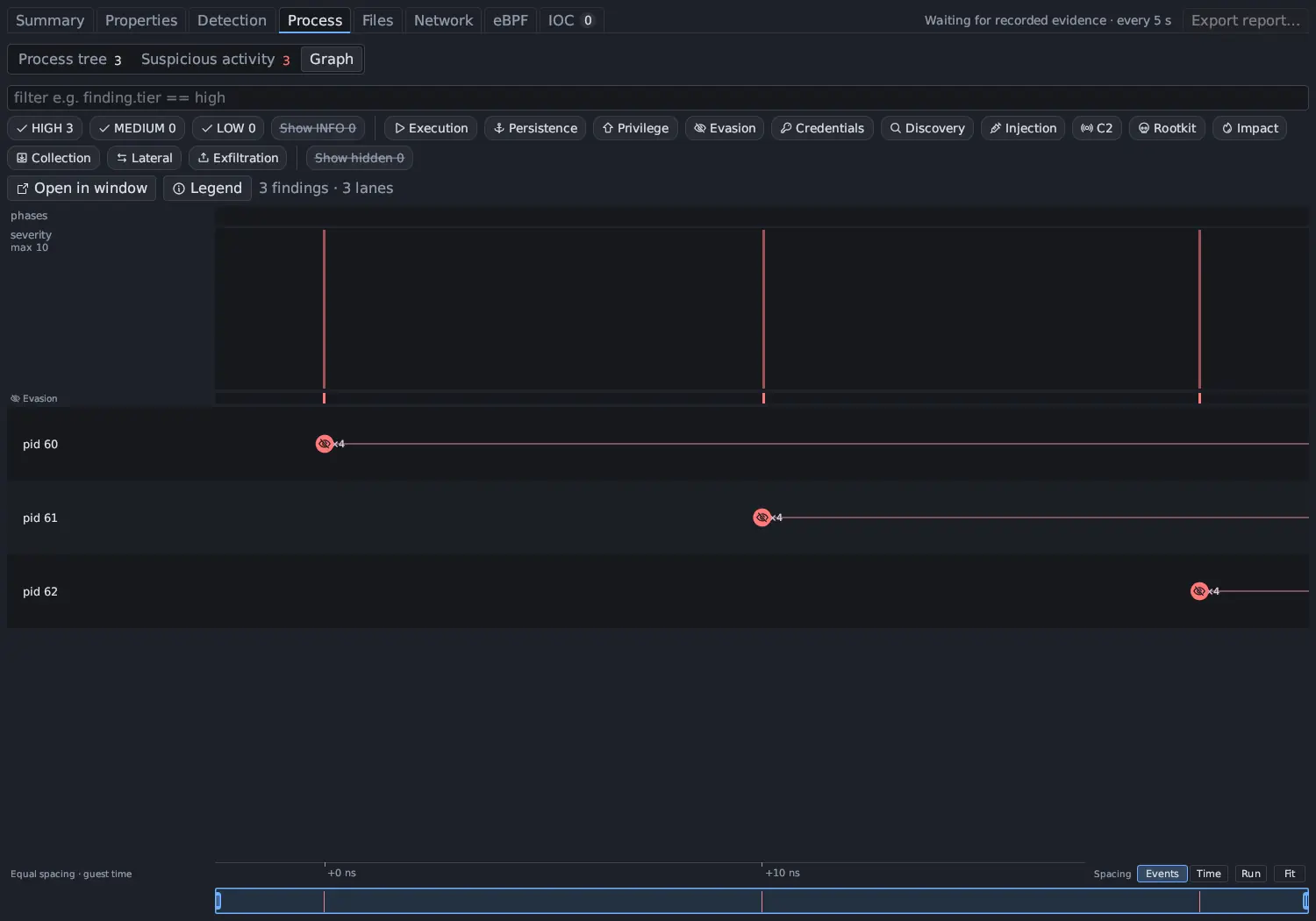
Section titled “The activity graph”Graph draws the same findings on process swimlanes against time. It shows exactly what the Suspicious activity table is filtered to: it shares the filter bar and the tier and category chips.
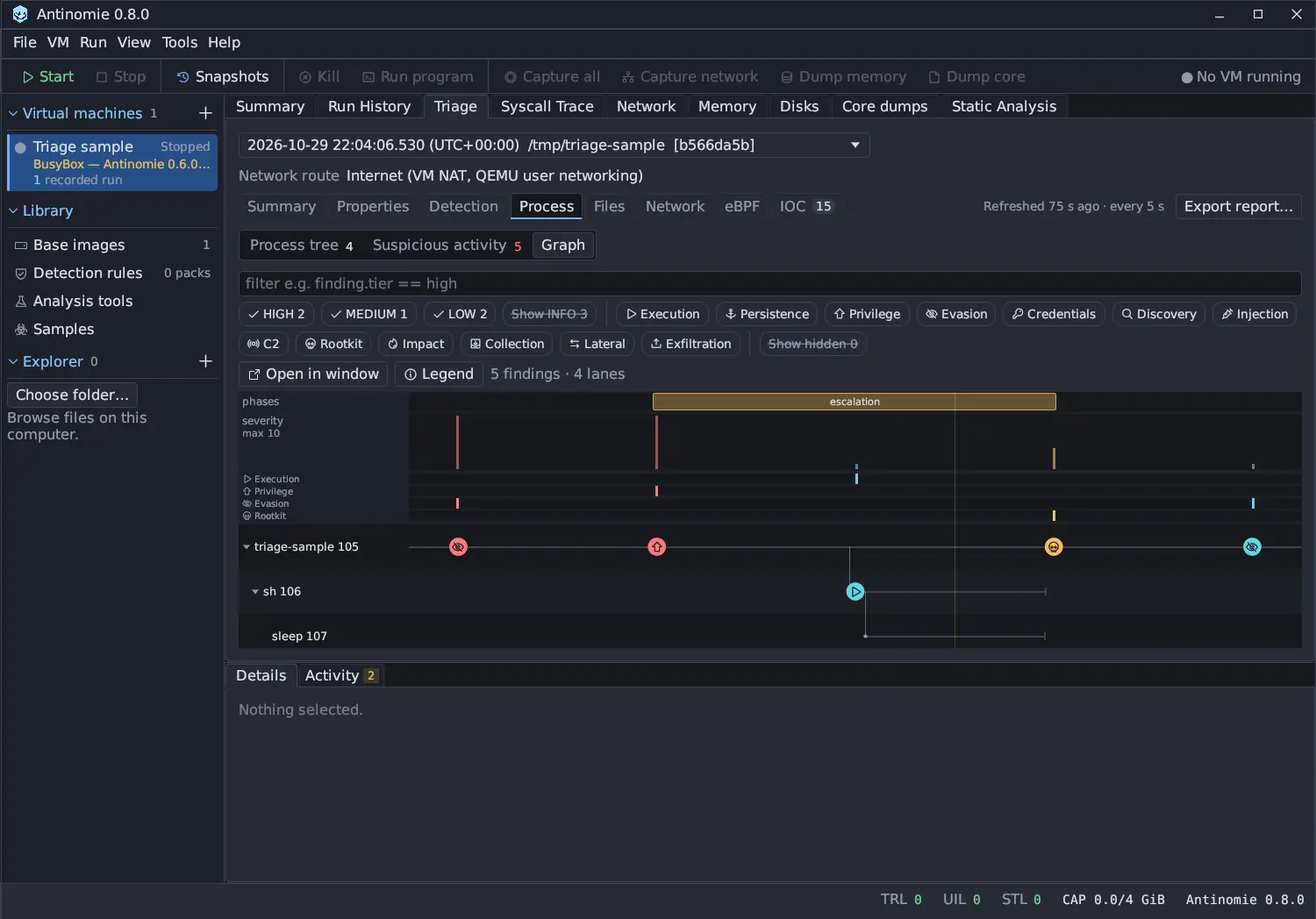
- Lanes follow the process tree; ▾ and ▸ fold a subtree, and many leaf
siblings of one program fold into one
name ×Nlane. A lane for activity not tied to a process is labelled VM-wide / not tied to a process. - Markers take their colour from the tier (HIGH red, MEDIUM amber, LOW cyan, INFO grey) and carry the category’s icon, so colour is never the only cue. A hollow disc means only packets showed the finding. With many findings in view they become plain tier dots.
- Above the lanes are the phases of the run (recon, download, persistence, escalation, hide/inject, C2, spread, impact; a stretch needs one HIGH, a MEDIUM with a LOW, two MEDIUMs or five LOWs), a severity curve (HIGH counts 10, MEDIUM 4, LOW 1, scaled to the tallest bar in view) and a heat strip with one row per category.
- Thin lines join a parent to the processes it started, and a red arrow joins an injecting process to its target.
- Legend explains every colour, icon, edge and band.
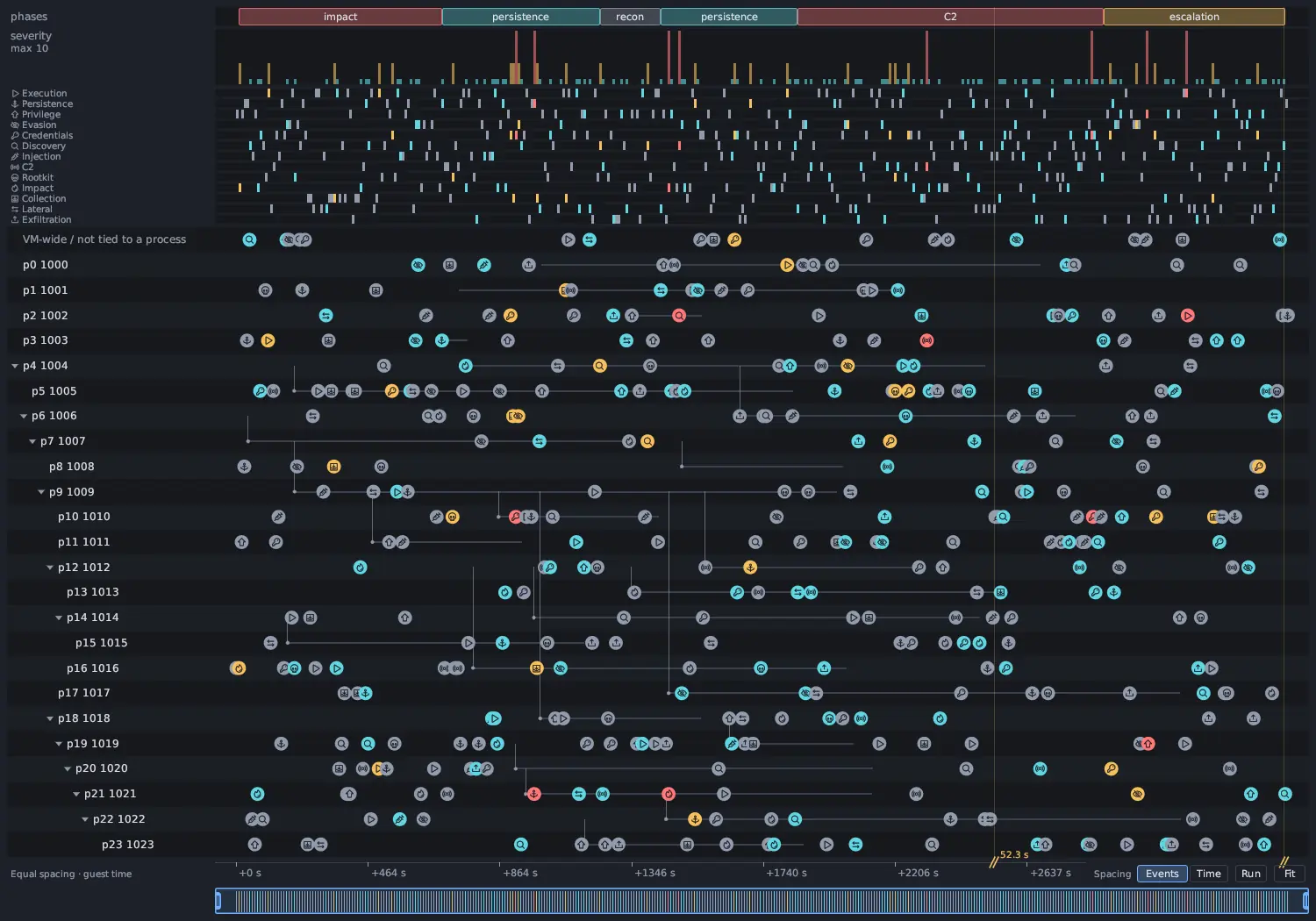
Hover a marker for a card with a tier chip, the rule, what it did and when, the process, count and outcome. Click it to select the row (Details follows, and the table scrolls to it), and double-click or press Enter for its first evidence. Click a lane name to keep only that process (Shift: and its descendants); click a phase to keep only its time range. Drag across the time axis to keep a time range, and press Escape to lift it.
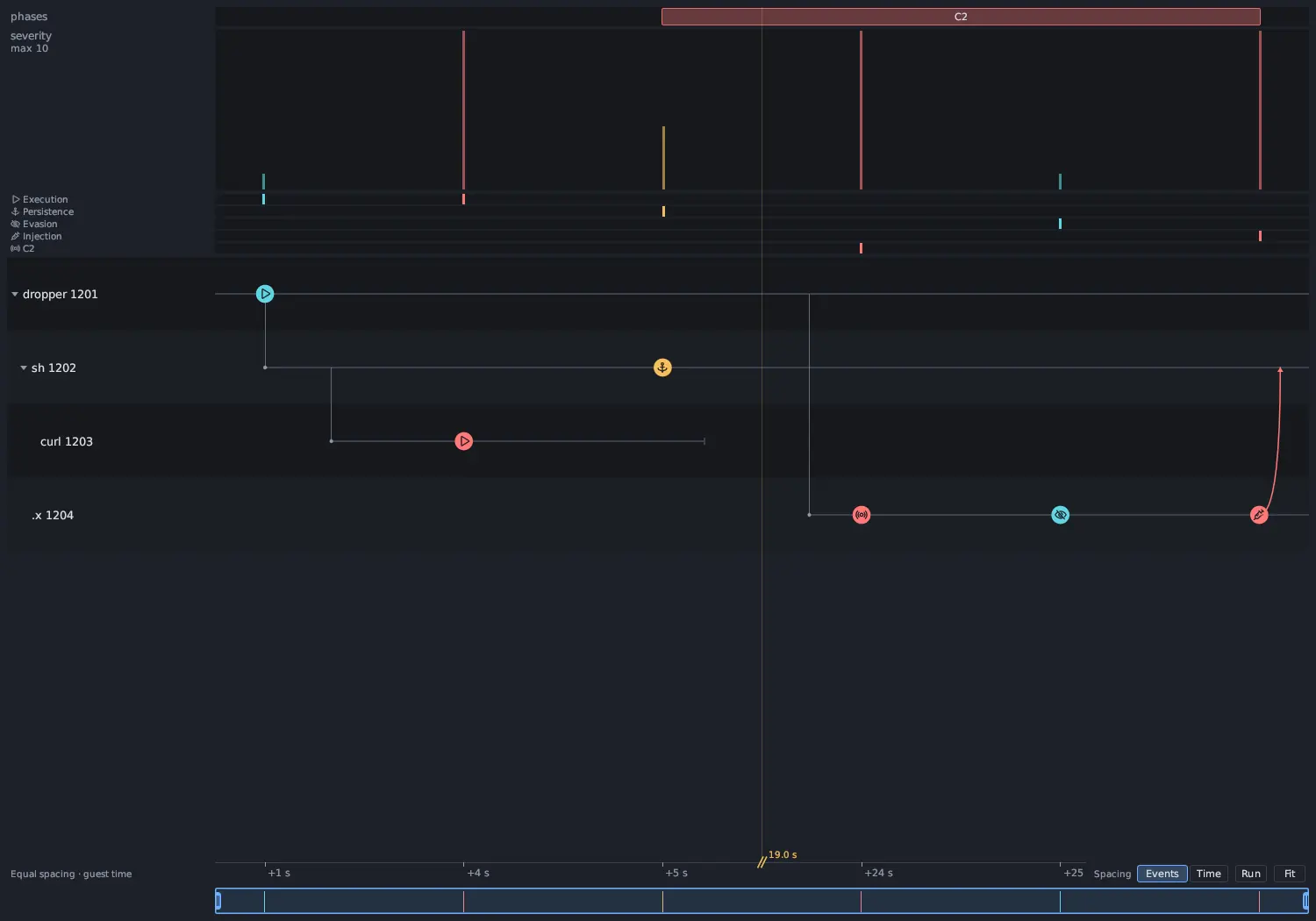
Spacing: Events | Time (bottom right, or T) chooses how the time axis is
laid out. Events, the default, gives every distinct moment a finding
happened at one slot of equal width, so a burst of findings in a few
milliseconds is as wide as the same number of findings spread over minutes; a
slanted break mark and the length of the gap show where a long stretch with
nothing in it was squeezed. Time is the true scale. Run (or R) shows
the whole run and Fit (or F) goes back to the findings. Under the axis,
the overview ruler shows every finding of the whole run with the stretch the
graph shows as a window on it: drag the window to pan, drag its wide grips to
zoom, drag across an empty part to show that stretch, and double-click the ruler
to show the whole run.
Mouse: the wheel scrolls the lanes, Shift+wheel or a drag pans, Ctrl+wheel or a
pinch zooms at the pointer, and a double-click on the axis zooms 2×. Keyboard
(click the graph first): ← and → previous and next finding in time, ↑ and ↓
lane, Enter evidence, T spacing, F fit, + and - zoom at the selection,
Space folds the lane, H M L I toggle the tier chips and Show INFO, and
1…9 and 0 the first ten category chips.
Open in window opens the graph in its own resizable window, one per run, with the same filter bar and chips and Details beside the graph.
Refreshing
Section titled “Refreshing”At the right of the Triage tab bar, the Process, Files and Network sections show
one refresh status, such as Refreshed 12 s ago · every 5 s. Its menu has
Refresh now and the Every interval (1 to 300 s). A live run’s index is read
again at that interval while Triage is on screen, and only if the recording grew.
In a narrow pane the status moves under the tab bar.
eBPF and seccomp
Section titled “eBPF and seccomp”The eBPF section lists captured BPF programs, classic socket filters and seccomp filters with columns Time, Observation, Outcome and Evidence. This section keeps its own Refresh and Every row.
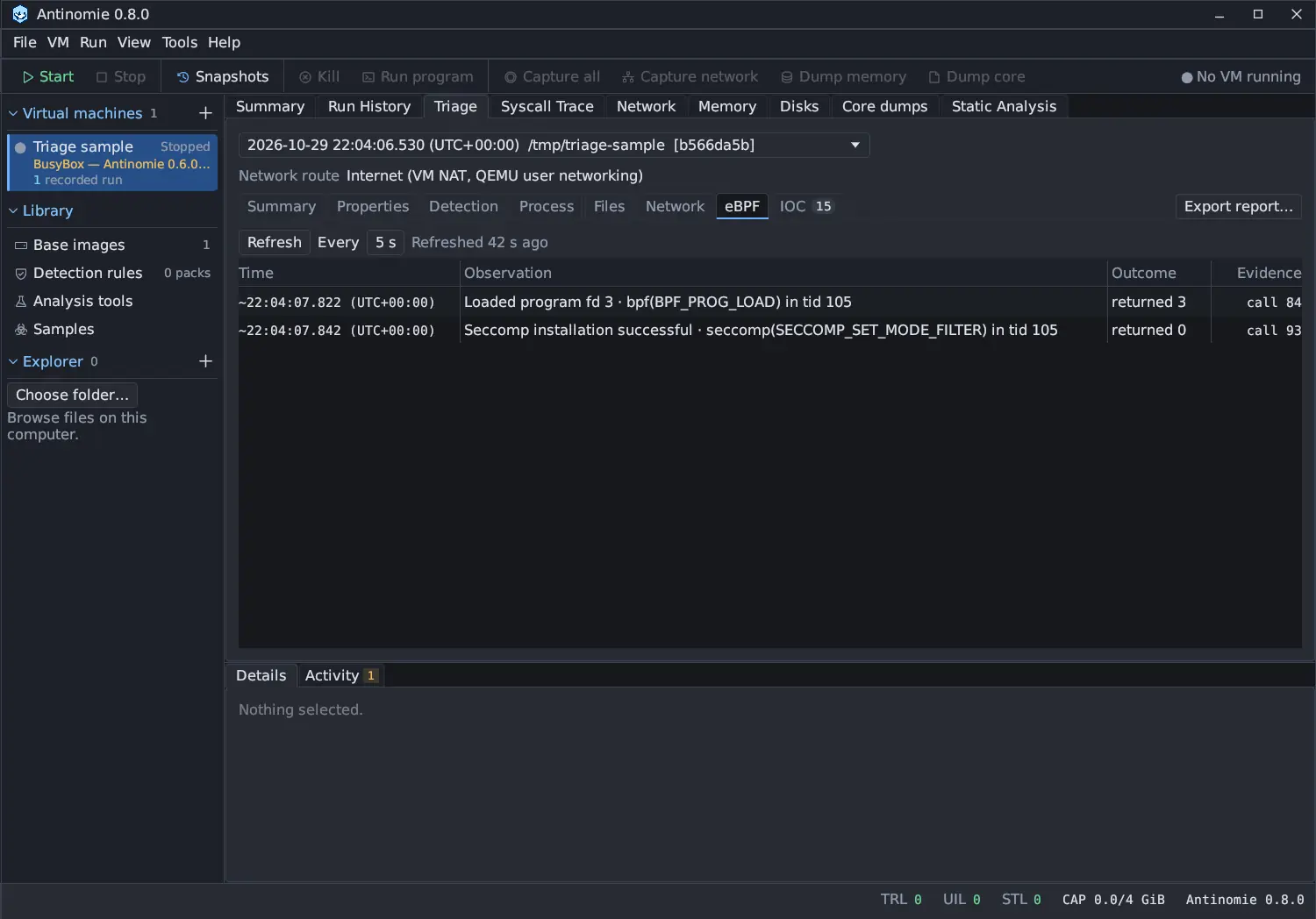
An observation says what happened: a program load, each way a program is
attached (BPF_PROG_ATTACH, BPF_LINK_CREATE, BPF_RAW_TRACEPOINT_OPEN, or
PERF_EVENT_IOC_SET_BPF on an earlier perf_event_open), a detach, a socket
attachment, or a seccomp installation, in order, so the table reads load then
attach for the same program. An attach row names the attach type, the target
(the tracepoint name, kernel symbols, cgroup or interface, perf event), the
program and the call that loaded it, and the result; a target the recording did
not capture is shown as not captured, never guessed.
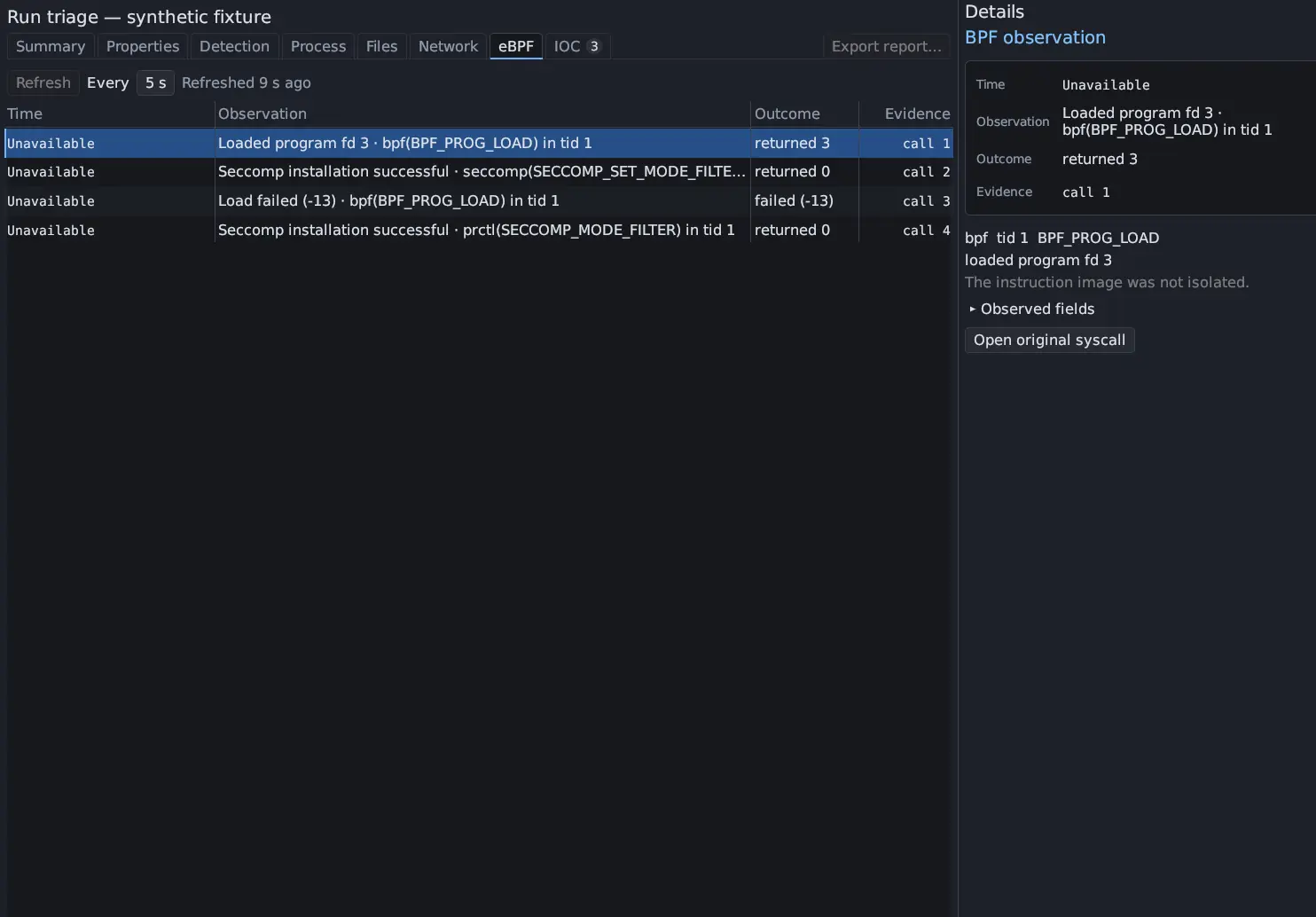
In 0.8.0 the BPF view also lists the union bpf_attr members of each bpf
call, decoded by the command that passed them, and takes a load’s instruction
count and an attach’s program descriptor from them, so an attach of a program
the run loaded says so (Program loaded in call N; this is its attach.).
Select a row for Details: the decoded instructions with helper names and explanatory pseudocode, and Export binary and JSON for an exact raw export. Failed attempts and missing observations stay distinct from successful operations. When there were none, the section says No bpf syscall, classic socket filter, or seccomp install was recorded.