

Snapshots
A snapshot (or checkpoint) saves a VM’s disk, or its disk and memory, so you can return to that state: run a sample, look at what it did, then restore the clean state and try again. Restoring an older checkpoint and saving a new one makes a branch, so one VM can hold several experiments that start from the same point.
Open the window with Snapshots on the toolbar. It is titled
Snapshots · <VM name> and works on the selected VM, running or stopped.
This page describes Antinomie 0.8.0, which is in development; the current release is 0.7.1. What only 0.8.0 does is marked.
Graph and tree
Section titled “Graph and tree”The toolbar switches between two views of the same checkpoints:
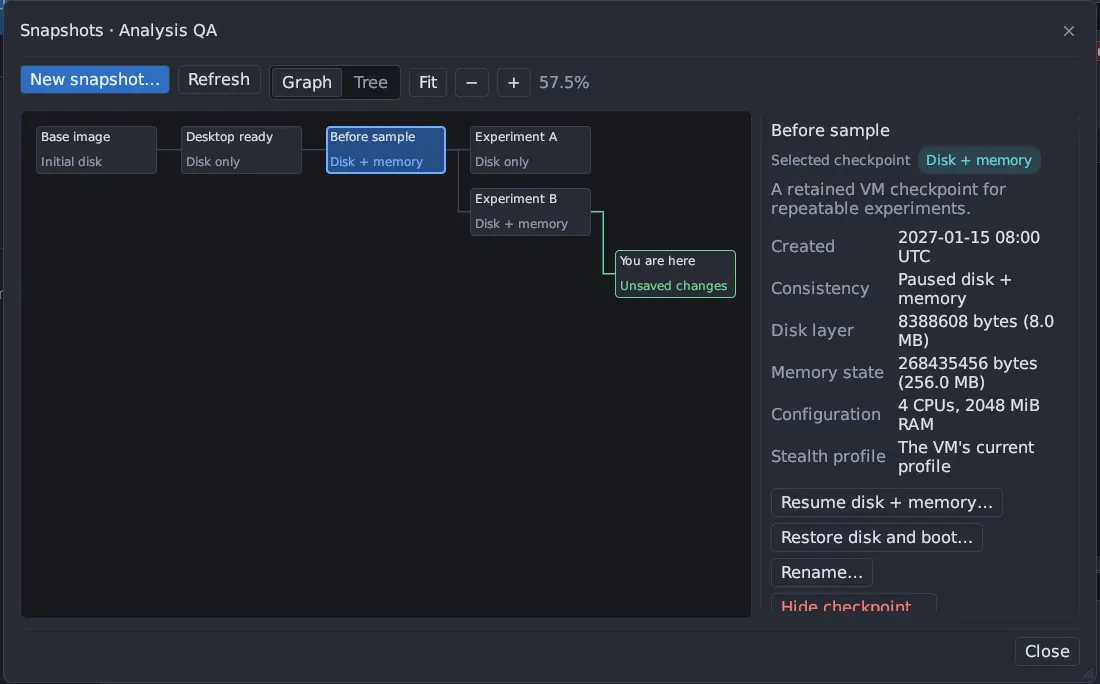
- Graph draws the checkpoints left to right from Base image (the Initial disk the VM was created with). Each box names the checkpoint and its mode, Disk only or Disk + memory. You are here marks the VM’s current state, with Unsaved changes when it has moved on from its last checkpoint. Drag or scroll to pan, Ctrl + scroll to zoom, or use Fit, − and +; the zoom level is shown beside them.
- Tree lists the same checkpoints as an indented list and marks the Current parent. Use Tab and Enter to move between checkpoints and their actions from the keyboard.
Refresh reads the VM’s checkpoints again.
Disk only, or disk and memory
Section titled “Disk only, or disk and memory”New snapshot… asks for a Name, an optional Description and a mode:
| Mode | What it keeps | Restoring it |
|---|---|---|
| Disk only | The VM’s disk | Restores the files and boots afresh. A disk snapshot of a running VM is crash-consistent, like pulling the plug. |
| Disk + memory | The disk, RAM and the running programs | Resumes the VM exactly where it was. Uses more storage and needs compatible guest recovery. |
Save snapshot takes it. A mode the VM cannot take is greyed out, and the window says why. Disk and memory snapshots, and the telemetry reconnect a resumed VM needs, require a base with guest revision 14 or newer; older bases take disk snapshots only. A disk and memory snapshot also needs the same host, QEMU, kernel and hardware configuration to resume.
The selected checkpoint
Section titled “The selected checkpoint”Click a checkpoint to show it on the right, under Selected checkpoint with its mode, and its description below:
| Field | Shows |
|---|---|
| Created | When it was taken |
| Consistency | Stopped VM, Crash-consistent (disk of a running VM) or Paused disk + memory |
| Disk layer | The size of its disk layer |
| Memory state | The size of its saved RAM, for a disk and memory snapshot |
| Configuration | The CPUs and RAM the VM had |
| Stealth profile | The VM’s current profile, the machine it was taken as with (differs), or Not recorded |
A warning appears below when the checkpoint cannot be resumed on this configuration.
Actions
Section titled “Actions”| Button | Does |
|---|---|
| Resume disk + memory… | For a disk and memory snapshot: resumes the saved disk, RAM and programs. |
| Restore disk and boot… | Restores the saved disk and boots it; running programs are lost. Works for both modes. |
| Rename… | Gives the checkpoint a new name. |
| Delete checkpoint… | Removes the checkpoint and its restore point. |
| Hide checkpoint… | Offered instead of Delete when another checkpoint, or the VM’s current state, still builds on it. Its disk stays for the branches that need it; the checkpoint is marked Hidden. |
Other branches and recordings are kept in every case.
Restoring
Section titled “Restoring”- Select the checkpoint and press Resume disk + memory… or Restore disk and boot….
- The dialog says what will happen:
The VM will resume saved disk, RAM and programs.orThe VM will boot with the saved disk. Running programs are lost.Existing branches and recordings remain saved; a new observation timeline starts. - Choose Save current state first (with a name,
Before restoreby default) or Discard current unsaved state. - Press Save current and restore or Discard changes and restore.
A restore starts a new run in Run History; runs from before the restore stay. To make a branch, restore a checkpoint, change the VM, then save another snapshot.
Stealth profile
Section titled “Stealth profile”Each snapshot records the stealth profile the VM had
when it was taken: machine, serials, UUID and MAC address, network card, CPU,
disk bus and firmware. A snapshot restores only under that profile. If the
VM’s profile has changed since, the restore dialog warns This snapshot was taken as <machine>. The VM's stealth profile is different, so restoring switches the VM back to that profile. and the button becomes Switch profile
and restore (or Save current, switch profile and restore). When you save
the current state first, it is saved with the current profile.
A snapshot taken before profiles were recorded has none to compare. It restores as it is, and the dialog and the result say so.
Waiting for recording saves
Section titled “Waiting for recording saves”In 0.8.0 each boot seals the disk it started from under a temporary layer, and merges that layer back once the boot’s recording is saved and the earlier bytes of changed files are copied out (see Each boot seals its starting disk). That layer is not a snapshot and never appears in this window, and your snapshots are never merged or changed by it.
Because a checkpoint may be taken from that layer, snapshot changes on a stopped VM wait for it:
- Creating, renaming, restoring or deleting a checkpoint first lets the previous boot’s pending recording writes finish, then finishes the layer. The window shows Waiting for saved recordings with a spinner meanwhile.
- If saving takes longer than five minutes, the operation is cancelled with
recordings are still being saved; retry after saving finishes; disk layers retained. Closing the app cancels it the same way. Nothing is lost; try again once saving ends. - While another VM runs, such a change is refused with
stop the other VM before changing this VM's pending snapshot layer, because waiting would stop that VM’s telemetry from being read. - Restore disk and boot… also waits before it boots. If saving does not
finish in time, the disk is still restored and the message
snapshot disk restored, but guest was not startedasks you to start the VM after saving finishes.