

Memory
The Memory panel saves the guest’s physical RAM and analyses it. A memory dump is a copy of VM RAM; it is not a process core. For one process, see Core dumps. This page describes Antinomie 0.8.0, which is in development; the current release is 0.7.1.
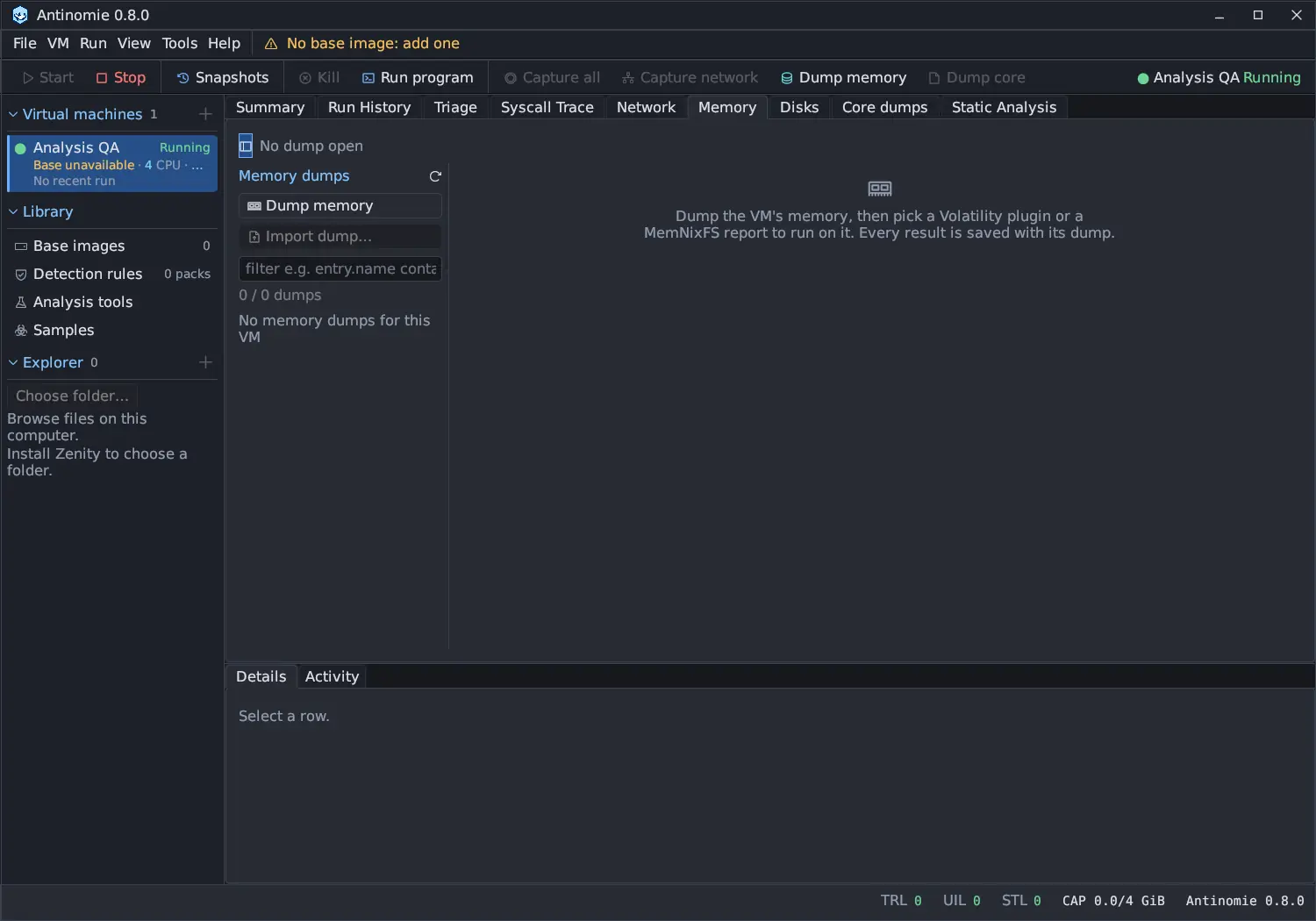
Dumps list
Section titled “Dumps list”The left list, Memory dumps, has:
- Dump memory: writes the running VM’s RAM to a dump. The VM pauses while it
is written, from seconds to minutes depending on RAM size and disk speed, then
continues. It is disabled while another dump is being written. A progress bar
reads
NN% of SIZE · VM paused, and a banner under the toolbar readsWriting RAM dump 41% - VM paused. Run, upload, capture and debugger actions are disabled until the dump is done, rather than failing. - Import dump…: analyses a dump made elsewhere: raw, LiME, ELF core, crash dump, VMware or VirtualBox memory, or a hibernation file. The file stays where it is. You choose the System (Linux, Windows or macOS) and, for Linux, a Symbol table: the symbol table of the base the dump was taken from, or none, in which case Volatility looks for one itself and MemNixFS rebuilds one from the kernel.
- A filter box (evidence fields plus
os,system,ram_mib,imported,symbols).
Click a dump to open it. Right-click for Rename…, Edit tags…, Open result directory, Filter by field, Open folder, Copy path and Delete dump and results (Remove from list (keeps the file) for an imported dump). The hide and show buttons fold the list away to give the results the width.
You can also dump RAM after a run: tick Memory Dump on Exit in Run program. The same banner shows while it is written. Freed process memory may already be gone by then.
The results of these actions, and their failures, appear as notifications and in Activity.
Analysing a dump
Section titled “Analysing a dump”Analyse with picks the backend for the open dump:
| Backend | What it gives |
|---|---|
| Volatility 3 | Plugins, for any system: the broadest set of checks |
| MemNixFS | Reports for Linux dumps: processes, the process tree, a hidden-process scan, TCP and UDP sockets, triage, indicators, findings, malfind, YARA, IOCs, the syscall table, modules, the kernel log, shell history, a timeline and files recovered from the page cache |
Both are installed from the panel when missing (Install Volatility 3, Install MemNixFS) or from Library → Analysis tools. Volatility 3 runs on the system Python 3.
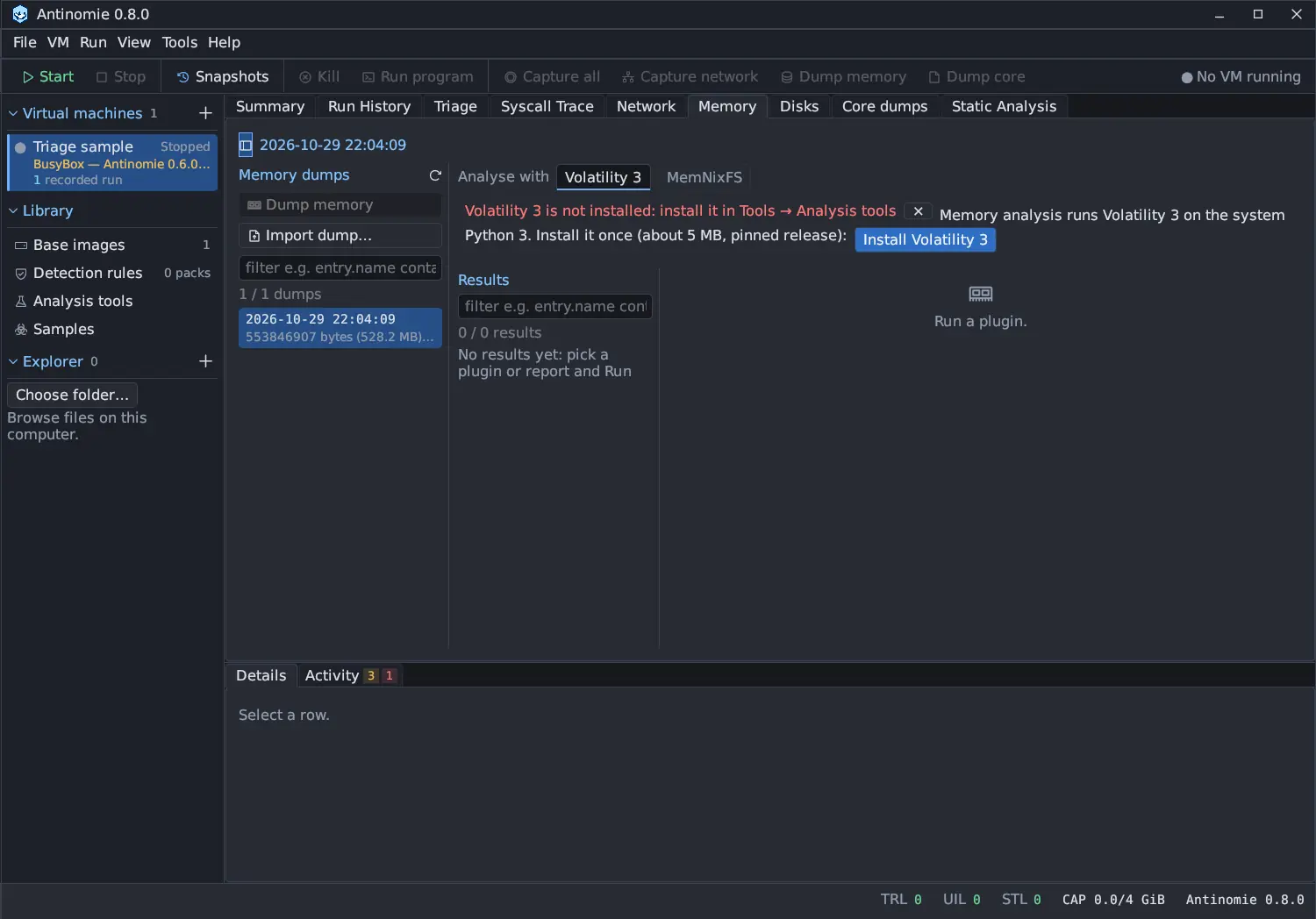
Volatility 3 plugins
Section titled “Volatility 3 plugins”- Pick the Plugin from the searchable list (Show deprecated names adds old ones). The list follows the dump’s operating system. A warning says when the dump’s system does not match the plugin family.
- Set the plugin’s options.
- Press Run. The result is saved with the dump. Cancel run stops it.
Look up symbol tables online lets Volatility fetch missing Linux symbol tables; Windows symbols are downloaded from Microsoft’s symbol server when a plugin first needs them. The memory-analysis options menu can download community plugins and open the community plugins folder; Reload plugin list re-reads them after you add or remove plugins.
MemNixFS reports
Section titled “MemNixFS reports”MemNixFS reads only a dump of the guest’s whole physical memory: QEMU
dump-guest-memory ELF cores (what Dump memory writes), LiME, AVML, kdump
and raw images. A process core, a Windows dump and anything else is refused with
the reason. It runs offline in the analysis sandbox, with no network, the dump
and its symbol table read-only and a private working folder. Without a saved
symbol table it builds one from the kernel’s BTF. A report takes about a minute
on a 2 GiB dump.
Whatever MemNixFS could not read is stated. A finished result with gaps is marked partial in the run list, with a banner that lists the reasons (for example The kernel’s page-table root was not validated., an unreadable module list, or a symbol table whose kernel banner is not the dump’s). A report the tool could not produce fails with the reason instead of showing an empty table. Its Files button opens the folder of MemNixFS’s raw export, recovered files included.
Results
Section titled “Results”Results lists the analyses run on the open dump, Volatility’s and MemNixFS’s
together. Each can be Set up again, opened with Open its folder, or
removed with Delete result. A result is read page by page
(Page 1/6 · 100 matching / 560 retained rows, with Go to page) and can be
viewed as Text, as the tool printed it, or as a Table with sortable
columns. Messages shows the tool’s own messages for the run. Copy value
and Copy row copy cells; the copy button copies the page as text or
tab-separated text. A filter queries every retained row, not just the page.
Click a row to see all its values in Details.
- Physical RAM from QEMU, not a process core, is what YARA scans when memory scanning is on. See Detection engines.
- A dump is as large as the VM’s RAM. RAM dumps are not counted in the boot’s recording quota, so check the free space of the data volume first. See Limits and quota.
- What a memory dump can and cannot show is in Memory and core dumps.