

The workspace
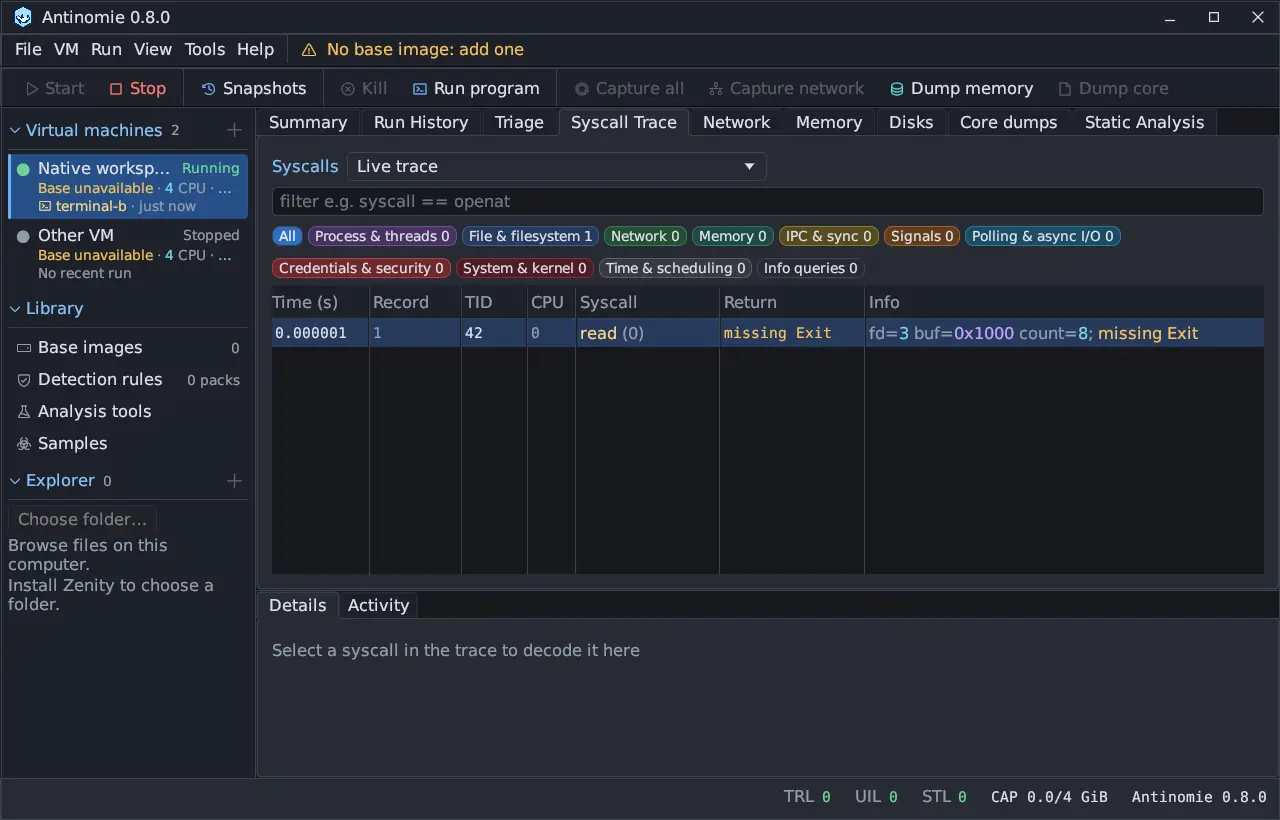
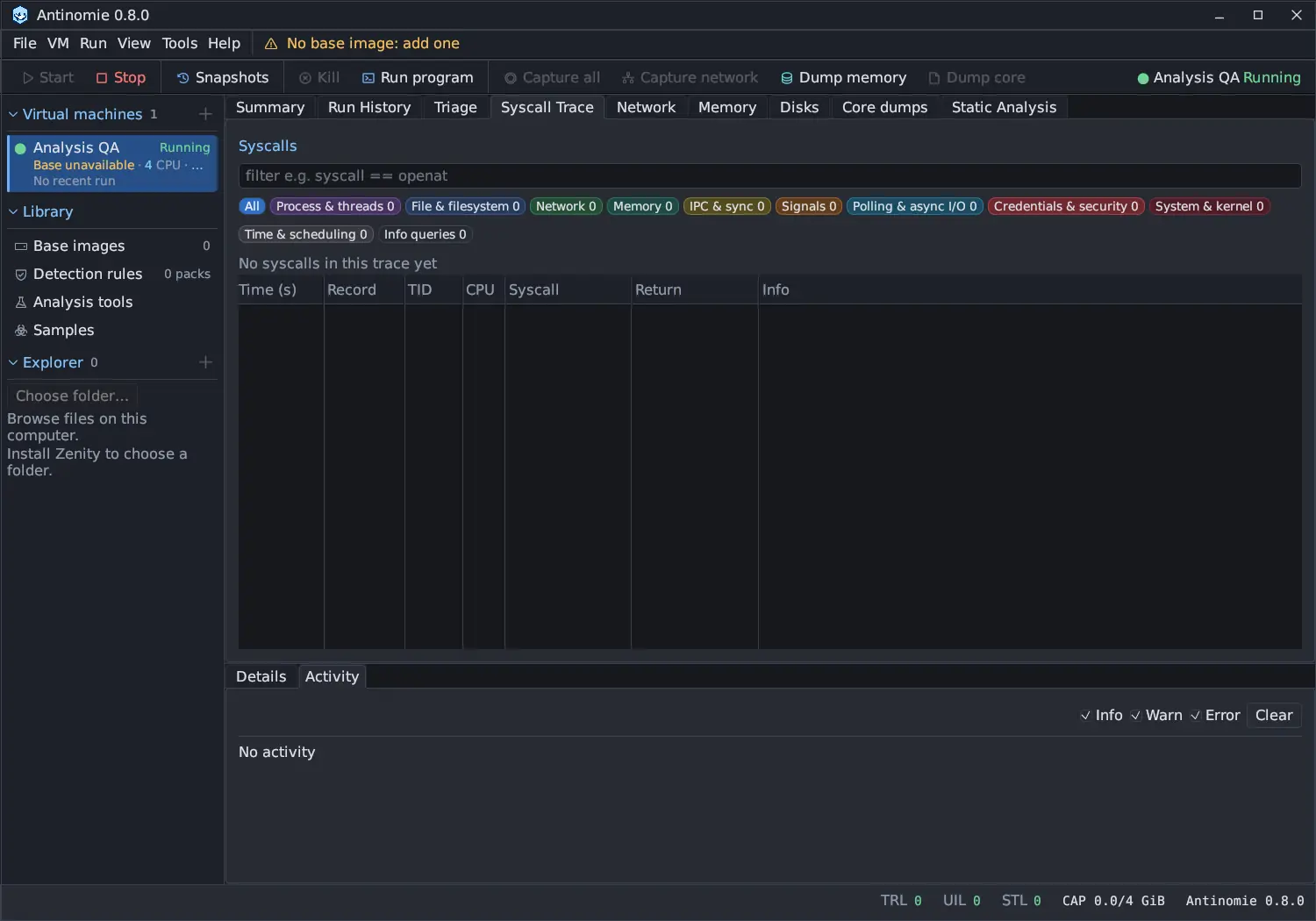
The Antinomie window has a menu bar and toolbar on top, a sidebar on the left, a status bar at the bottom, and a dock of panels in the middle. The guest’s own screen is a separate QEMU window, and each run’s terminal is a window of its own. This page describes Antinomie 0.8.0, which is in development; the current release is 0.7.1.
Panels
Section titled “Panels”The default layout puts nine tabs in the upper area and two below them.
| Panel | Page |
|---|---|
| Summary | Summary |
| Run History | Run History |
| Triage | Triage |
| Syscall Trace | Syscall Trace |
| Network | Network |
| Memory | Memory |
| Disks | Disks |
| Core dumps | Core dumps |
| Static Analysis | Static Analysis |
| Details (below) | Details |
| Activity (below) | Activity |
Some tabs come and go:
- Debugger · PID N opens right after Static Analysis when you attach the debugger or start a run with Debug on start, and closes when the session ends. While it shows, Details and Activity fold down to their tab strip so the listing gets the height. See Debugger.
- Base images, Detection rules, Analysis tools and Samples open from the sidebar’s Library as tabs beside Summary, and close with their close button. See Library.
- A Static Analysis category opened in its own pane is a closable tab too.
- Each run’s terminal opens as its own window, titled with the program’s path and PID. See Terminal.
None of these is restored with the saved layout. View in the menu bar focuses any of the panels in the table, and View → Reset layout restores the default arrangement.
Drag a tab label to reorder it, to split a pane, or to join another pane. A shadowed ghost follows the pointer, a highlight or insertion line shows the exact destination, and Escape cancels. Panels can also be dragged out into their own windows and docked back. The main window and the detached windows share Antinomie’s own title bar: drag the title to move a window, double-click it to maximize or restore, and resize from the edges and corners. Theme (Dark, Light or Blue), Text size and Density are under Tools → Settings… → Appearance.
Menu bar
Section titled “Menu bar”| Menu | Holds |
|---|---|
| File | New VM…, Add base (Import base…, Download base…, Build base…), Exit |
| VM | Start VM, Stop VM, Configuration…, Snapshots…, Reconnect telemetry, Type host clipboard into VM, Rename…, Duplicate…, Open directory, Reset disk to base…, Delete VM and disk… |
| Run | Run program… (Ctrl+R), Upload file… (Ctrl+U), Attach to process…, Attach debugger…, Capture all, Stop capture, Capture network (Stop network capture while one runs) |
| View | Each panel, and Reset layout |
| Tools | Settings…, Analysis tools, Detection rules, Download malware samples…, API keys…, App dependencies…, UI performance…, Refresh recorder statistics |
| Help | Getting started, About Antinomie, Filter guide |
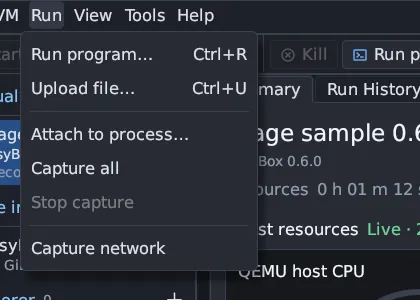
Tools → Analysis tools and Tools → Detection rules open the Library pages. Tools → Download malware samples… opens the MalwareBazaar and MalShare search, whose downloads go into the sample library. Tools → API keys… is the one place the abuse.ch Auth-Key and the MalShare key are entered, tested or removed; each key shows only its last four characters. Run → Attach debugger… is disabled, with the reason on hover, when the debugger cannot be used. When no base is installed, the menu bar also shows No base image: add one, which opens Download base.
Help → Getting started reopens the first-setup window. Help → Filter guide is a searchable window of operators, examples and the fields of the filter you are using. See Filter syntax.
Toolbar
Section titled “Toolbar”| Button | Does |
|---|---|
| Start | Starts the selected VM (F5) |
| Stop | Shuts the running VM down (Shift+F5) |
| Snapshots | Opens the snapshot manager |
| Kill | Ends the selected active run and its descendants; the VM keeps running |
| Run program | Opens the launch dialog (Ctrl+R) |
| Capture all | Starts or stops a capture of all userspace |
| Capture network | Starts or stops a network capture |
| Dump memory | Saves the running VM’s RAM |
| Dump core | Captures a process core from a live process |
Buttons that capture are lit while their capture runs; click again to stop.
With several active runs, select the one to Kill in Run History first.
The right end of the toolbar shows the running VM’s name and state, such as
Analysis QA Running, or No VM running.
Sidebar
Section titled “Sidebar”The sidebar has three sections. Click a section’s heading to fold it.
- Virtual machines: each VM with its state, base, CPU count and RAM, and its latest run (or No recent run). The + on the heading is New VM. Right-click a VM for the VM actions.
- Library: Base images (the number of bases), Detection rules (the number of installed packs), Analysis tools and, new in 0.8.0, Samples (the number of samples, once there are any). Each opens a page in the main area. See Library.
- Explorer: a host folder you choose with Choose folder…, shown as an expandable tree. Double-click a file, or right-click it and choose Send and Run, to open Upload file with it filled in. Add to Samples… (0.8.0) puts the file into the sample library without running it. Open Directory reveals the containing folder. Nothing is sent until you confirm. Choosing a folder needs Zenity on the host; without it the section says Install Zenity to choose a folder.
Dropping a single file onto the Antinomie window opens Upload file with it as the host file. Folders and several files are refused. In 0.8.0, everything uploaded into a VM is archived in the sample library first.
Status bar
Section titled “Status bar”The left side shows the latest plain status message, Saving stopped: … in
red when the recording cannot be saved, and Waiting for guest shutdown and
recording finalization… while the app closes. Warnings and errors are
notifications instead. The right side shows the loss counters TRL, UIL
and STL, the saved recording size against the quota as CAP (for example
CAP 0.0/4 GiB), and the app version. See
Loss counters.
Notifications
Section titled “Notifications”Warnings, errors and the results of actions appear as notifications (toasts) in a stack at the bottom right, above the status bar. Each has an icon, a title, a one-line detail (hover it for the full text), an Open Activity link and a close button.
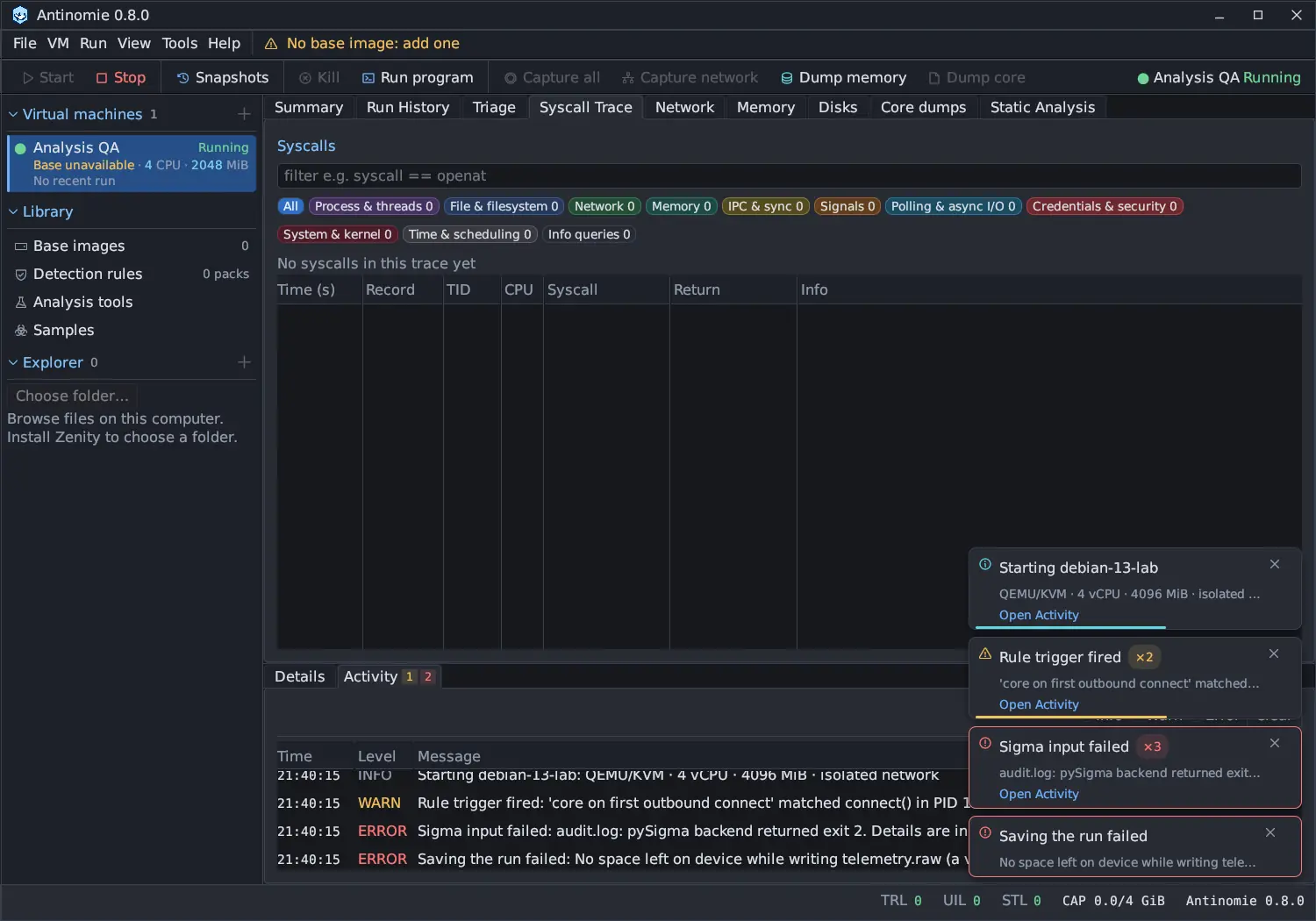
- Info notifications leave after 6 seconds and warnings after 12. Errors stay until you close them.
- A notification that closes by itself draws a thin bar along its bottom edge in its level colour. The bar shrinks as the time runs out and the notification closes when it is gone. Hovering a notification pauses both. Errors draw no bar. New in 0.8.0
- The same notification raised again while it is on screen is counted, such as ×3, instead of stacking.
- At most five show at once; the rest wait, and a line says how many more are in Activity.
- The stack moves aside rather than cover a window’s footer buttons.
Every notification is also an Activity row, so the history stays after it is gone. Form validation, notes about what needs a stopped VM, empty-state sentences and the No base image prompt stay where they are.
Live HIGH findings
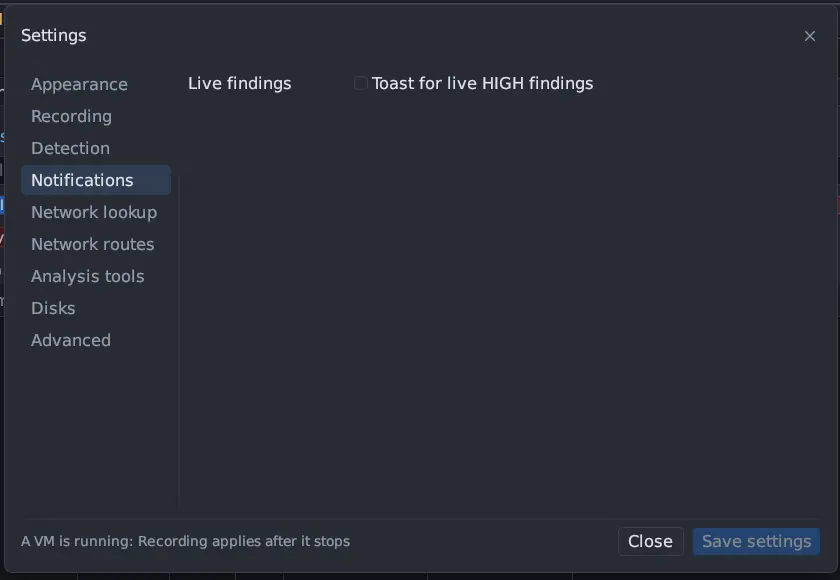
Section titled “Live HIGH findings”Tools → Settings… → Notifications → Toast for live HIGH findings raises a
toast for the first HIGH Suspicious activity
finding of each rule in a run that is still going; later matches of the same
rule add ×N to it. The check runs when the run’s index is read again: every
5 seconds while Triage is shown and every 15 seconds otherwise.
In 0.8.0 this setting is off by default. It is stored under a new key, because 0.7 saved its default for everyone; on a computer where it was switched on, it is switched on again once.
Before you start
Section titled “Before you start”With nothing recorded yet, each panel says what to do instead of showing an empty table. The Activity tab, for example, says No activity with its level filters and Clear above.
Clipboard and upload
Section titled “Clipboard and upload”VM → Type host clipboard into VM (Ctrl+Shift+Y outside a text field) types your host clipboard into the guest’s focused input. It assumes a US keyboard layout with Caps Lock off, accepts up to 4 KiB, and asks you to confirm long or multiline text because a newline presses Enter. Copying and pasting in a run’s own terminal is described in Terminal.
See also Settings and keyboard shortcuts.