

Core dumps
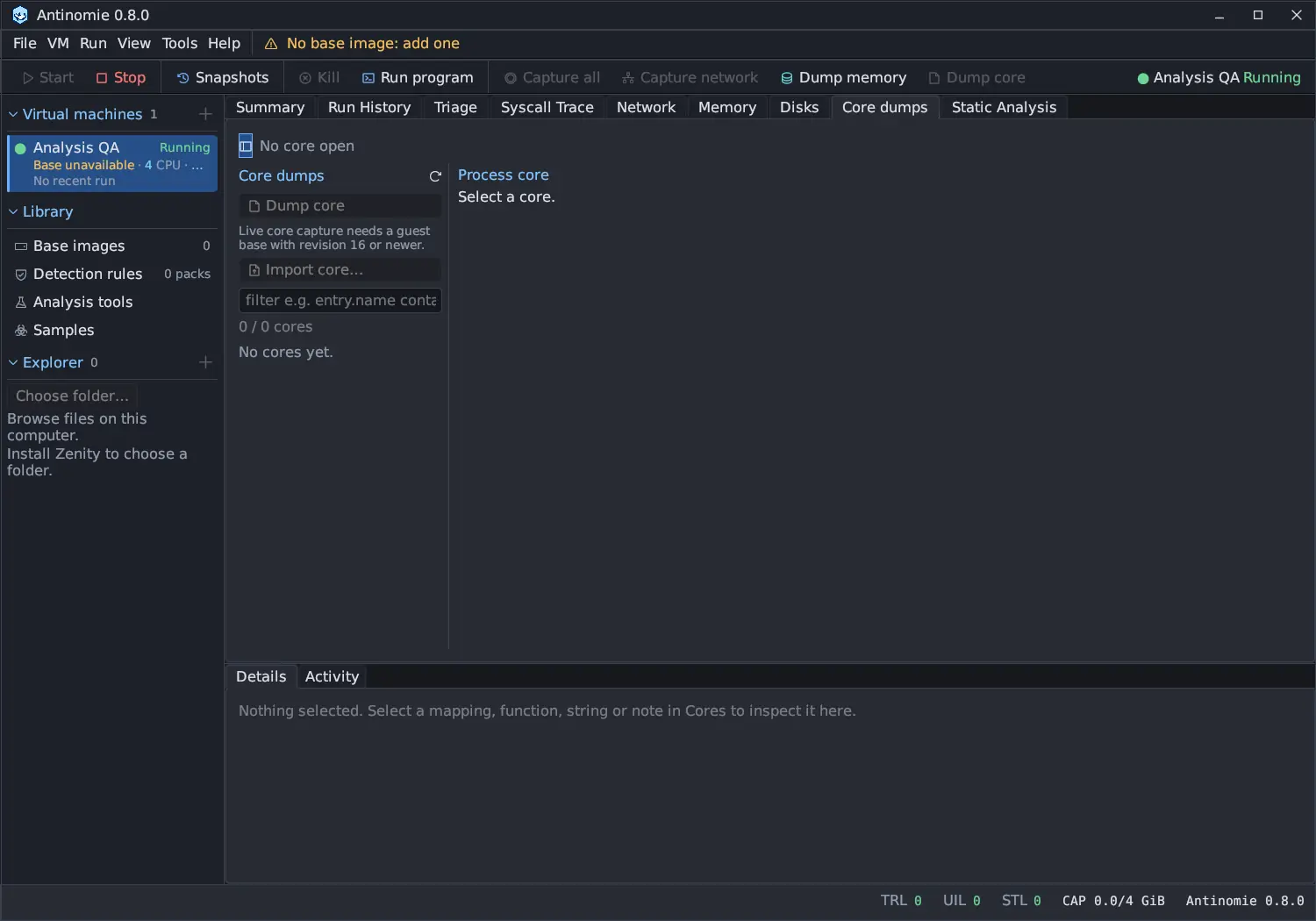
Core dumps captures and inspects the memory and registers of one process. A core is a native Linux x86-64 ELF process core. For the whole VM’s RAM, see Memory. This page describes Antinomie 0.8.0, which is in development; the current release is 0.7.1.
Where cores come from
Section titled “Where cores come from”- Dump core: pauses a process you pick, captures its resident memory and thread context, then lets it continue. Also on the toolbar. It needs a guest base with revision 16 or newer; an older base shows why it is unavailable.
- Core Dump on Exit: a launch option in Run program that captures the launched root process just before it exits. It needs a revision 15 base and App terminal.
- Import core…: references a core made elsewhere. The file stays where it is.
Dump core and Core Dump on Exit both have a Budget (64 MiB to 1 GiB)
and a Deadline (in seconds, up to what the guest accepts). The budget bounds
the bytes the guest stores, so untouched mappings cost nothing. A line under the
choice says what the guest accepts, for example Guest accepts up to 384 MiB (1024 MiB RAM). Stored bytes only: untouched mappings cost nothing., and Dump
core adds the guest memory available now. Sizes above the guest’s maximum are
listed but disabled, with the reason as their tooltip. A base built before 0.7.0
accepts 64 MiB only and says so.
While a manual or on-exit capture is in progress, a Cancel process core button appears; it stops the capture and lets the process continue. It is absent when nothing is being captured.
See Memory and core dumps for limits and meaning.
The list
Section titled “The list”The left list, Core dumps, shows runs’ cores, manual captures and, under
Imported cores, imported cores. Its filter box takes the
evidence fields, including the
capture.requested_size, capture.accepted_size, capture.saved_size,
capture.logical_size and capture.reason fields of a process core. A list
with nothing in it says No cores yet.
- Click a core to open it. A capture that is still being written is shown with its current phase, such as Capturing process or Saving N / M, and updates automatically.
- A finished core reads like
Complete · 12.4 MiBorPartial · 64 MiB of 128.4 MiB · budget reached. See Why a core is partial. - Right-click for the evidence actions, Open core file directory, Export core…, Export Ghidra project… (after a Ghidra decompile kept its project) and Delete….
Delete… asks for confirmation, naming the core and its size, and says it can’t be undone. It removes the core file, its metadata and its analysis results; for an imported core it removes only the results, and the original file stays where it is. A core that is still being captured cannot be deleted; the item is disabled with the reason. The boot’s recording quota gets the freed bytes back. A run’s deleted on-exit core stays in the list as a Deleted row, and the run’s details in Run History say so.
Inspecting a core
Section titled “Inspecting a core”Above the tabs are the core’s name and file path (right-click the path for Copy core path) and, when there are any, its Core warnings. The tabs are Context, Memory mappings, Disassembly, Strings and Recovered notes, with counts on the tabs that have them. Every table sorts by a click on its column header, and a tab with nothing in it says so in one line.

Context
Section titled “Context”
The Context tab has a thread row (pick the thread; TID, parent PID and current signal) with Copy all, then the registers in two cards: Instruction pointer & stack and General. Click a register’s memory button to view memory at it. A note says the registers are recovered evidence: stack unwinding, pointer chains and debugger execution are not available for a saved core. Attach the Debugger to a live process for those.
Memory mappings
Section titled “Memory mappings”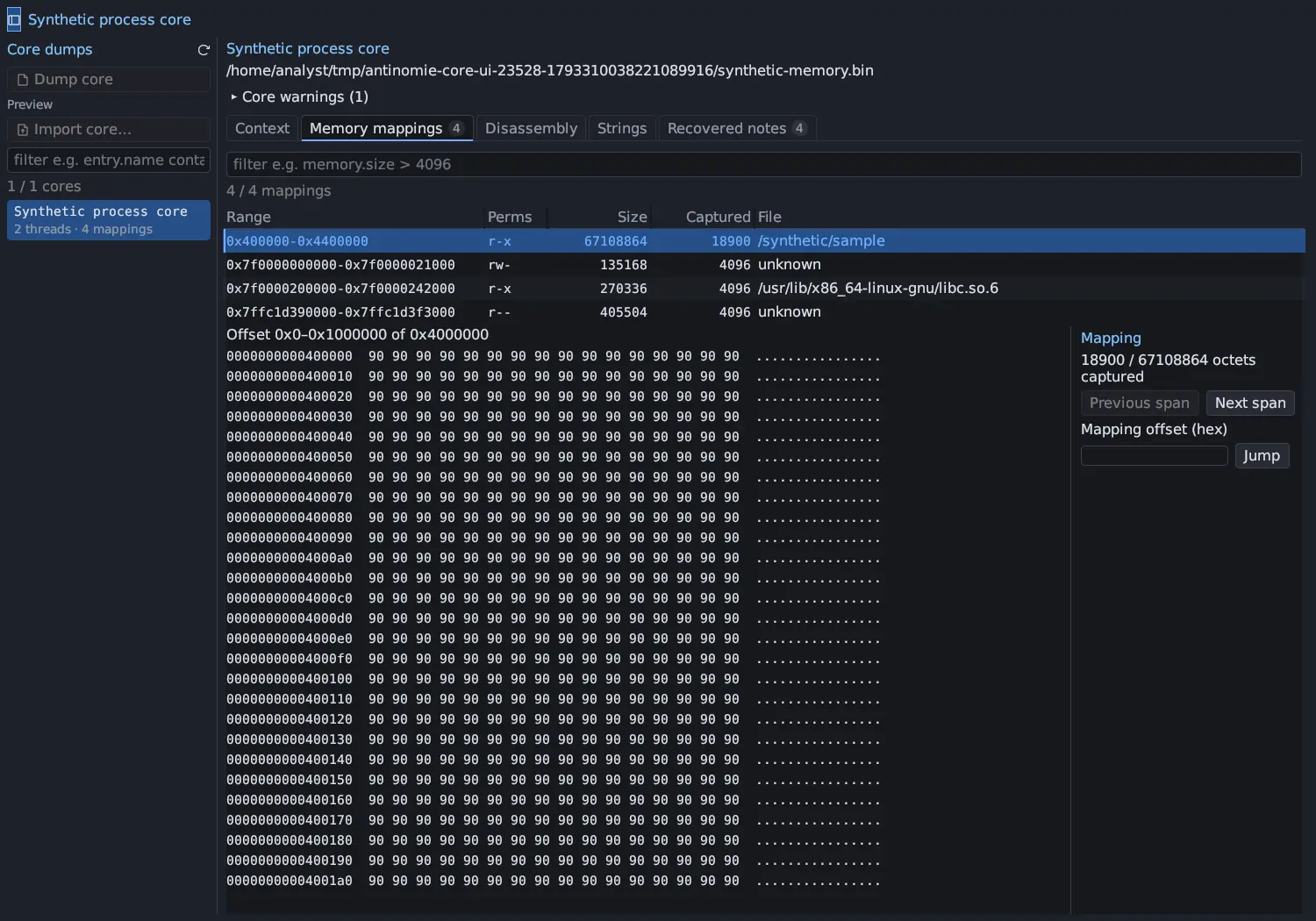
A table of the process’s mappings with Range, Perms, Size,
Captured and File, and a filter on mapping fields, such as
memory.size > 4096. Click a mapping to choose it; the hex view below shows its
captured bytes in spans you step through with Previous span and Next
span, or Jump to a Mapping offset (hex). Memory that was not captured
is shown as unavailable, never as zero bytes.
Disassembly and Decompilation
Section titled “Disassembly and Decompilation”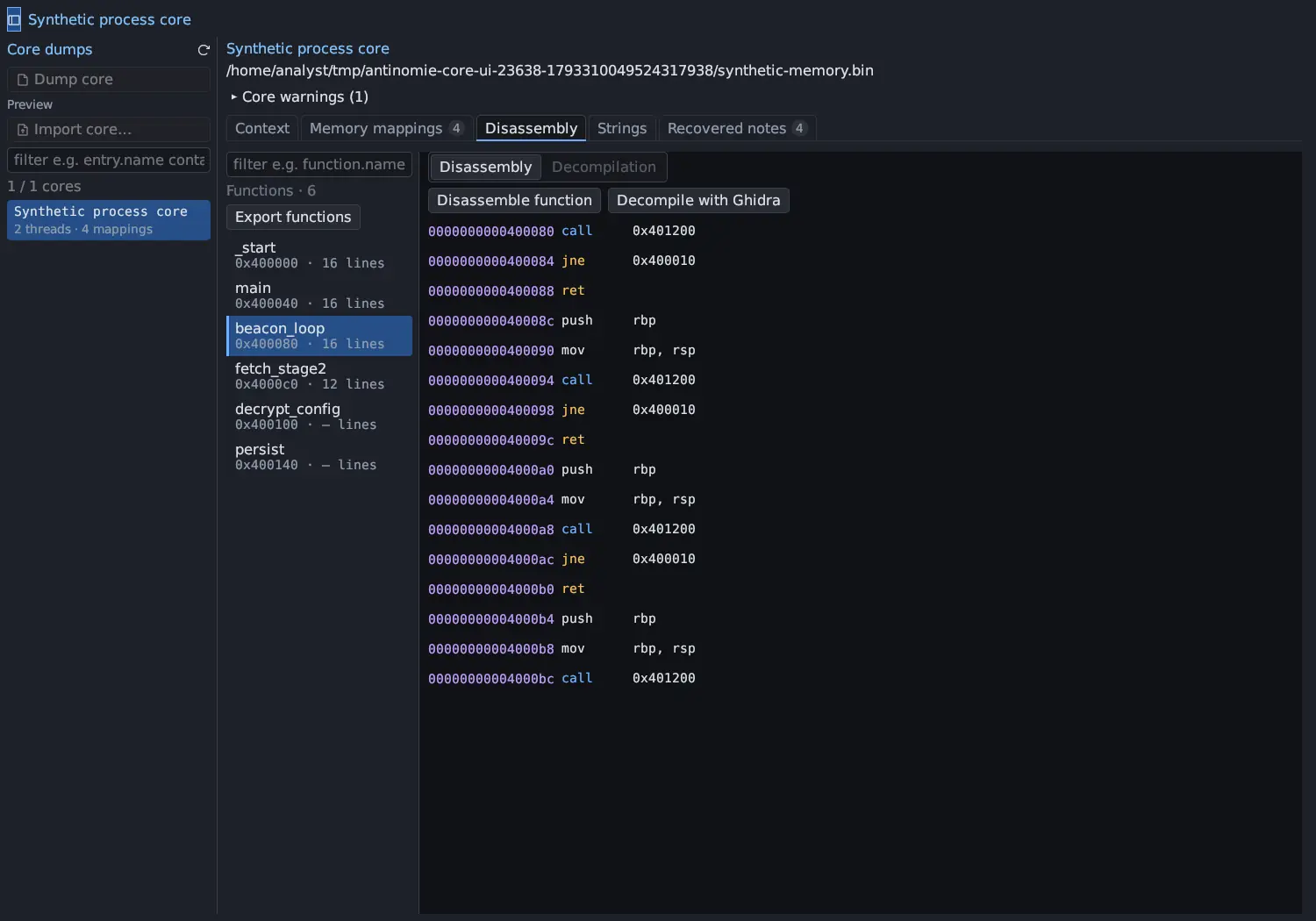
A function sidebar and a listing, with a Disassembly / Decompilation
switch. Disassemble function decodes the selected function or the captured
code on demand, Decompile with Ghidra decompiles it, and Export functions
saves the list. The function sidebar and listing are the same as in
Static Analysis. A function reads like
0x401c20 · 12 lines: its instructions in Disassembly, its source lines in
Decompilation, or – lines for a function not disassembled yet. The
Decompilation side of the switch is disabled until the core has been
decompiled with Ghidra, and decompiling keeps the disassembly you had already
decoded.
Strings
Section titled “Strings”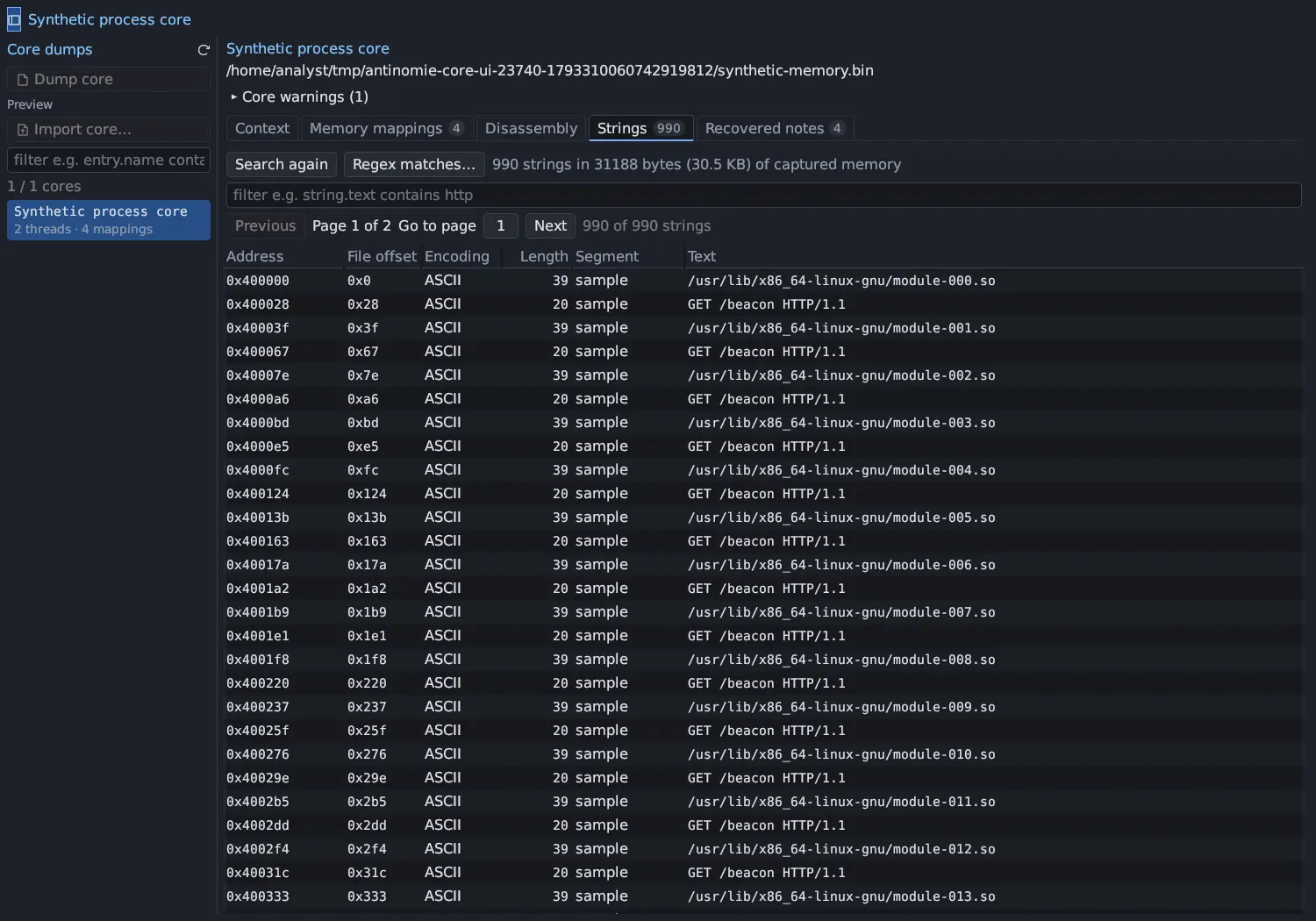
The Strings tab lists ASCII strings of four or more bytes and UTF-16LE
strings of four or more characters, as in Static Analysis, with their
Address, File offset, Encoding, Length, Segment (the mapped
file, or [anonymous rw-] with the mapping’s permissions) and Text.
- The search runs when you open the tab, on a worker thread, with a progress line and Cancel. Search again reads the core’s memory again.
- The filter (for example
string.text contains http) and the sort also run on a worker; the rows stay on screen while they are read. - The table shows 500 strings a page (Previous, Page N of M, Go to page, Next). At most 200,000 strings are listed; a core with more says so.
- Regex matches… opens the regex matches of these strings in a window: the
same patterns as Static Analysis’s Regex matches tab, plus the binary
sockaddr_inandsockaddr_in6structures found in the core’s memory. See Static Analysis. - Right-click a row for Copy string, Copy address and Filter by field.
Recovered notes
Section titled “Recovered notes”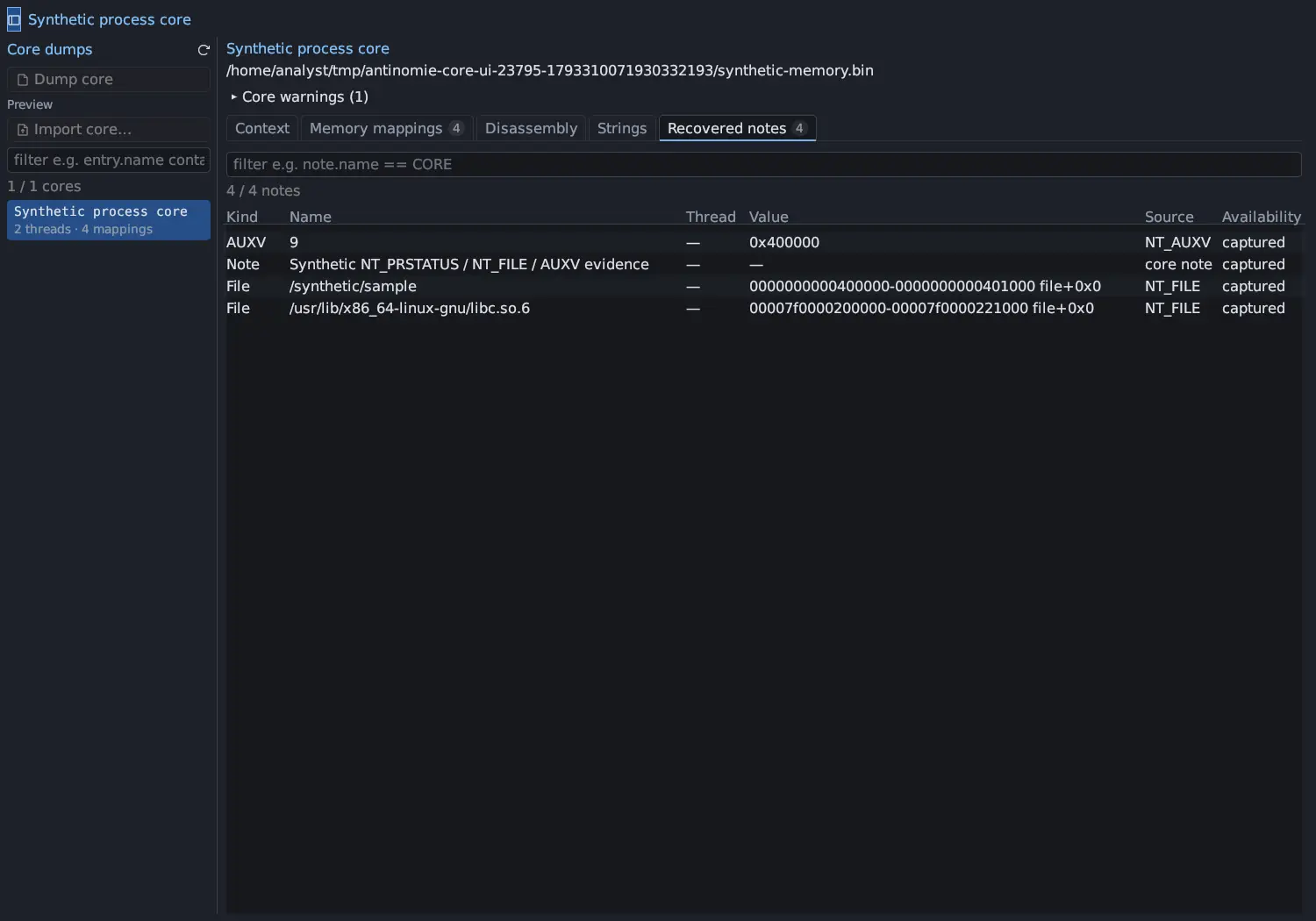
AUXV values, file mappings and other ELF notes in a table (Kind, Name, Thread, Value, Source, Availability); right-click for Filter by field and Copy complete note.
Details
Section titled “Details”With Core dumps in front, the Details panel shows the mapping, function, string or note you selected, with a copy button on each value. With nothing selected it says Nothing selected. Select a mapping, function, string or note in Cores to inspect it here. A core that is still being written, or a partial one, keeps its warnings in the Core warnings list.