

Terminal
Every program you start with Run program gets its own terminal: a window that shows what the program prints and passes your keystrokes to it. The terminal is how you talk to an interactive sample, and its output is saved with the run, so you can read it again after the VM has stopped. This page describes Antinomie 0.8.0, which is in development; the current release is 0.7.1. The Raw view is new in 0.8.0.
Where a terminal comes from
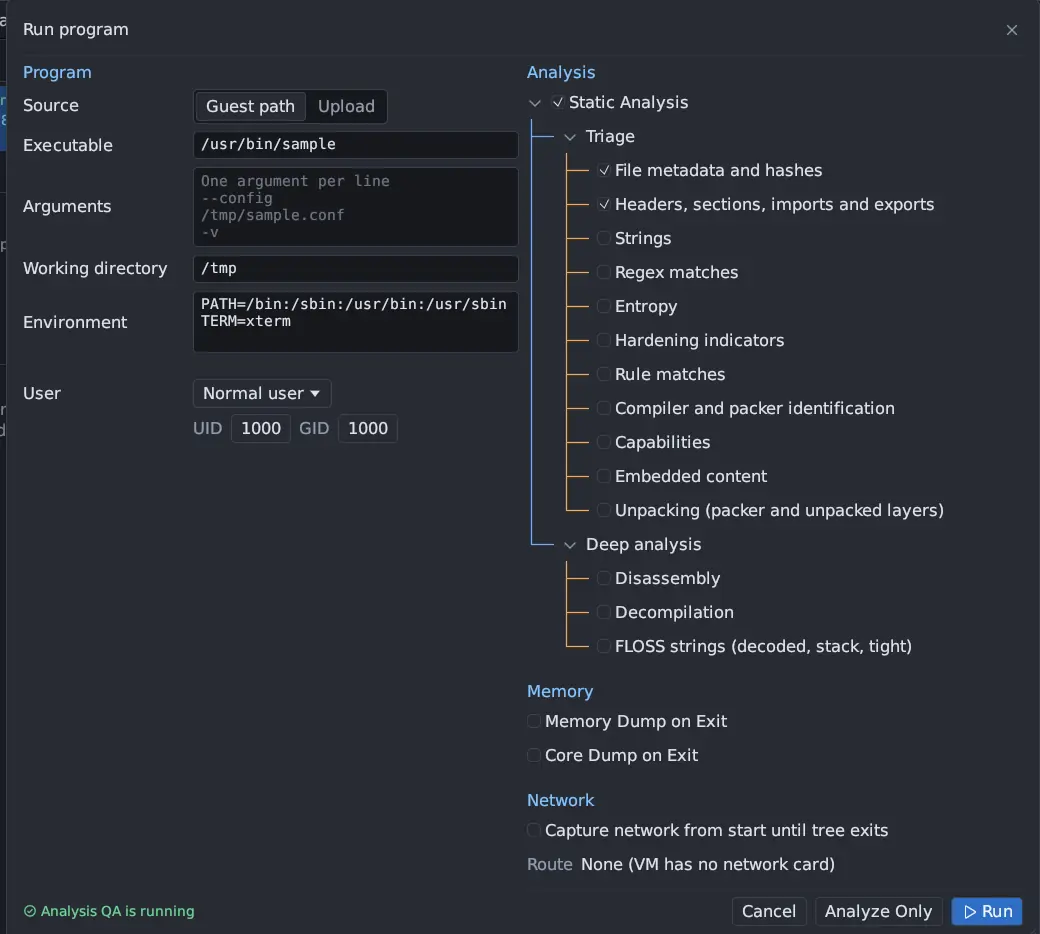
Section titled “Where a terminal comes from”Run program opens a terminal for each launch. With the default Run in: App terminal, the program runs on that terminal’s pseudo-terminal in the guest. On a desktop base, Guest desktop puts the program’s windows on the VM screen while its output stays in the app terminal, and Guest desktop terminal runs it in a terminal window on the VM screen instead. See Your first run.
The terminal opens as a window of its own, titled with the program’s path and
its PID, such as /tmp/dropper / PID 42. It can be docked into the main window
like any panel and dragged out again.
- Closing the terminal window hides its view. The program keeps running; to end it, use the stop icon in Run History or Kill on the toolbar.
- The terminal icon in a run’s row in Run History reopens its terminal, for a live run or a finished one.
- Up to 128 terminal views can be open at once. Past that, the app says Terminal view limit reached (128); close a history window.
![Run History with three runs (/opt/miner/xmrig, /usr/bin/curl and /tmp/dropper marked [static analysis]), each row ending in a terminal icon and a stop icon; the selected run's recorded process tree, dropper with sh and curl below it, is in Details.](/_astro/polish-history.CdyN5s2w.webp)
The header
Section titled “The header”A strip across the top of the terminal shows:
- the program’s file name (hover it for the full path) and its PID;
- the run’s state, the same words as the Tree status column of Run History (Running, Stop requested, Finished, Stopped, PTY closed, Recording ended or Unknown);
- Root: and how the launched program ended, such as
Exit 0,Signal 9orUnknown; - the Formatted / Raw switch, and in Raw a Find field;
- an information icon whose tooltip lists the keyboard and mouse shortcuts.
A problem with the terminal’s saved screen or its replay shows as a warning under the header.
Formatted view
Section titled “Formatted view”Formatted, the default, draws the output as a terminal does: colours, the cursor, full-screen programs and the alternate screen. In 0.8.0 it also draws bold and italic text. New in 0.8.0
The grid follows the size of the window: resize it and the guest’s pseudo-terminal is resized to match (1 to 256 rows and columns). A finished run’s saved screen keeps the size it was recorded at; when it is wider than the window, the view scrolls sideways.
Scrolling back
Section titled “Scrolling back”Each terminal keeps up to 10,000 lines above the screen.
- The mouse wheel or the scrollbar at the right scrolls back.
- Shift+PageUp and Shift+PageDown scroll by a page, Shift+Home goes to the oldest line kept and Shift+End back to the newest.
- While you read back, a button says how many newer lines there are; click it to return to the newest output. New output does not move the lines you are reading.
Raw view
Section titled “Raw view”A program can hide what it prints: move the cursor back and overwrite a line, erase the screen, switch to the alternate screen, draw concealed text, or send a control string that a terminal does not show at all. The Formatted view shows the result, as a person at a terminal would see it. Raw shows the byte stream itself, so nothing can hide.
- Escapes are written out as text:
\eis ESC,\xNNa control byte,\rand\nthe line ends, and\\a backslash. - Escapes that can hide output are highlighted. Hover a highlight for what it does.
| Highlighted | What it can do |
|---|---|
| Cursor moves, scrolling, save and restore | Later text can land on top of earlier output |
| Line, screen and character erases, terminal reset | Erases text that was shown |
| A carriage return not followed by a line feed, or a backspace | Later text overwrites the line |
| SGR 8 (concealed text), in red | Text after it is drawn but not visible |
| Control strings: window title, hyperlinks and the like | Not drawn as text |
| OSC 52, in red | Sets or reads the clipboard |
| Switches to or from the alternate screen | Replaces what is on screen |
Escapes that cannot hide output, such as colours and modes, are shown in a muted colour. Raw keeps the same 10,000 lines as Formatted.
Find searches the Raw text without regard to case. It shows the match count,
such as 3 of 12, and the up and down arrows (or Enter) go to the previous and
next match.
Both views work for a saved run: a run reopened from Run History opens in whichever view is selected.
Selection and the clipboard
Section titled “Selection and the clipboard”These work in a live terminal, in a finished run’s saved output and in the Debugger’s gdb console.
| To | Do |
|---|---|
| Select text | Drag across it; a drag past the top or bottom edge scrolls |
| Select a word | Double-click it |
| Copy the selection | Ctrl+Shift+C, Ctrl+Insert, or right-click and Copy selection |
| Interrupt the program | Ctrl+C with nothing selected (with a selection, Ctrl+C copies it) |
| Paste | Ctrl+Shift+V or Ctrl+V |
| Select everything kept | Right-click and Select all output |
| Drop the selection | Right-click and Clear selection |
Copy from Formatted gives plain text, with soft-wrapped lines joined. Copy from Raw gives the escaped text, as shown. A copy larger than 8 MiB is refused with a warning in Activity. A selection whose cells change or leave the kept history is cleared. Whether the host clipboard receives the text depends on your desktop’s display server.
To type the host clipboard into the guest’s own screen instead (the QEMU window), use VM → Type host clipboard into VM; see The workspace.
No output lost on a busy screen
Section titled “No output lost on a busy screen”The recording has always kept every byte a program wrote to its terminal. What you saw on screen could miss some: when the app’s window was busy, terminal output that did not fit into the backend’s message queue was dropped from the view, and a later screen refresh brought the screen back but not the lines that had already scrolled off.
In 0.8.0 such output waits, in order, and is shown as soon as the window takes it, up to 8 MiB waiting for all terminals together. Only past that bound is the oldest waiting output dropped from the view; it is counted, and the terminal redraws its screen. Reopening the run from Run History always shows the saved output in full.
Recorded terminal output
Section titled “Recorded terminal output”A run’s terminal is part of its recording. The run folder holds
terminal.journal, terminal-transcript.raw and terminal-screen.ansi: the
output, every resize, and the last screen. That is what Antinomie replays when
you reopen a finished run’s terminal, including after a restart of the app. See
Data folders and run layout.
- Terminal output counts against the boot’s recording quota. If the quota runs out while the run is open, the run stops saving its terminal output with the rest of its data, and is marked Saving stopped. See Recording incomplete.
- What you type is sent to the program and appears in its output when the program echoes it. The sample’s custody log records terminal input by size only, never its text. See Custody log.
- A run’s terminal stays readable after the VM has stopped, and after the VM is deleted: deleting a VM keeps its run recordings and terminal history.
Recordings can contain secrets the sample printed or that you typed. See Recordings contain secrets.