

The sample window
Double-click a sample in Library › Samples to open its window in the Samples tab. It brings together everything Antinomie knows about one file, across every run on every VM. ‹ All samples goes back to the list.
The header shows the sample’s name and its verdict tag, and three buttons:
- Edit tags… opens the tag editor.
- Run in VM… sends the sample into the running VM and opens Run program with it. See Run in VM.
- Export custody record… writes the custody log to a file. See Custody log.
Below are three tabs, each with a count: Summary, Runs and Custody log.
Summary: Triage added up over the runs
Section titled “Summary: Triage added up over the runs”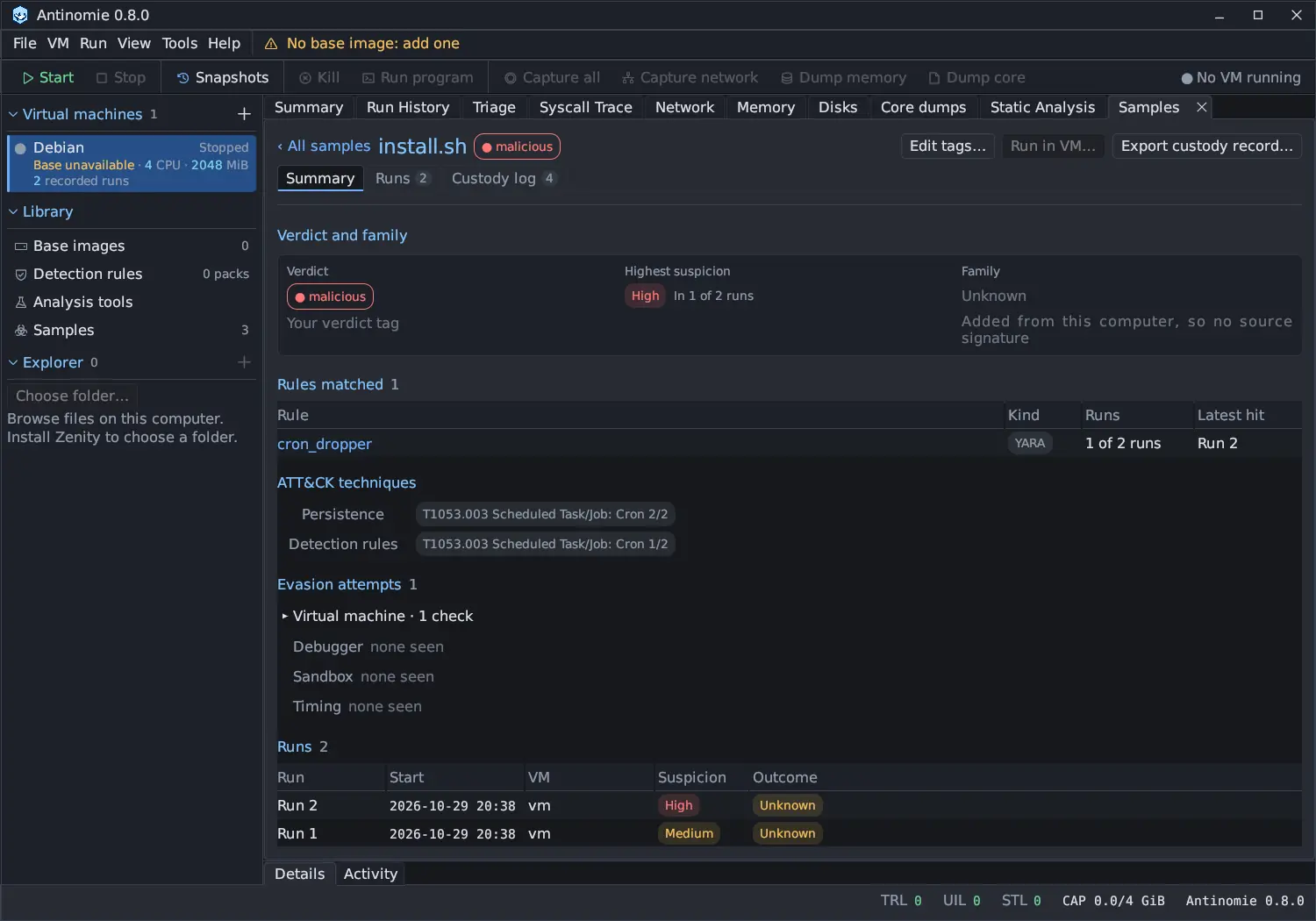
When Triage finishes reading a finished run, it keeps a small digest beside the
run (triage-digest.json in the run’s folder): the highest finding tier, the
rules that matched, the ATT&CK techniques they map to, the evasion checks, the
detection engines’ matches, the indicators and the run’s lineage. The Summary
adds those digests up, so it never has to read the recordings again.
The Summary has these sections, top to bottom.
Verdict and family
Section titled “Verdict and family”- Verdict: your verdict tag (Your verdict tag), or None set.
- Highest suspicion: the highest finding tier any run reached (High,
Medium, Low, Info) and in how many runs, for example
In 1 of 2 runs. - Family: the family the source named, with its signature (from MalwareBazaar, for example), or Unknown with the reason, such as Added from this computer, so no source signature.
Nothing here is a verdict of Antinomie’s: the only verdict is the tag you set.
Rules matched
Section titled “Rules matched”Each YARA, IDS and Sigma rule that matched in any run, with its Kind, how many of the runs it matched in, and the Latest hit. Click the run to open it in Triage. With no detection scan read for the runs, the section says so.
ATT&CK techniques
Section titled “ATT&CK techniques”The techniques the matched rules map to, grouped by tactic, each with the
number of runs it was seen in out of all runs (2/2).
Evasion attempts
Section titled “Evasion attempts”Anti-analysis checks the sample made, folded by kind (Virtual machine,
Debugger, Sandbox, Timing) and then by check and run. A kind with
no check says none seen. Expand a kind to see its checks.
The latest five runs: Run, Start, VM, Suspicion (the highest
tier of that run, or not triaged) and Outcome. Click a run to open its
Triage. All runs (N) › opens the Runs tab.
Indicators, strings and regex matches
Section titled “Indicators, strings and regex matches”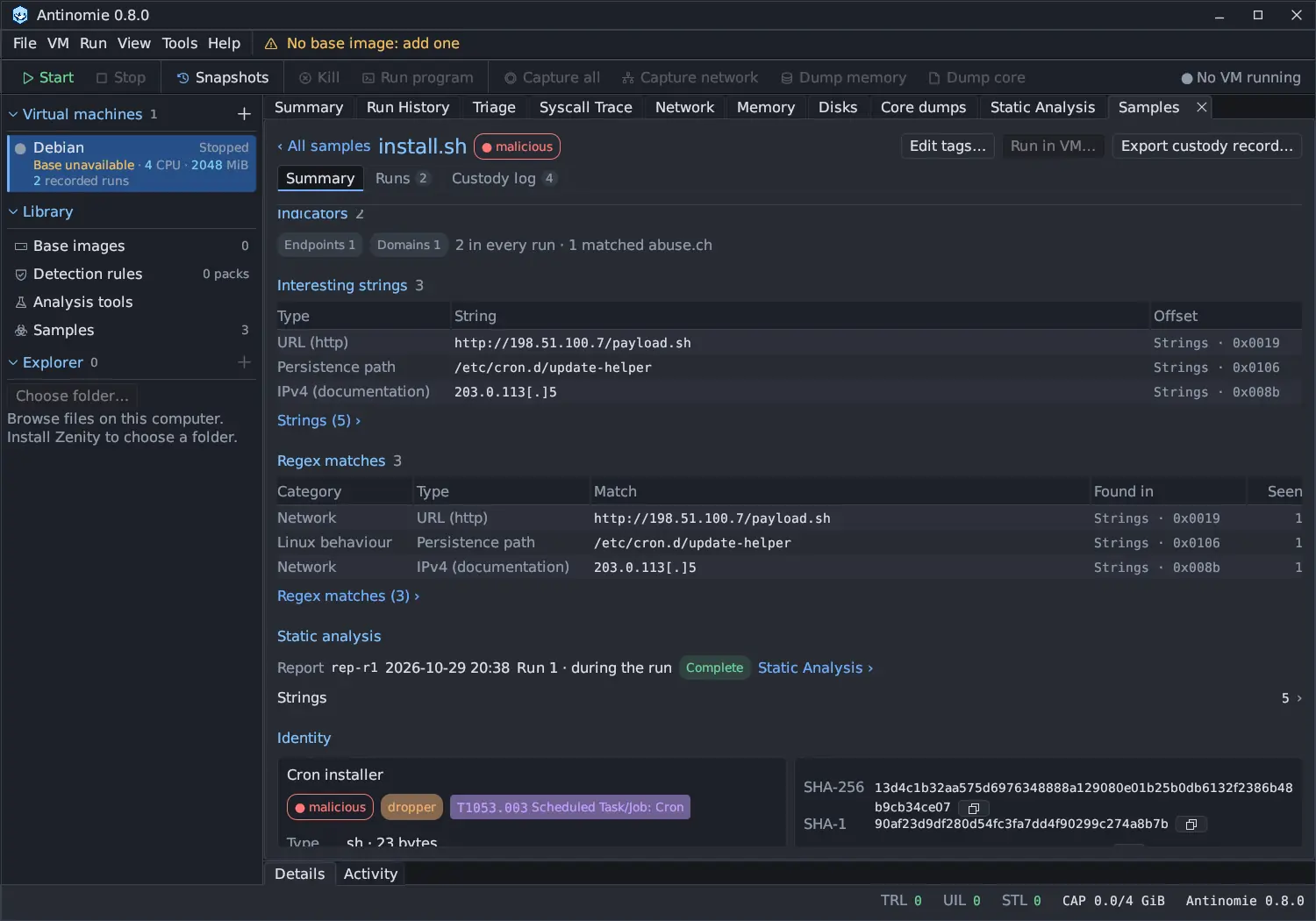
- Indicators: a chip per kind (endpoints, domains and so on) with its count, how many were seen in every run, and how many matched an abuse.ch dataset.
- Interesting strings: URLs, IP addresses, domains, paths and keys from the
static analysis report’s strings, six rows, longest first, with their type and
offset. Addresses are defanged (
203.0.113[.]5). Strings (N) › opens all of them. - Regex matches: the static report’s regex matches, six rows, with Category, Type, Match, Found in and how often each was Seen. Regex matches (N) › opens all of them.
Static analysis
Section titled “Static analysis”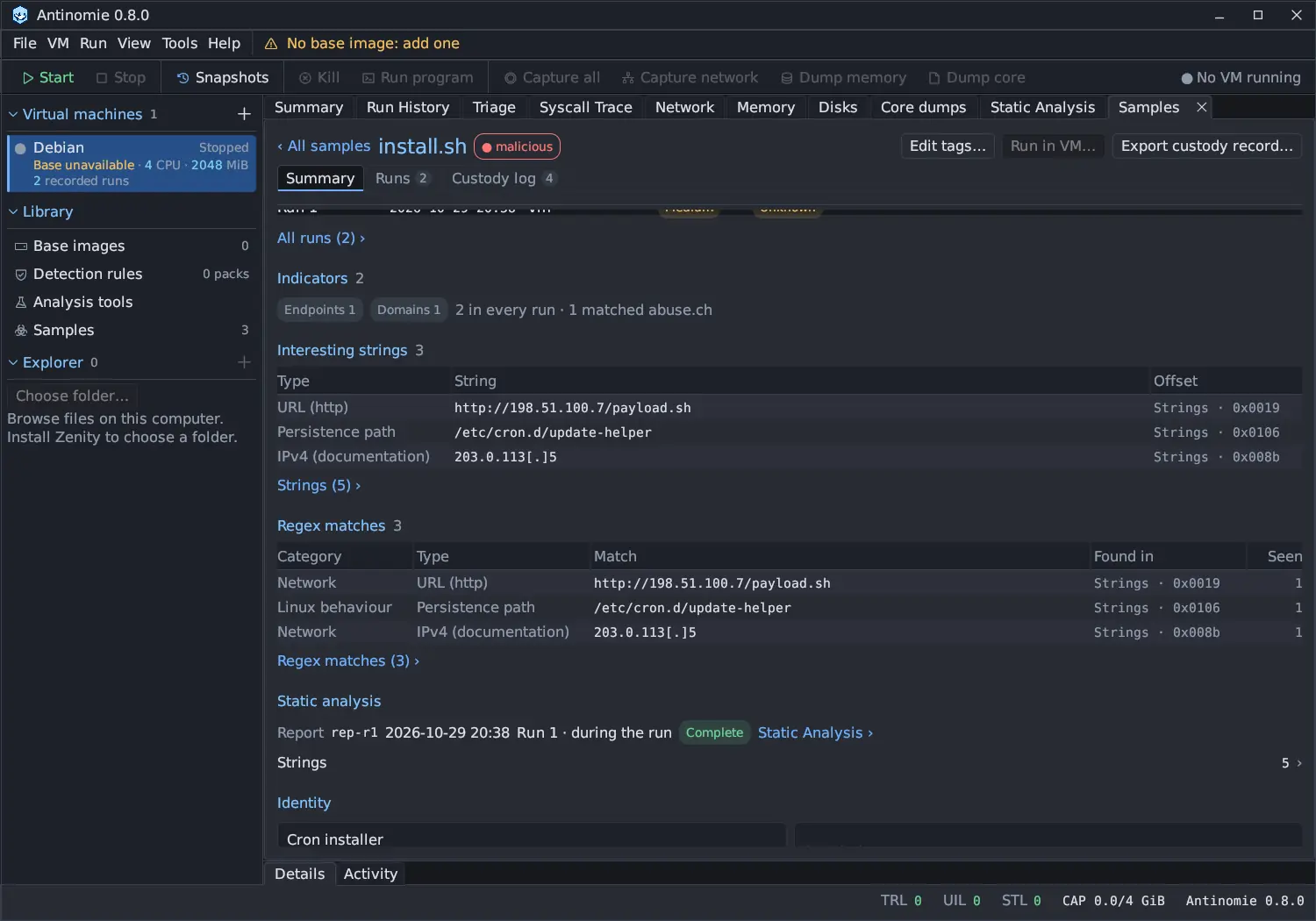
The static analysis report of the sample, when there is one: its id, time, the run it came from, whether it ran during the run, its status, and a line per category that has results (File Info, Sections, Hardening, Strings, FLOSS, YARA, Capa Matrix and so on) with a count. A line or Static Analysis › opens the report in the Static Analysis tab. A sample that was never analysed says Not analysed.
Identity
Section titled “Identity”The sample’s description and tags, type, architecture and size, when it was
Added (and Also added for later origins), its Source, the
SHA-256, SHA-1, MD5 and TLSH, each with a copy button, and the
Archive: its path, archive present or ✗ missing, Verify (read the
archive back and compare its SHA-256) and View content.
Aliases lists every name the sample went by, with the path or source and
where it was seen. An entry brought in from an earlier version says recorded before the custody log.
Lineage
Section titled “Lineage”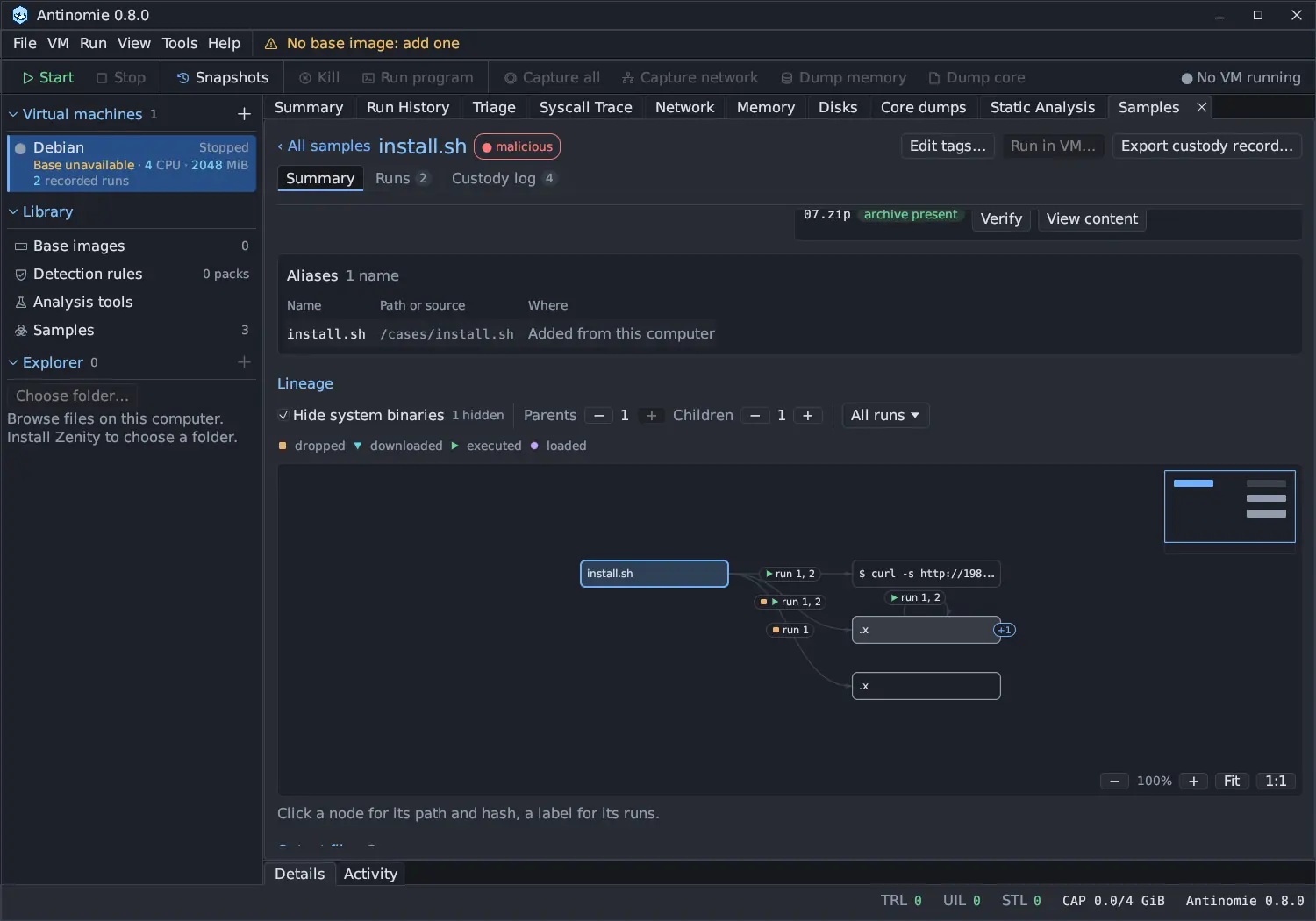
Under Identity, Lineage draws where the sample came from and what it dropped or ran, merged across all its runs:
- parents on the left, the sample in the middle, children on the right;
- one node per file, keyed by SHA-256. A file with no hash (deleted, never captured) is kept apart per run and drawn dashed;
- command nodes for
sh -cstyle launchers; - edges with a shape per kind (dropped, downloaded, executed,
loaded) and a label listing the runs, such as
run 4, 7, 9or5 runs. Click a label for the per-run table.
Hide system binaries is on by default and says how many are hidden:
programs of the base image (a system path, a known hash, never written by a
run) are left out, and what they did is shown under the program that ran them.
The Parents and Children steppers add or remove a level; a node’s +N
badge expands it; the run menu (All runs) limits the graph to one run.
Drag to pan, use the wheel to zoom about the pointer (20 to 300 %), and use
Fit, 1:1 and the minimap. With the graph focused, the arrow keys pan and
+, - and 0 zoom.
Click a node to see its path and hash, with Copy SHA-256. A node that is another library sample has Open sample ›. A node for a file that is not in the library has Add to Samples…, which reads the file from a run’s saved disk dump; see Add to Samples… from a run.
Output files
Section titled “Output files”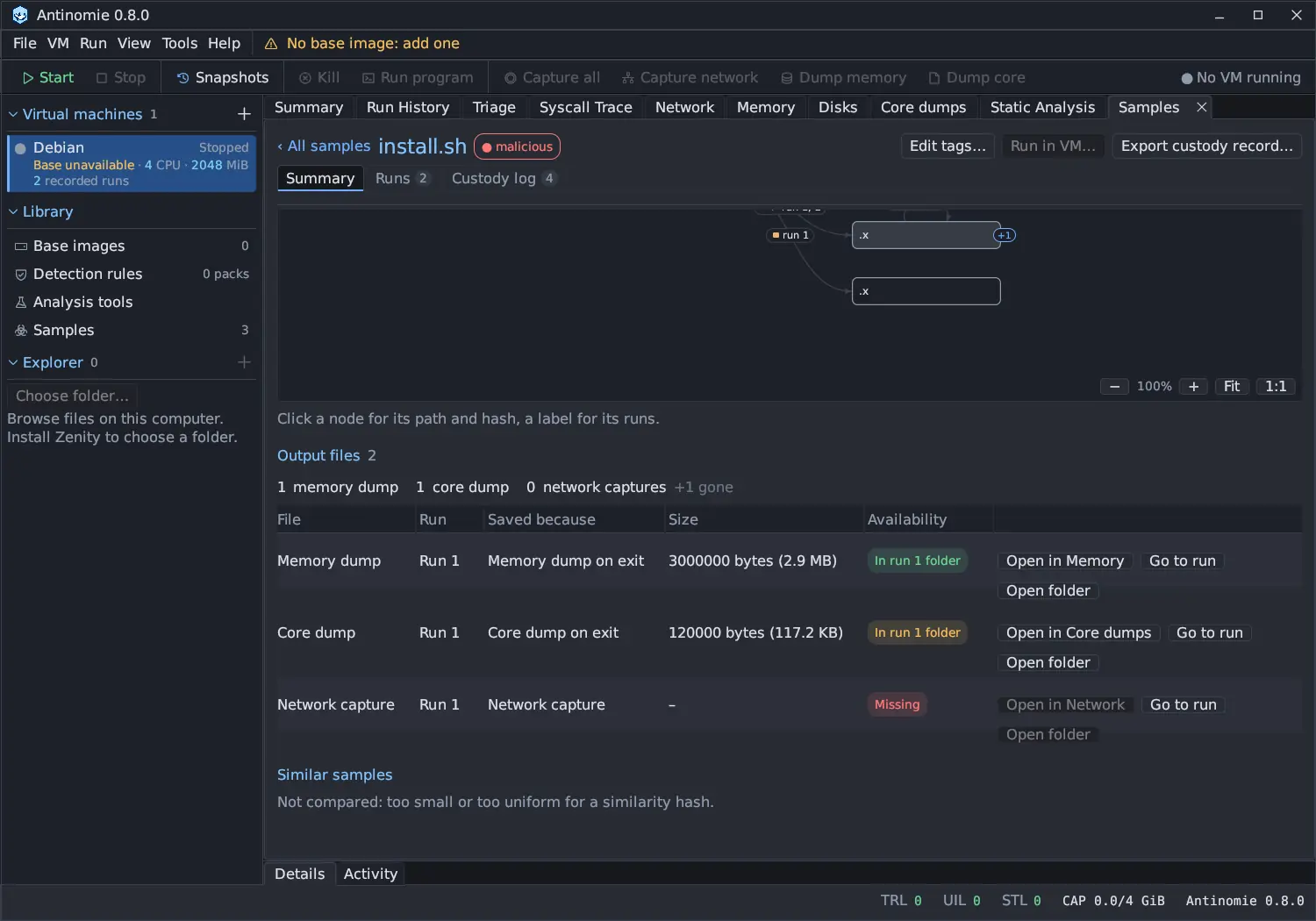
Every memory dump, core dump and network capture the sample’s runs left, with the Run, why it was saved (Saved because, for example Memory dump on exit), its Size and its Availability: in the run’s folder, Deleted by you, or Missing (Not deleted through the app). Each row has Open in Memory, Open in Core dumps or Open in Network, Go to run and Open folder. The line above the table counts each kind and how many are gone.
Similar samples
Section titled “Similar samples”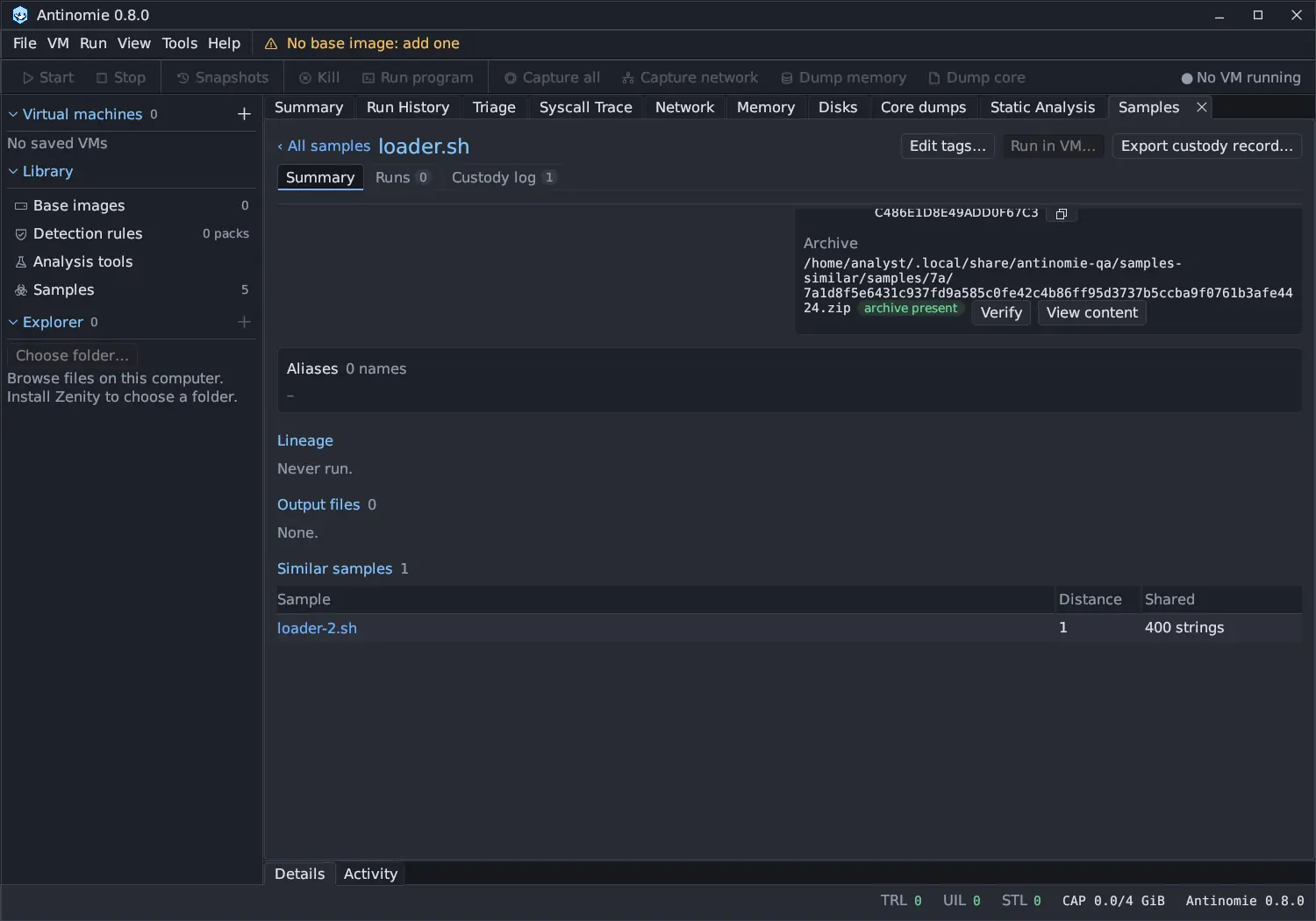
Up to five other library samples by TLSH distance, 150 or less, nearest first: 0 is identical, under about 100 a close variant. Shared says what they have in common: the imported symbols when both are ELF files, printable strings of eight or more characters otherwise. Click a row to open that sample. The sample’s own parents and children are left out, since the lineage graph shows them.
The comparison runs once per window on a worker thread and reads archives of up to 16 MiB each, at most 300 of them. A file too small or too uniform for a TLSH hash says Not compared.
Viewer
Section titled “Viewer”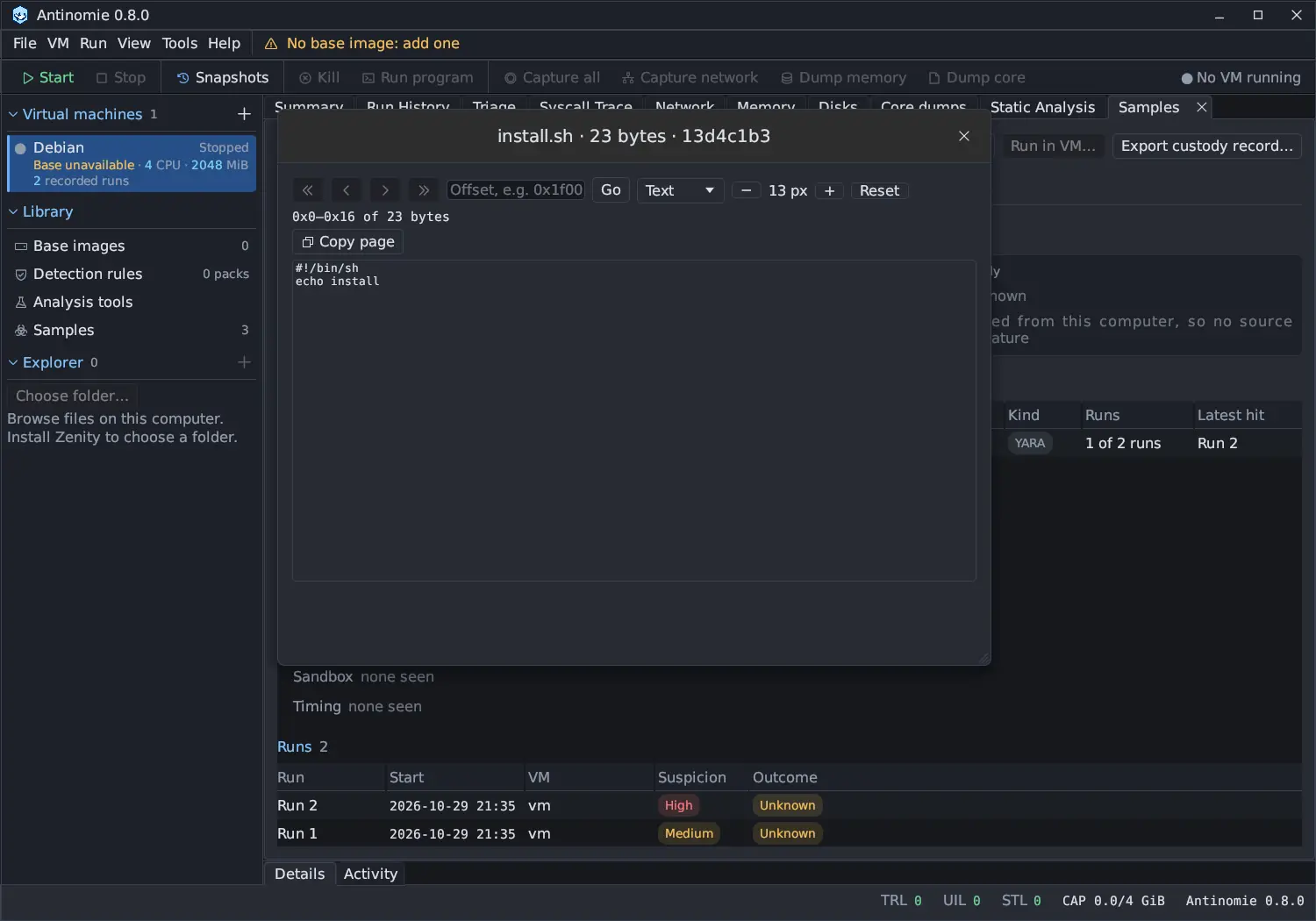
View content in Identity opens the archived file in a window over the page (Escape or the close button closes it). The archive is decrypted in memory.
- Pages of 4 KiB with first, previous, next and last, and Go to an offset
(
0x1f00). The line above the bytes shows the range shown. - Formats: Text (the default for scripts), Hex dump, Strings (printable runs of five or more characters over the whole file, with their offsets), C array, Python bytes, Base64 and Hex string.
- Copy page copies the page in the chosen format.
- Text size 8 to 32 px with the buttons or Ctrl+wheel; Reset goes back.
Runs tab
Section titled “Runs tab”![The Runs tab of install.sh: All, Live and Past, a sample == install.sh filter chip, a filter field, 2 of 2 runs, and a table with two runs of /tmp/install.sh, one marked [static analysis], both Finished with root exit Unknown on VM vm, and the hint Select a run for its details.](/_astro/samples-runs.BIiXv5o7.webp)
Runs is Run History across every VM, limited
to this sample (the sample == NAME chip). It has the same All, Live
and Past views and the same filter. Select a
run for its details:
- the Recorded process tree, with processes that run this sample, or another library sample, tinted;
- the Environment the run started in, saved with the run: the Machine the guest looked like, CPUs, RAM and disk, Network, Stealth profile, Base image and revision, Guest kernel and patch series, Detection rules, Tools, the App version and an Environment hash. A run that started before 0.8.0 says Not recorded.
Open Triage (or a double-click) opens the run in Triage of its own VM. Open terminal and Stop run and descendants work as in Run History.
Run in VM
Section titled “Run in VM”Run in VM… sends the sample’s archive into the running VM and opens Run
program with it filled in, so you can check the options before you press
Run. The archive is read back and its SHA-256 checked first. The file goes
to /tmp/ in the guest under the first eight hex digits of its SHA-256 and its
name, to run as user 1000 in /tmp; a shell script runs through /bin/sh.
The button is unavailable while no VM is running (Start a VM first), when the archive was removed, or when the file is not something the guests run (Only x86-64 Linux programs and shell scripts run in the guests). Sending is recorded in the custody log as Sent into VM, and the run as Run started and Run ended.