

Triage
Triage reports on one program run. It opens when you double-click a run in Run History. Pick a run in the Select a program run dropdown at the top, or in Run History; a capture cannot be selected here. The panel sits beside Run History in the default layout. This page describes Antinomie 0.8.0, which is in development; the current release is 0.7.1.
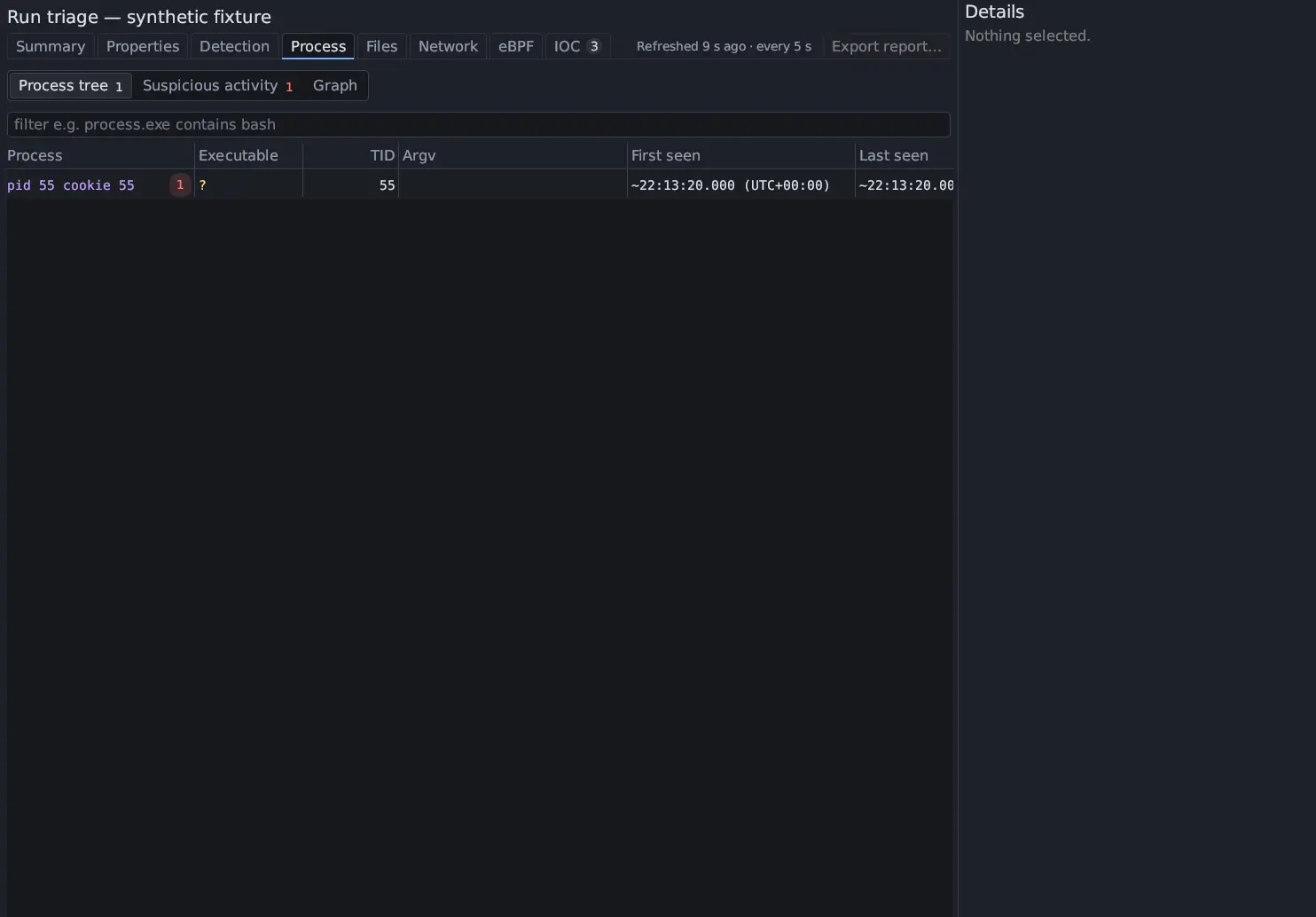
The sections are Summary, Properties, Detection, Process, Files, Network, eBPF and IOC. Most of the numbers are counts of what the recording shows; none is a verdict.
| Section | Holds | Reference |
|---|---|---|
| Summary | Whole-run counts that open the matching section, the detection cards, the activity strip, the IOC card and the worst observations | Summary and counts |
| Properties | Hashes, file type and fuzzy hashes of the run’s executable | Properties |
| Detection | YARA, IDS and Sigma matches | Detection engines |
| Process | Process tree, Suspicious activity and Graph, one segmented control with counts | Processes |
| Files | Per-file history, then a tab for each thing a program did to a file: Opened files, Created files, Read files, Written / resized, Deleted files, Renamed / moved, Executed files, Attributes, Metadata probed, Other and Changed files | Files, File Reconstruction |
| Network | Endpoints, Domains, URLs and TLS, read from the run’s packet capture | Network |
| eBPF | Captured BPF programs, their attachments and seccomp filters | Processes |
| IOC | The run’s indicators, matched offline against abuse.ch datasets | Network |
Controls
Section titled “Controls”On Process, Files and Network, a status at the right of the section
tabs reads like Refreshed 12 s ago · every 5 s. Its menu has Refresh now,
which rebuilds the whole-run index, and Every … s (1 to 300 seconds), which
rebuilds it on a timer while the run is live, with a note on the time zone:
Host time is the host’s timezone (a ~ marks an estimated guest time), and
packet times use QEMU’s capture clock, which can differ. Refresh now is
disabled until the recording has a whole-run index. eBPF keeps the same
controls as a row above its tables. In a narrow pane the status moves under the
tab bar.
On Files, Hide stdio, Hide library and Failed attempts are toggle chips in the filter bar; the first two start on. Since 0.8.0, Per-file history also says how much written content the run kept against its caps, which you can change in Tools → Settings… → Advanced.
A run that lived through a transport reconnect is read whole: every recording segment, oldest first.
Each table has a filter box (see Triage table filters),
column titles that sort on a click, and Previous and Next page buttons
showing 1–100 of N matched. Right-click a column title to restore the recorded
order. A cell shows at most 240 characters; Details has the full value.
Click, double-click and right-click
Section titled “Click, double-click and right-click”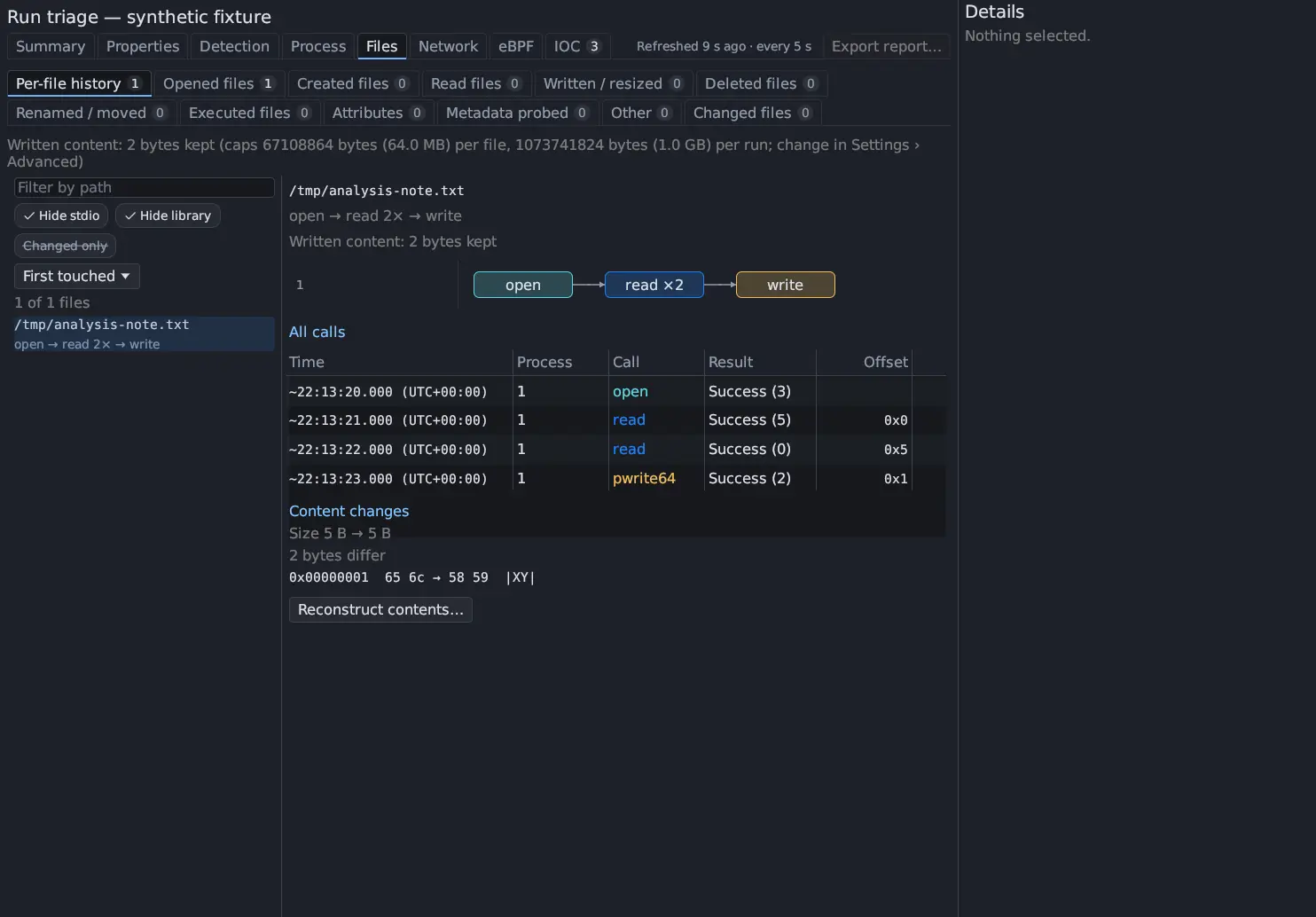
- Single click a row to show it in Details. This covers suspicious activity, processes, files, network rows, indicators, changed-file diffs and BPF decoding.
- Double click a row to open its original evidence: the syscall in Syscall Trace, or the packet in Network, even if an old filter had hidden it.
- Right-click a cell to build a filter clause from its value. In a Files tab, the row menu also has Reconstruct contents…, which replays the file in the File Reconstruction window.
The activity graph
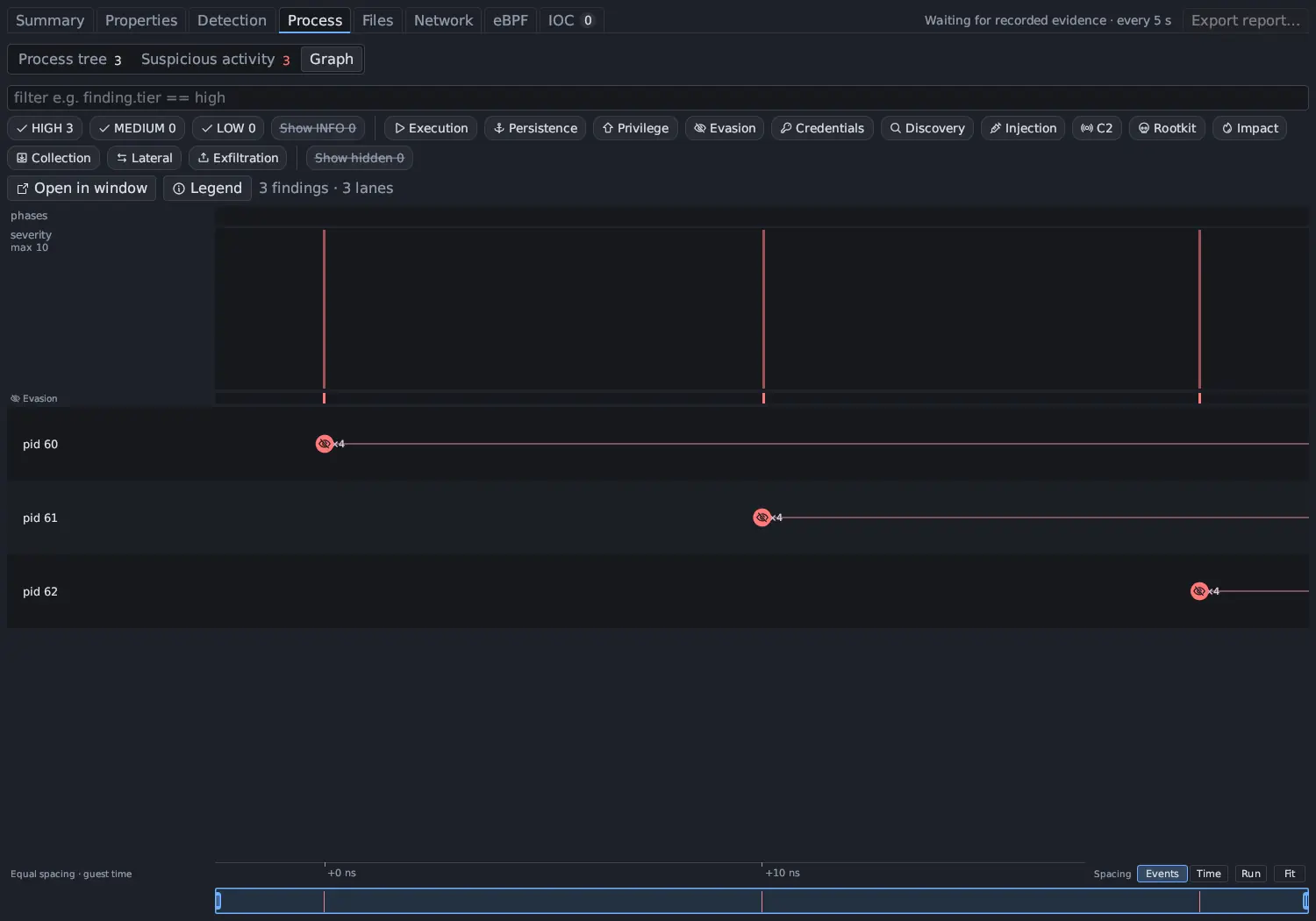
Section titled “The activity graph”Process → Graph draws the same findings as Suspicious activity on one lane per process, against time, with the run’s phases, a severity curve and a category heat strip above the lanes. The Summary shows a small version of it as Main activity graph. See Processes.
Export report
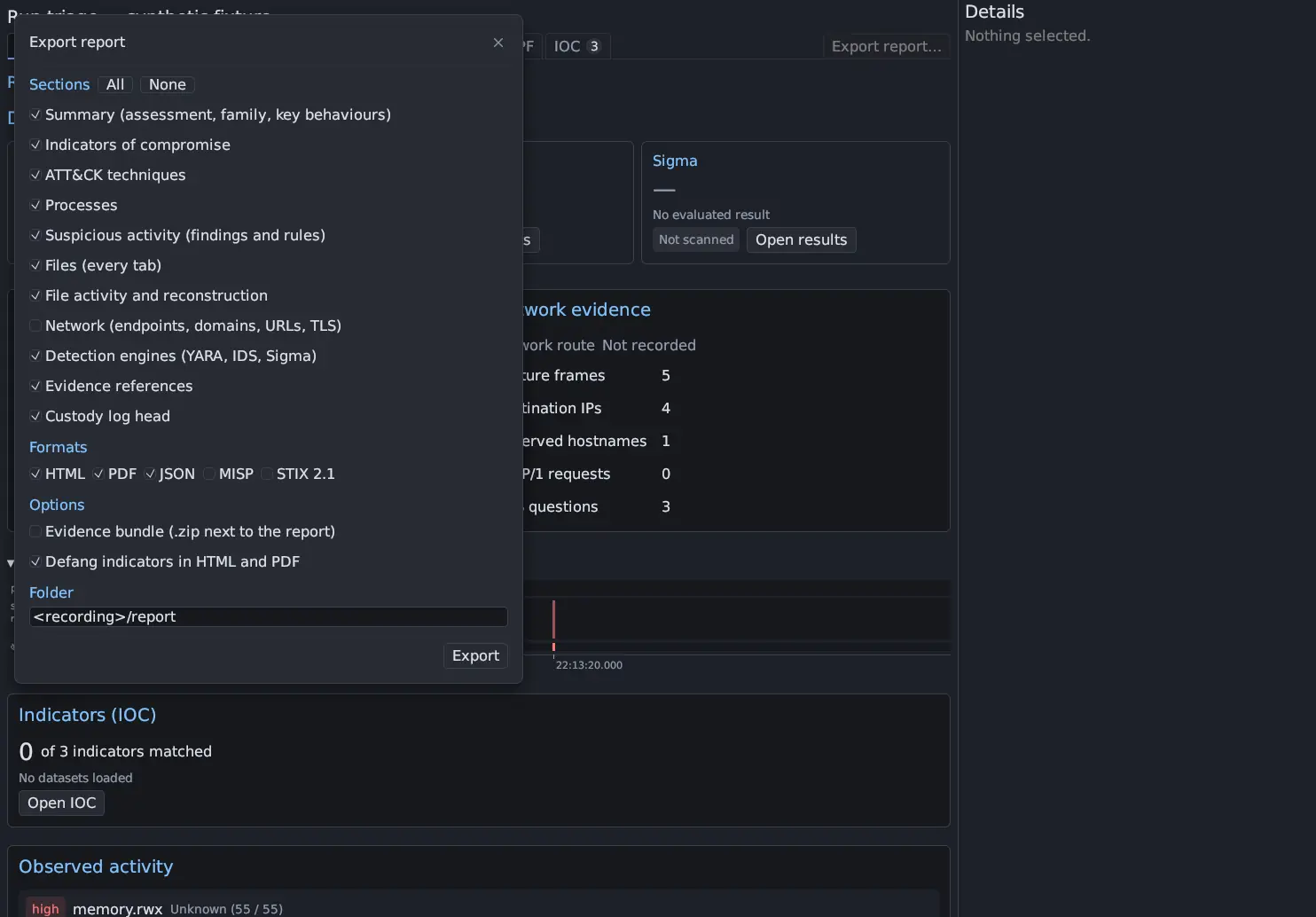
Section titled “Export report”Export report… at the right of the section tabs writes the whole run’s
Triage, not only what the screen shows, as HTML, PDF, JSON, a MISP event or a
STIX 2.1 bundle, with a checkbox per section, optional defanging of the
indicators in HTML and PDF, and an optional evidence bundle. The default folder
is the run’s report folder. It is disabled until the run has a saved
recording. See Report export and evidence bundle.
Warnings
Section titled “Warnings”Warnings sit under the run selector: no network capture for the run, Capture network being off, a recording that stopped saving, or an index still being built (Indexing this run’s files…, Indexing this run’s capture…).
What Triage keeps
Section titled “What Triage keeps”When Triage finishes reading a finished run, it writes a small digest beside the
run (triage-digest.json): the highest finding tier, the rules that matched,
their ATT&CK techniques, the evasion checks, the detection engines’ matches and
the indicators. The sample window adds these up
over every run of a sample without reading the recordings again. A run that
Triage never opened has no digest, and the sample window says not triaged.