

Analyse a sample end to end
This walkthrough follows one unknown Linux program through Antinomie. Adjust the steps to your sample. Read Safety first.
1. Prepare a clean guest
Section titled “1. Prepare a clean guest”- Pick a base: BusyBox for small command-line programs, Debian 13 for programs that need a desktop or many libraries.
- Create a VM. Set Network deliberately:
- Disconnected if you only need system calls. Network capture is not possible.
- Isolated to see what the program tries to reach, with no way out.
- Routed to choose, for each run, where the traffic goes: nowhere, fake services, the Internet, Tor, a VPN or a SOCKS5 proxy. See Network routes.
- NAT only when you need the sample to reach real servers.
- Start the VM. Optionally take a Snapshot, so you can return to this clean state, or plan to use Reset disk to base….
2. Put the sample in the library New in 0.8.0
Section titled “2. Put the sample in the library ”Add the file to Library › Samples before it goes near a
VM. Add file… reads and hashes it without running or unpacking it, says
whether the same bytes are already in the library, and keeps it in an encrypted
archive (password infected). Give it a name, a description and tags. Tick
Delete the original after it is archived to remove the loose copy from your
disk once the archive has been read back and matched.
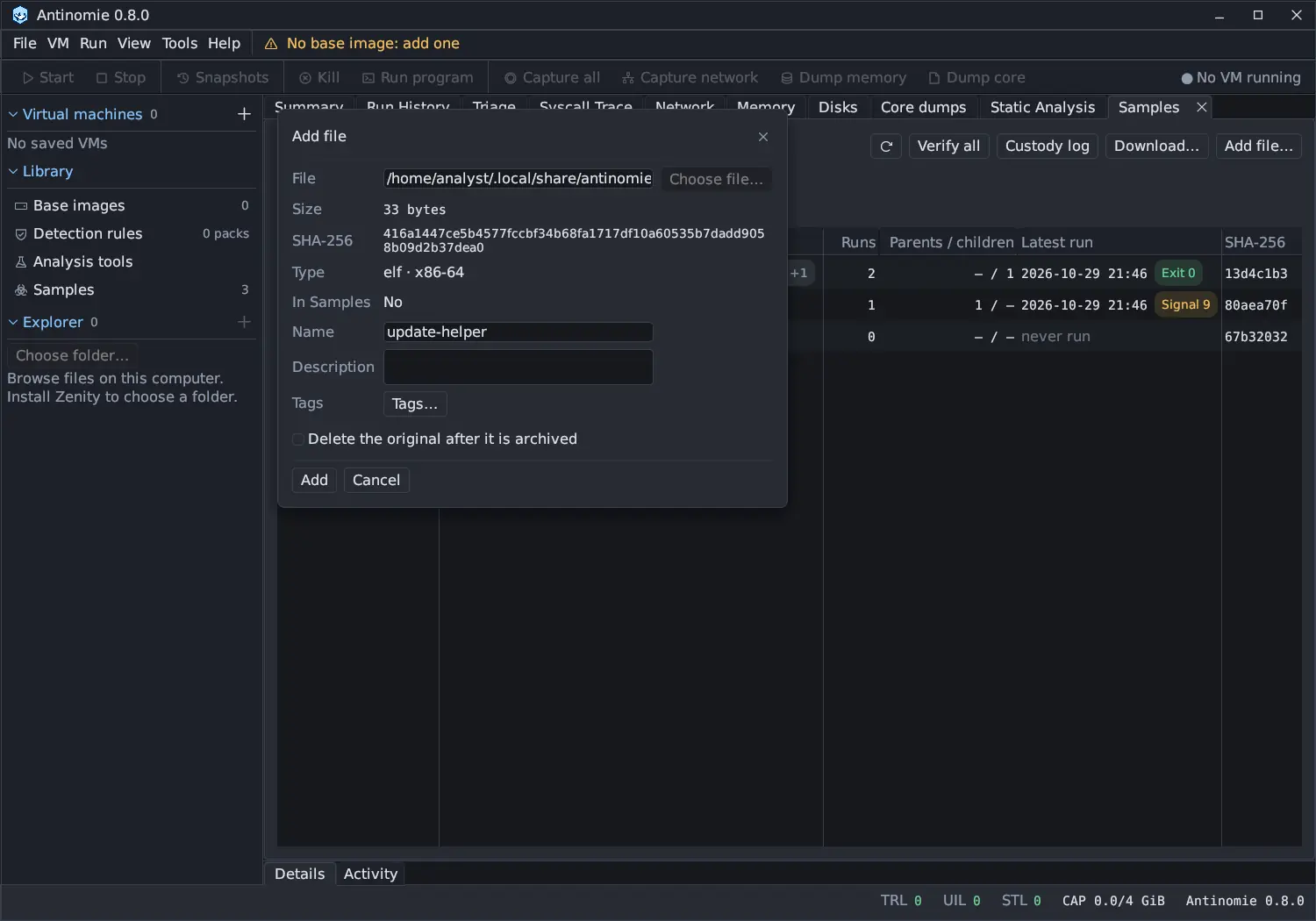
From now on every step is recorded in the sample’s custody log: added, sent into a VM, seen in a run, run started and ended, what you did to the running guest, and what you typed (by size only).
3. Get the sample in
Section titled “3. Get the sample in”Open the sample and press Run in VM…. Antinomie reads the archive back, checks its SHA-256, sends it into the running VM and opens Run program with it filled in. See Run in VM.
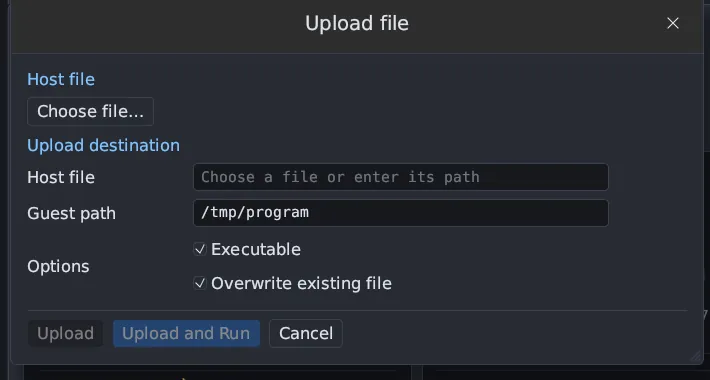
You can also use Upload file (Ctrl+U), which sends a host file to a guest path. Tick Executable if it must run. Dropping a file onto the window, or using Explorer in the sidebar, opens the same dialog. Uploading never runs the file. In 0.8.0 every upload up to 256 MiB is archived in the library first.
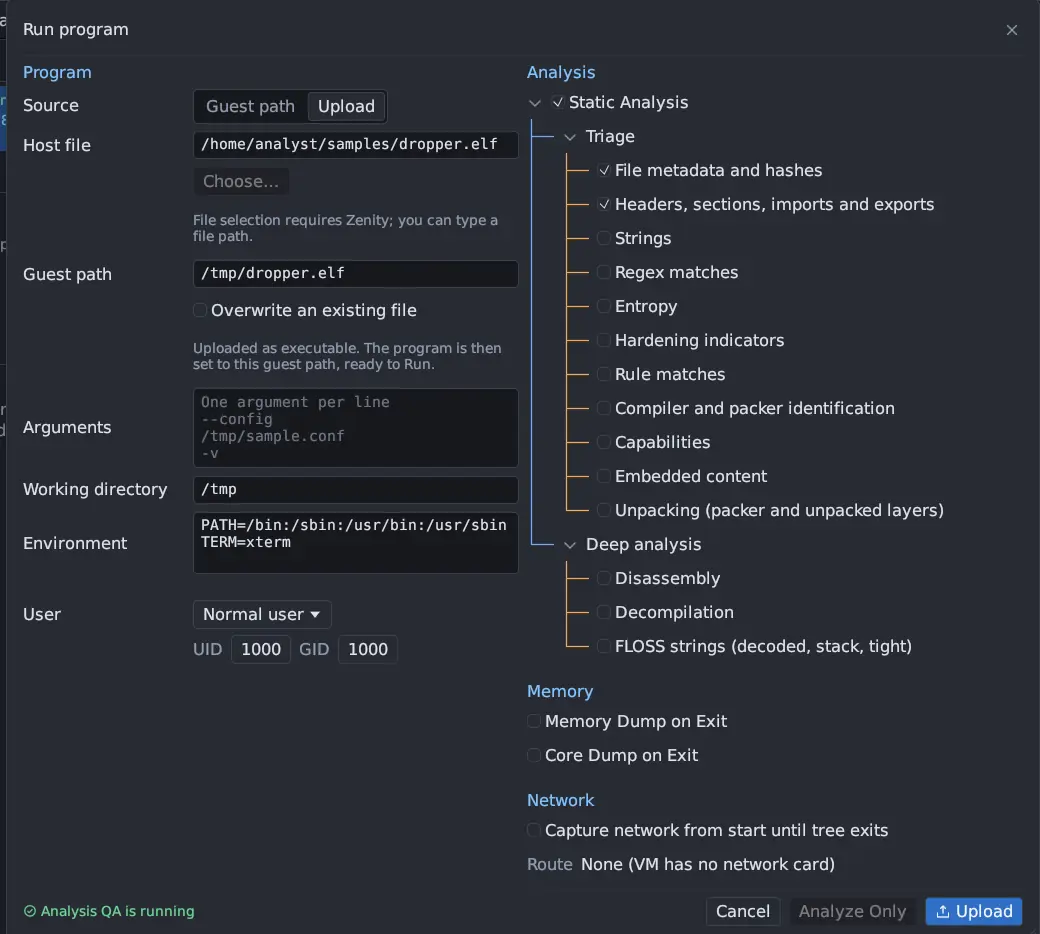
Run program can upload too: under Source, Upload sends a Host file to a Guest path and sets it as the program to run.
4. Choose what to record, then run
Section titled “4. Choose what to record, then run”In Run program, under Source, choose Guest path and type the Executable, or Upload. Then fill in the Arguments (one per line), Working directory, Environment and User. A Normal user run shows what the program does without privileges; run it again as Root to see more.
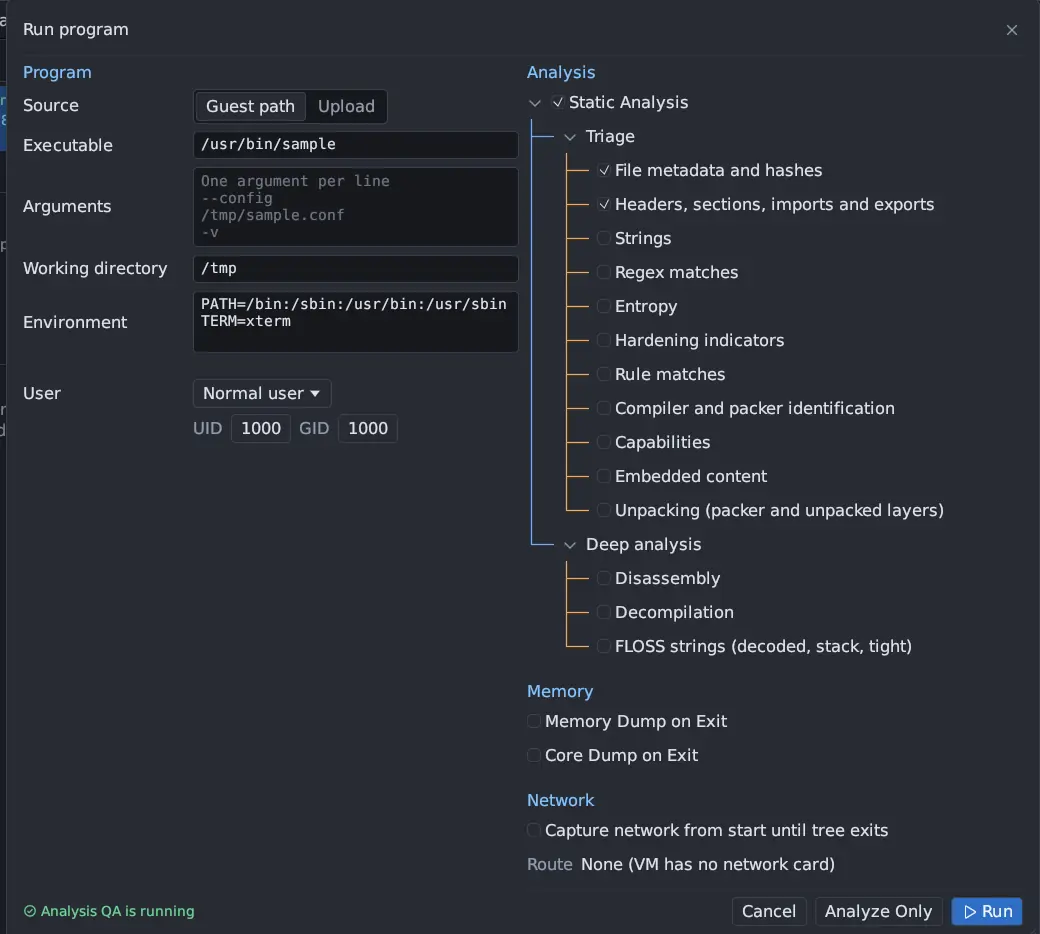
Pick what you want kept:
- Static Analysis: analyse the file before it runs, from triage categories such as strings and regex matches to disassembly and decompilation. Its strings and regex matches also feed the sample window.
- Capture network from start until tree exits: needs a VM with a network.
- Memory Dump on Exit and Core Dump on Exit: see Memory and core dumps.
For a program that spawns services or injects into others, also press Capture all before you run. See What gets traced.
Press Run. Interact with the terminal if the program expects input. Use Stop or Kill when you have seen enough; closing the terminal does not stop the program.
5. Read the Triage
Section titled “5. Read the Triage”Double-click the run in Run History. Triage → Summary shows counts for syscalls, tasks, suspicious observations, files and network, the detection cards and the MITRE ATT&CK techniques the matched rules cite.
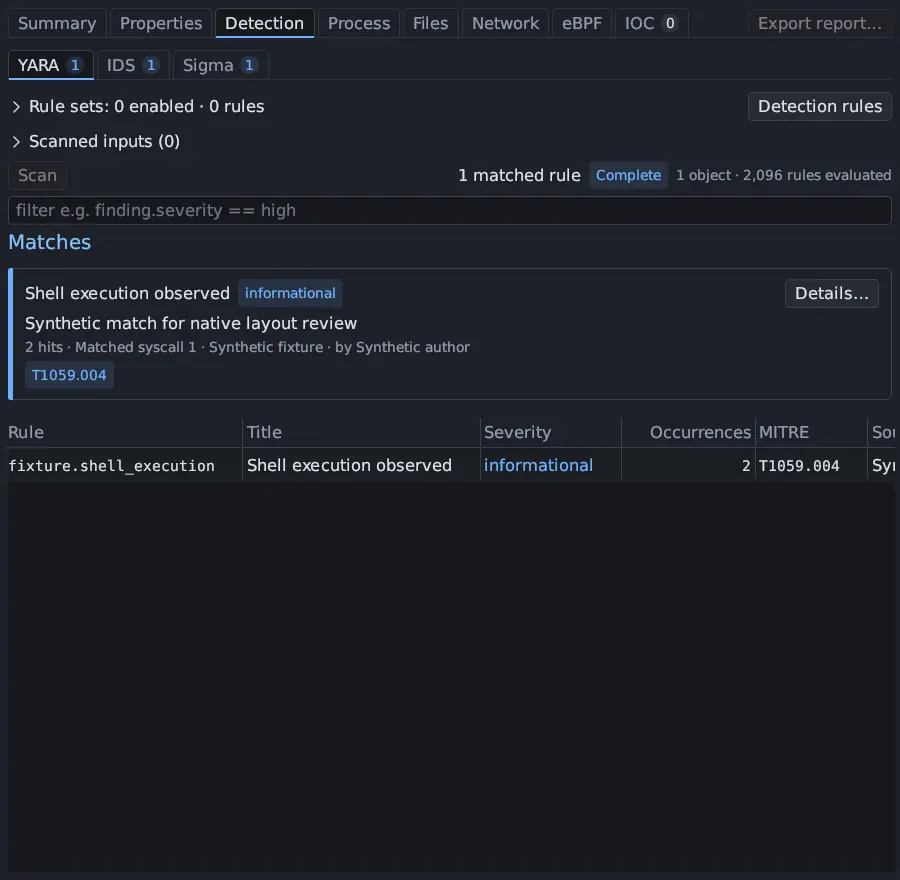
- Process → Suspicious activity for behaviors worth a look. In Process tree, a process with suspicious observations has a chip with their count.
- Files: start with Changed files and its Lifecycle column, then Created files, Executed files and Deleted files. Rows in hidden, persistence or credentials locations are marked. See Triage files.
- Network: Endpoints, Domains, URLs and TLS; Open Packets shows the run’s capture. IOC matches the indicators against the abuse.ch datasets.
- Detection: Scan with your rules. See Detection engines.
- Properties: hashes of the sample.
Opening the run in Triage also stores the run’s digest, which the sample window adds up in step 8.
6. Drill into evidence
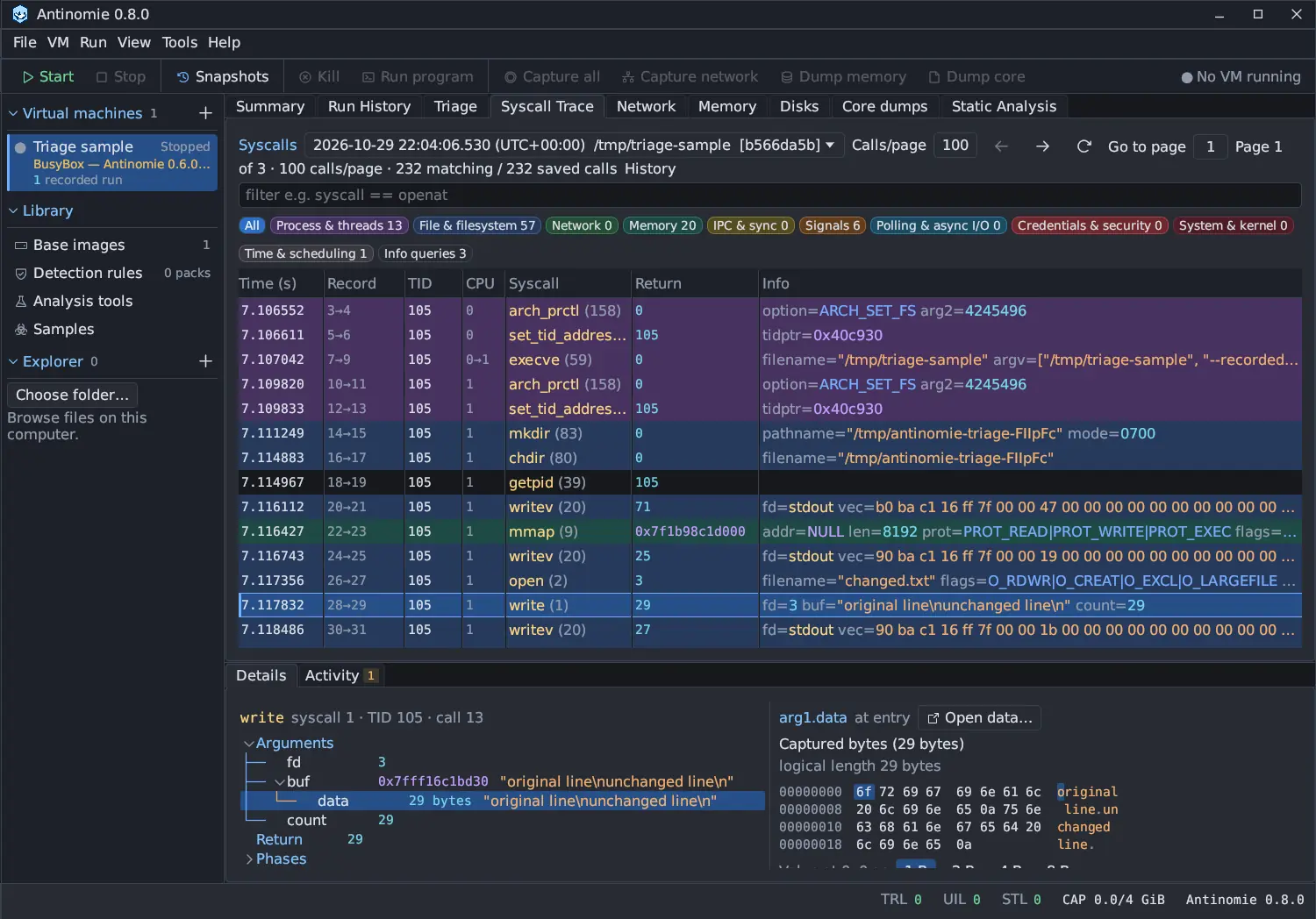
Section titled “6. Drill into evidence”Double-click any Triage row to open the exact syscall or packet. In Syscall
Trace filter for what matters, for example syscall.group == "Network" or
args.path contains "/etc/", and read decoded arguments and captured bytes in
Details. Check each field’s capture status.
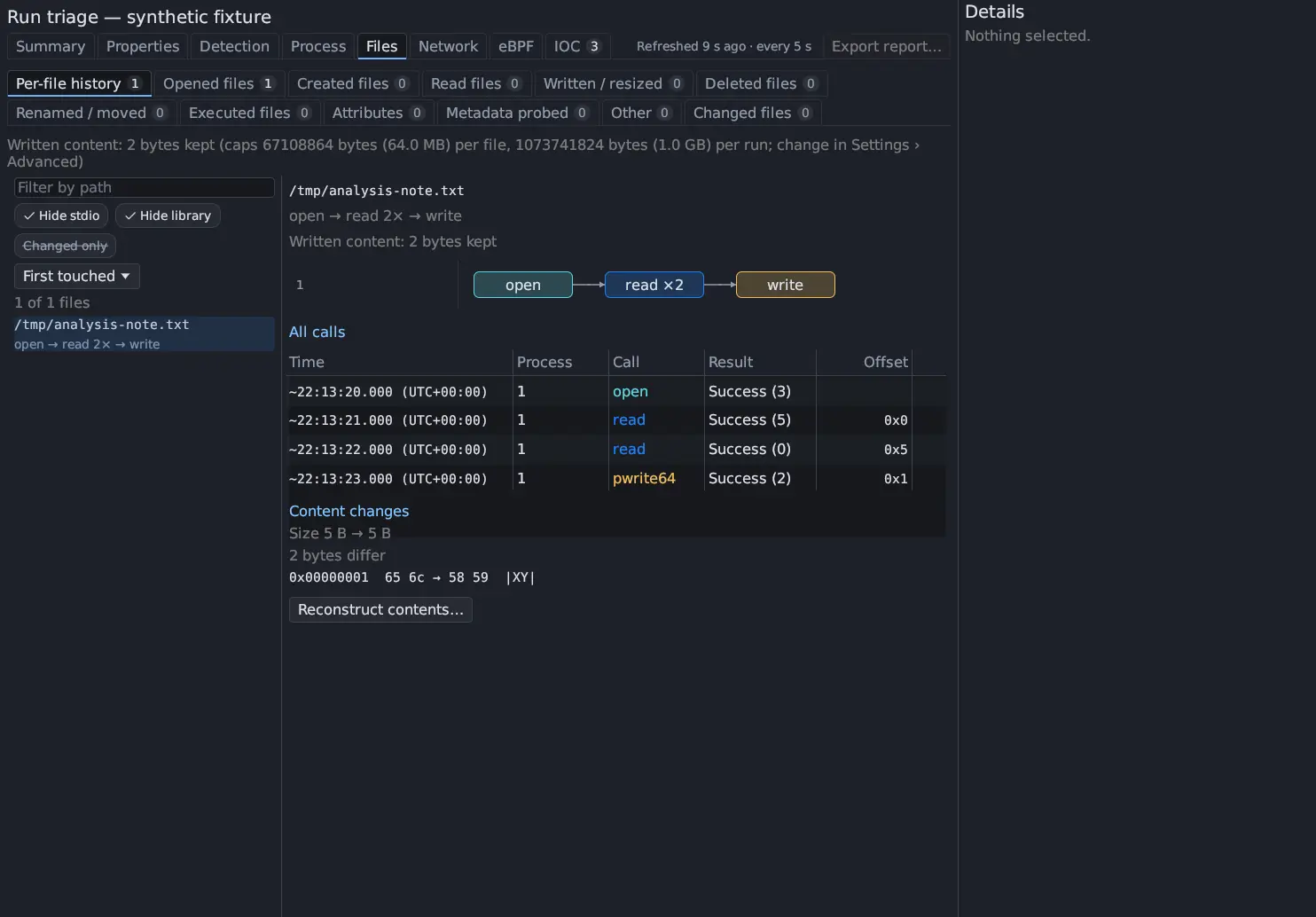
For a file the sample wrote, open Files → Per-file history to see its calls and the bytes they changed. New in 0.8.0 Reconstruct contents… replays the calls over what the file held before the run and shows what each byte is, with a hash check against the guest. See File Reconstruction.
7. Go deeper if needed
Section titled “7. Go deeper if needed”- Memory and Core dumps for in-memory unpacked code, with Disassembly, Decompile with Ghidra and the core’s Strings.
- Static Analysis tabs for strings, capabilities and symbols.
- Network for the packets as TShark parses them, and Open in Wireshark.
- Disks, with the VM stopped, for the files the run left on the guest disk; Compare with… diffs it against the base image or a checkpoint. Save a disk dump if you want to promote a dropped file to the library with Add to Samples…. See Disks.
- Run → Attach debugger… to stop and inspect a running program. See Debugger.
8. Look across runs New in 0.8.0
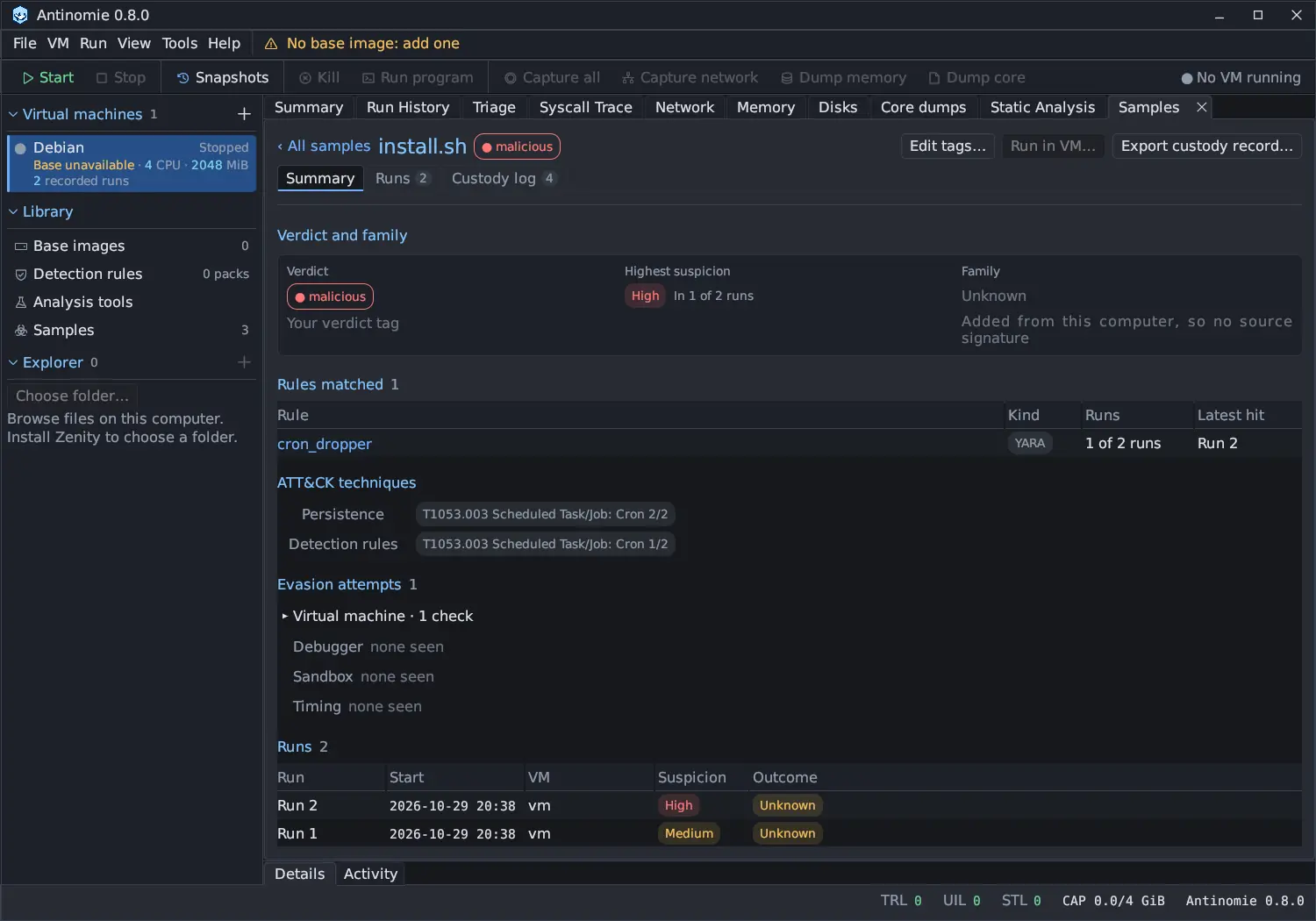
Section titled “8. Look across runs ”Run the sample again under other conditions: as root, with another route, after a clock change, on a VM with another stealth profile. Then open it in Library › Samples. The sample window adds up what Triage found over all its runs: the highest suspicion and in how many runs, the rules matched, the ATT&CK techniques, the evasion attempts and the indicators. Its lineage graph shows what the sample dropped, downloaded and executed, and Runs lists every run on every VM with the environment it started in. See also Compare runs.
9. Check the recording’s health
Section titled “9. Check the recording’s health”Before you trust an absence, look at TRL, UIL and STL and whether the run says Saving stopped. See Recording health.
10. Write it up
Section titled “10. Write it up”- Right-click the run and Rename… it and Edit tags….
- Set your verdict on the sample with Edit tags… in its window: the verdict, the malware category, the ATT&CK techniques (Triage’s are offered under From Triage) and your own tags. New in 0.8.0
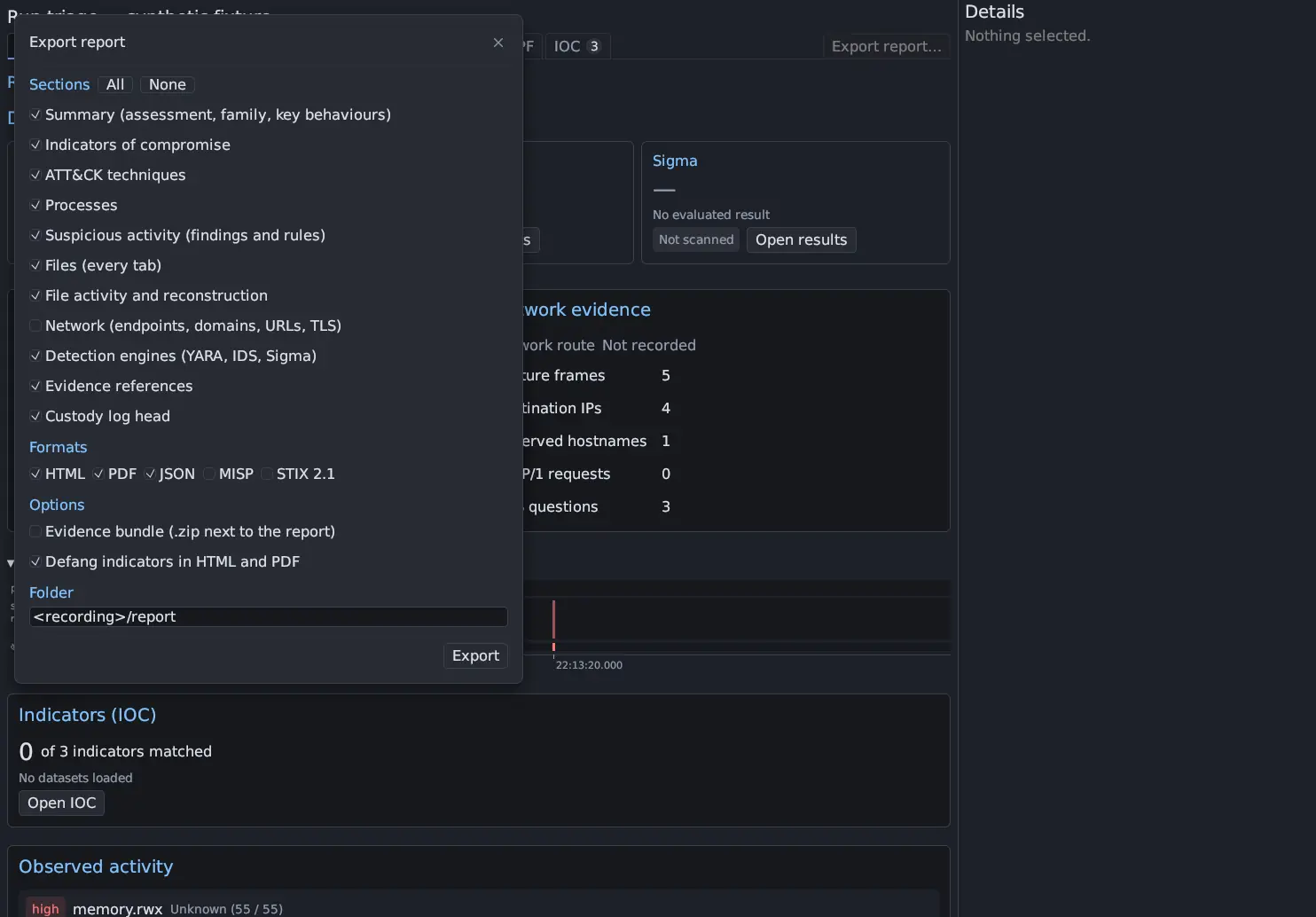
- Triage → Export report… writes the run as HTML or PDF for people, and
JSON, MISP or STIX 2.1 for tools. Tick Evidence bundle to add the packet
captures, the dropped files (in an AES zip, password
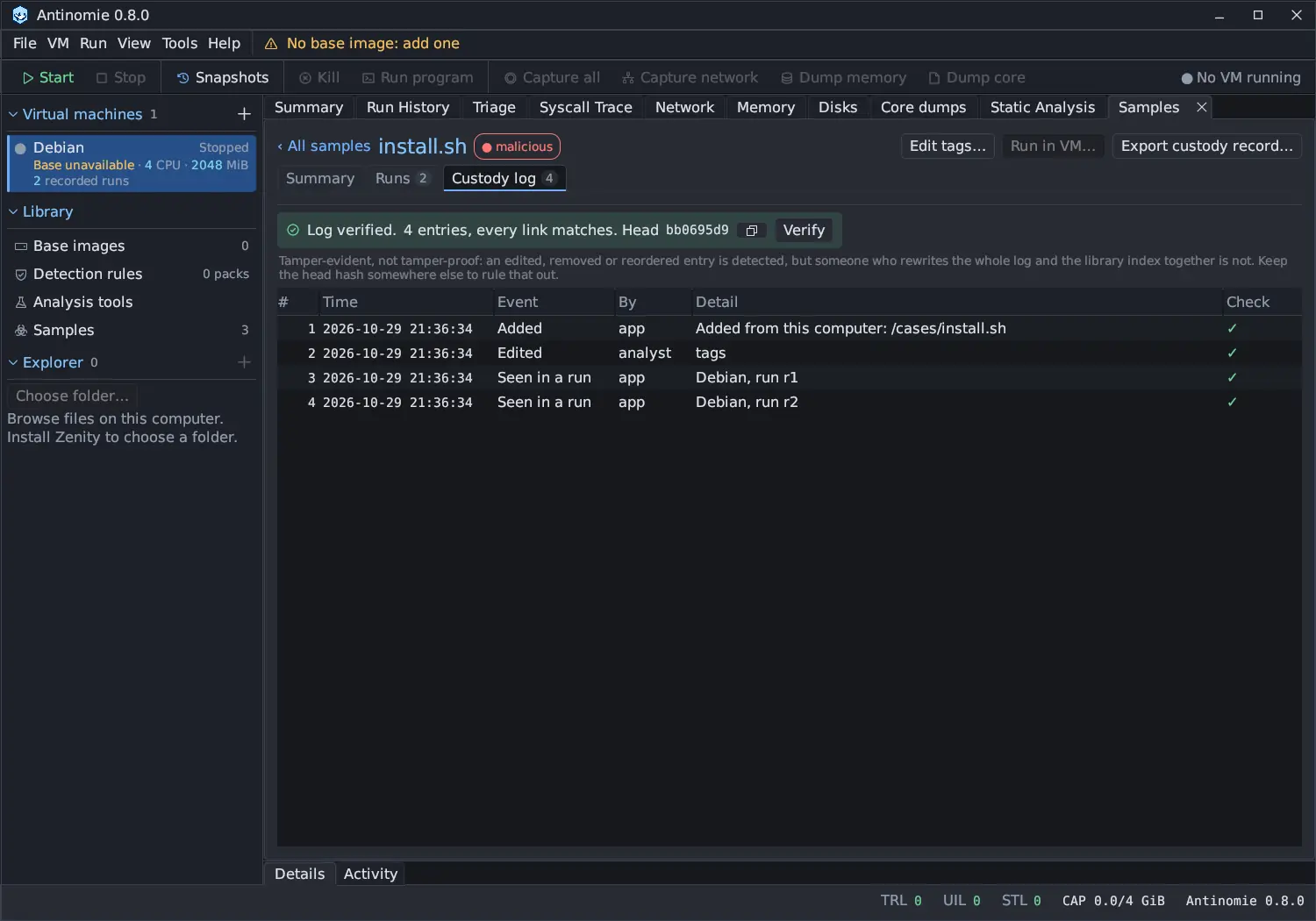
infected), the custody record and a SHA-256 manifest. See Report export and evidence bundle. New in 0.8.0 - In the sample’s Custody log tab, press Verify, then copy the head hash into your notes. Export custody record… writes the log as JSON with a verifier, or HTML, optionally signed with your own minisign or SSH key. See Custody log. New in 0.8.0
Copy any other values you need (export). Then stop the VM and return to a clean state with Reset disk to base… or by restoring the snapshot.