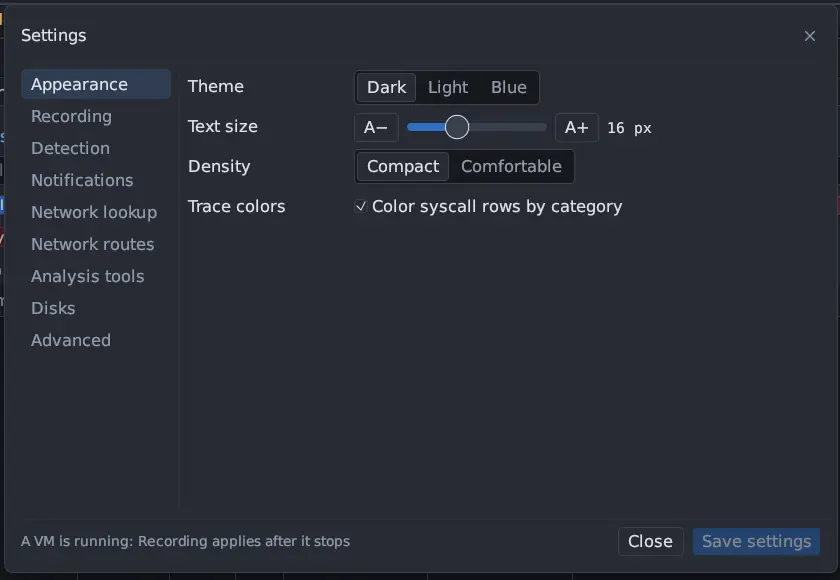
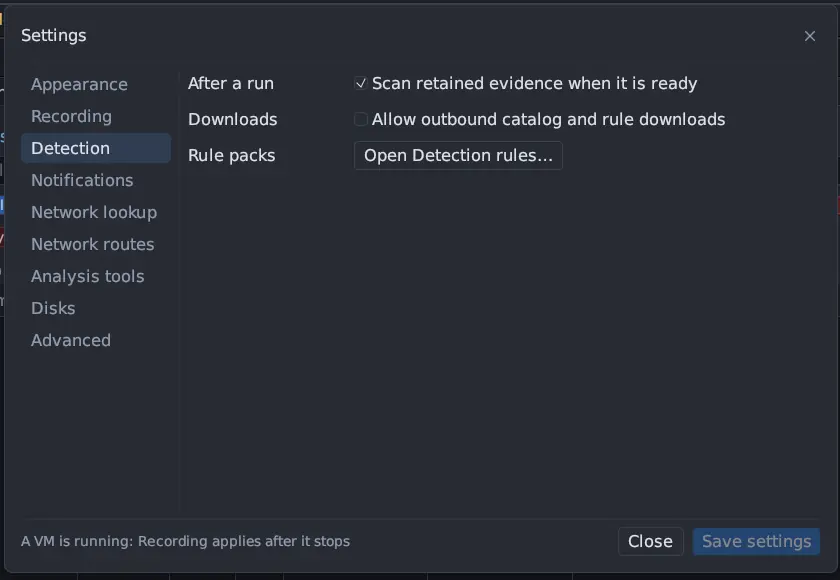
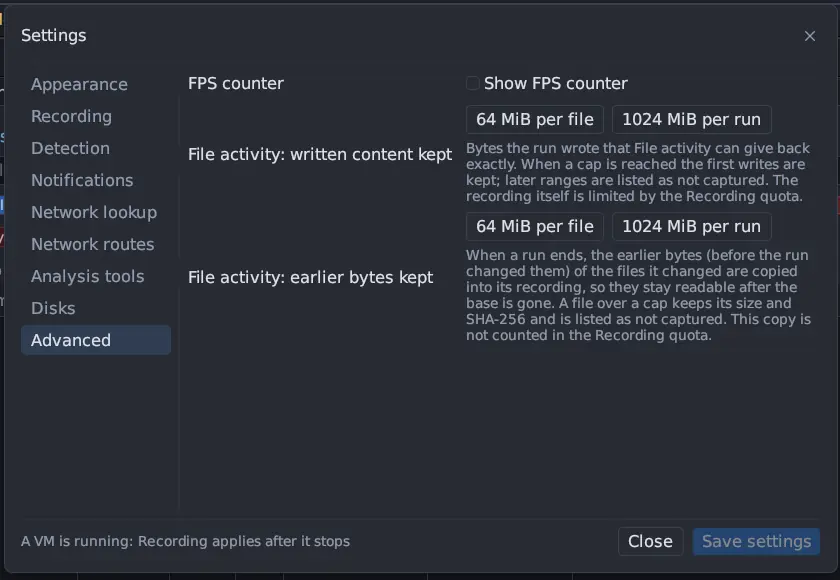
Open it with Tools → Settings… or Ctrl+Comma. Settings has a page list at
the left (Appearance, Recording, Detection, Notifications,
Network lookup, Network routes, Analysis tools, Disks and
Advanced) and one page at the right; the page scrolls, and the footer with
Save settings and Close stays in view. Appearance and most other pages
apply at once; the Recording page applies when you press Save settings.
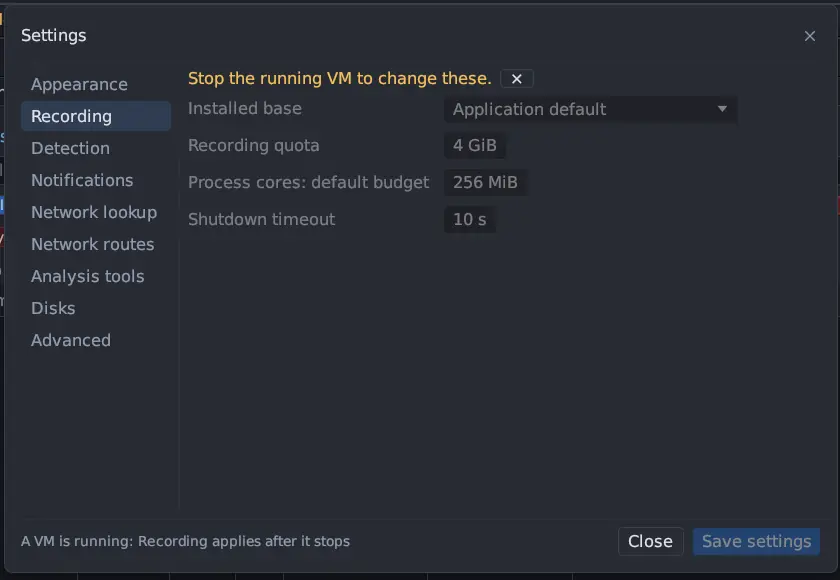
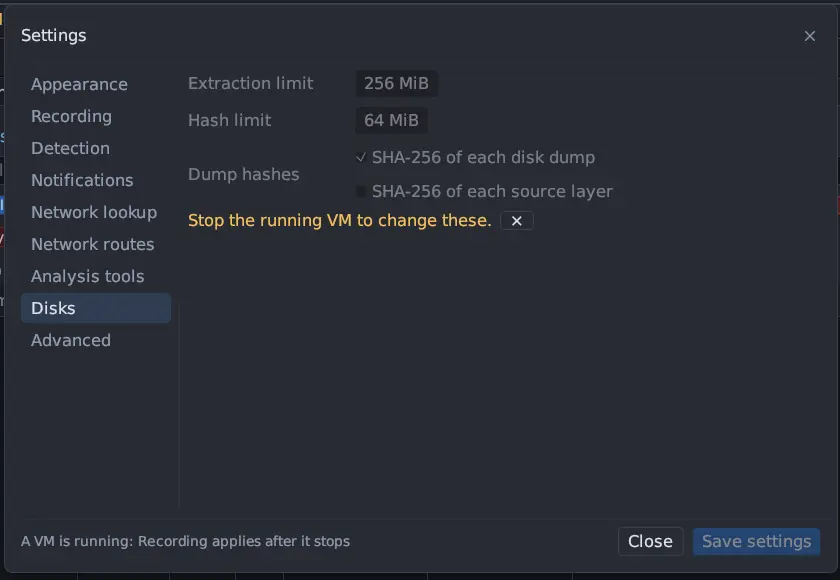
While a VM runs, the footer says A VM is running: Recording applies after it stops, and the Recording and Disks pages say Stop the running VM to change these.
Other settings live where you use them: Calls/page on Syscall Trace, the
category chips, the layout (View → Reset layout), the Memory panel’s Look
up symbol tables online, the budget and deadline of a core in Run program
and Dump core, the graph’s Events or Time spacing, and per-VM
options in the VM dialog, including Telemetry transport….
Per-boot limit, 1 to 4,096 GiB (default 4 GiB). See Limits and quota.
Process cores: default budget
The stored-byte budget a process core starts with (default 256 MiB). Each guest accepts up to a maximum of its own, so the budget in effect can be lower.
Shutdown timeout
1 to 120 s (default 10 s) before a guest that will not stop is forced off
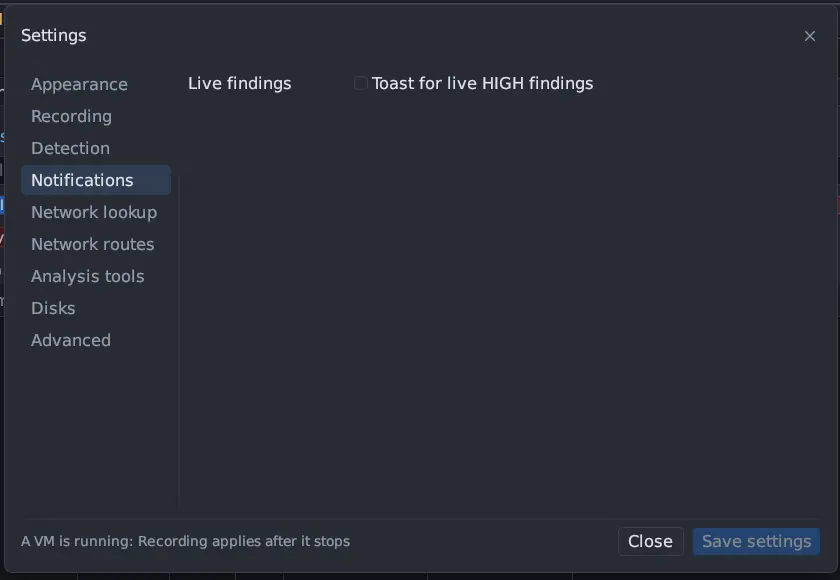
The first HIGH finding of each rule in a run that is still going raises one toast; later matches of that rule add ×N to it. Applies at once. It is checked when the run’s index is read again: every 5 s while Triage is shown, every 15 s otherwise. 0.8.0 Off by default.
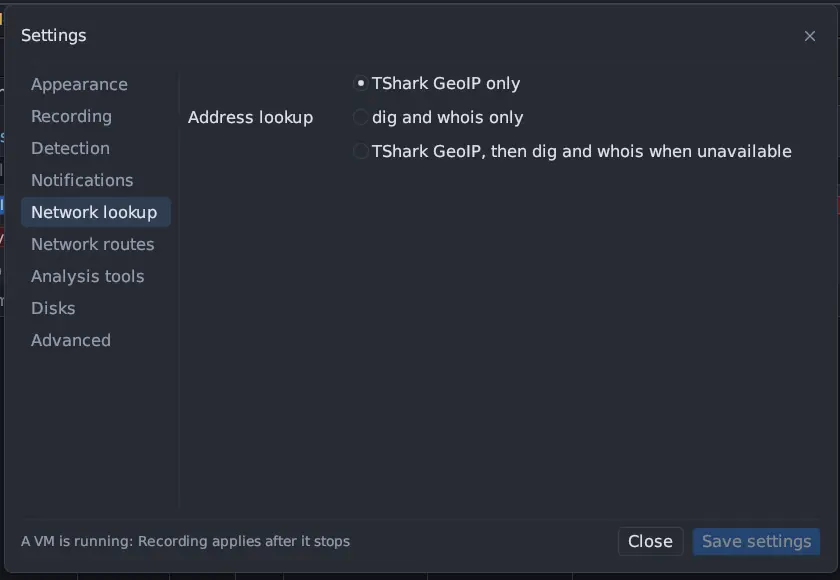
How public destination addresses get a country and organisation: TShark GeoIP only (the default), dig and whois only, or TShark GeoIP, then dig and whois when unavailable. Local addresses are never queried.
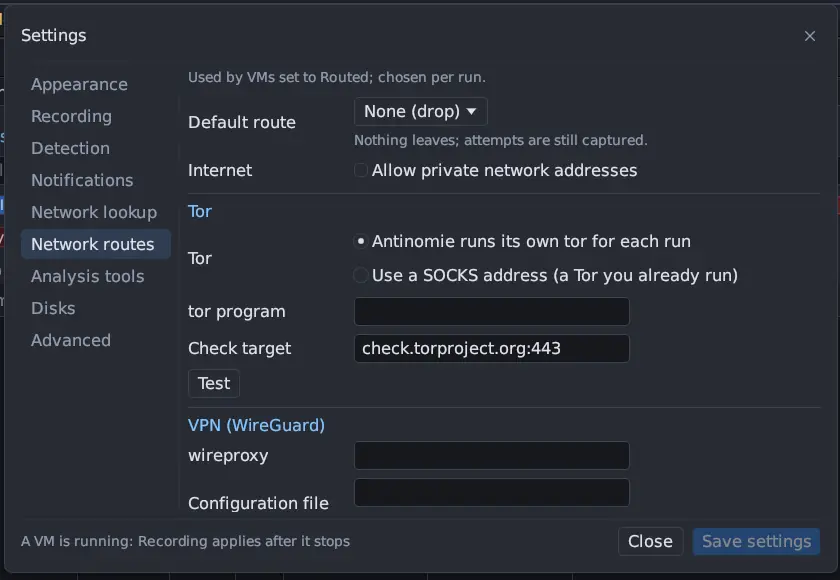
The routes used by VMs whose network is Routed, chosen per run. Changes are
kept with Save routes; Revert drops them.
Antinomie 0.8.0, synthetic data.
Option
Effect
Default route
The route a new run starts with: None (drop) until you change it
Internet → Allow private network addresses
Lets the Internet route reach private (RFC 1918 and 100.64.0.0/10) addresses; off by default
Tor
Antinomie runs its own tor for each run (the default) or Use a SOCKS address of a Tor you already run; the tor program; a Check target connected through Tor before a run
VPN (WireGuard)
The wireproxy program and its Configuration file, which needs a [Socks5] section with BindAddress = 127.0.0.1:25344; a Check target. OpenVPN is not supported.
SOCKS5 proxy
Host, Port, optional User name and Password (kept readable by you only, never shown), and a Check target
InetSim (fake services)
Built-in services (DNS, HTTP, SMTP; other ports accept and discard) or A running INetSim of yours with its host and port offset; the DNS answers address every name resolves to
Test
Brings a route up the way a run would and says whether it answers
Tor and wireproxy show whether they are on the system or installed by
Antinomie, with Install and Remove. See
Network routes.
Frames per second, frame time and UI build time in the window corner. Off by default; an idle window reads idle.
File activity: written content kept0.8.0
How many bytes a run wrote that File activity can give back exactly: per file (default 64 MiB) and per run (default 1024 MiB). Past a cap the first writes are kept and later ranges are listed as not captured.
File activity: earlier bytes kept0.8.0
How much of the earlier content of changed files is copied into the recording when a run ends: per file (default 64 MiB) and per run (default 1024 MiB). A file over a cap keeps its size and SHA-256. Not counted in the recording quota.
Copy the selection; without one, interrupt the running program
Ctrl+Shift+V, Ctrl+V
Paste
Shift+End
Jump to the newest output
A terminal keeps 10,000 lines of history; use the wheel or scrollbar to read it,
or the newer lines button to return to the end. Drag to select text, or
double-click a word; right-click for Copy selection, Select all output
and Clear selection.
The options of the antinomie command, such as --data-dir,
--check-dependencies and --graphics-driver, are listed in
Command line. Tools → UI performance… shows the
renderer in use and recent interface timings, and can copy a launch command
that keeps your data directory.