

VMs, bases, boots, runs and captures
Five words come up everywhere in the app. This page defines them and says how they fit together. It describes Antinomie 0.8.0, which is in development; the current release is 0.7.1, and what only 0.8.0 does is marked.
| Term | What it is |
|---|---|
| Base | A read-only, checksum-verified template: kernel, root filesystem and metadata. |
| VM | A named machine built from a base, with its own disk and settings. |
| Boot | One start of a VM, from Start to Stop. |
| Run | One program launched with Run program, together with its child processes. |
| Capture | A recording that is not tied to one launch: Capture all, Attach to process, a network capture, a memory dump or a core dump. |
A base is the template every VM starts from. Antinomie publishes three: BusyBox for small command-line programs, Debian 13 Minimal (console only) for programs that need a real Debian userspace, and a Debian 13 desktop base for programs that need a graphical session. You add bases with Download base…, Import base… or Build base… on the Library → Base images page, or with File → Add base.
A base is never written to. Each VM gets its own disk layered on top of it, so any number of VMs can share one base, and deleting a base is refused while a VM still uses it. Each base records the app version that built it and the guest revision it speaks, and its status reads Current, Outdated or Needs a newer Antinomie.
Bases and the container builder covers the three bases, downloading, importing and building them, how they are verified, and which base revisions each app version runs.
File → New VM… (or New VM from this base… on the Base images page) asks for the Installed base, Name, CPU count (1 to 64), RAM (256 to 8192 MiB, and at least the base’s minimum) and Disk (the disk size is fixed once the VM is created). Debian bases, desktop and Minimal, also ask for a guest account: Username, Password and Confirm password. The password must be 8 to 128 bytes.
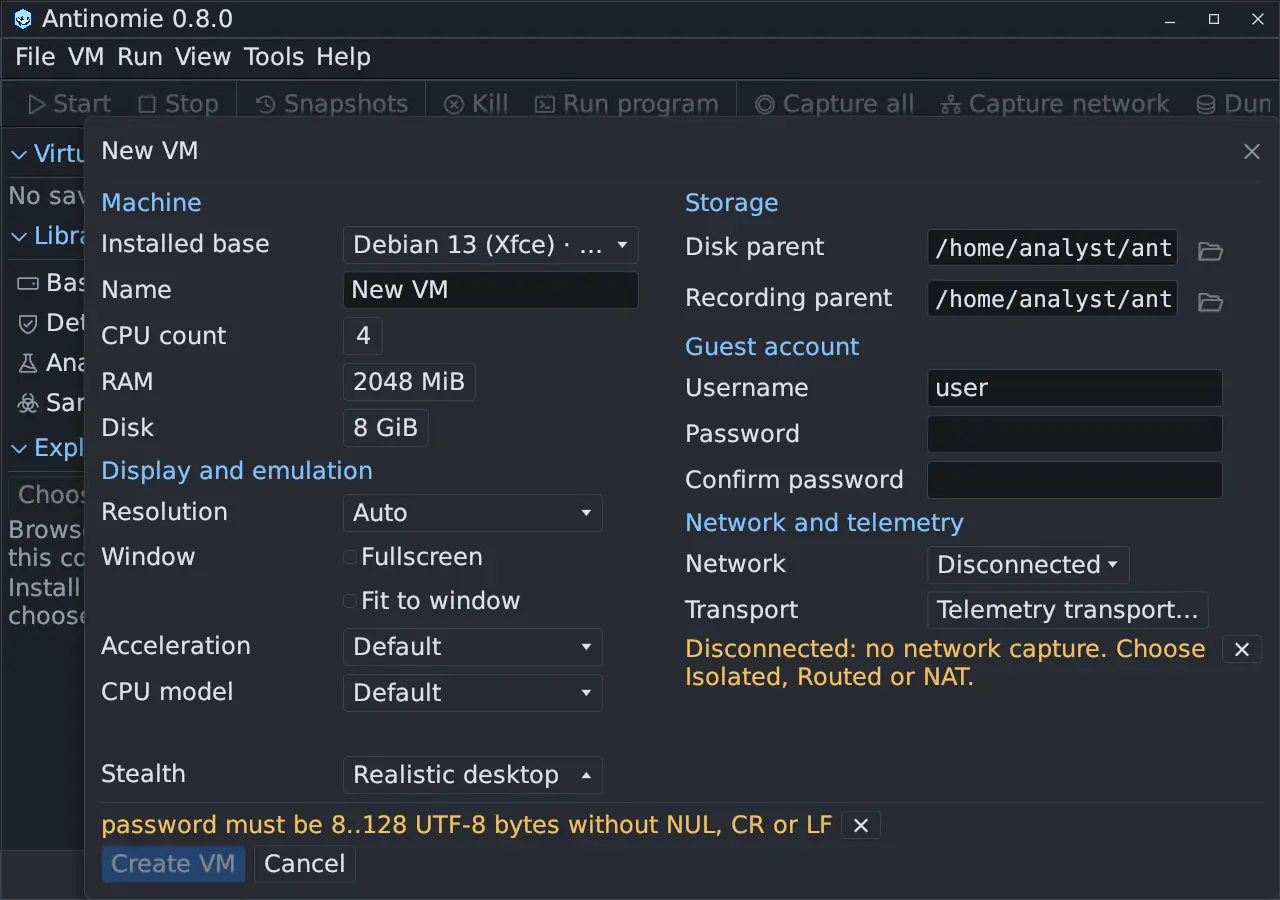
The dialog also holds:
- Resolution, Fullscreen, Fit to window, Acceleration (KVM or TCG) and CPU model.
- Stealth: the hardware identity the guest sees, with Edit… for the full profile. See Stealth profile and Cloud VPS profiles.
- Network: Disconnected (the default), Isolated, NAT (Internet) or Routed (route per run). See Network isolation and Network routes.
- Telemetry transport…: guest buffers and the drop policy. See Telemetry transport settings.
- Disk parent and Recording parent: where the VM disk and its recordings are stored.
VMs are listed under Virtual machines in the sidebar. Settings apply the next time the VM boots. Only one VM runs at a time. Right-click a VM, or use the VM menu, for Rename…, Duplicate… (the VM must be stopped), Open directory, Reset disk to base… and Delete VM and disk…. Deleting a VM keeps its recordings and terminal history.
Snapshots
Section titled “Snapshots”Snapshots on the toolbar saves, restores and branches a VM’s disk, or its disk and memory, with New snapshot… and a Graph or Tree view.
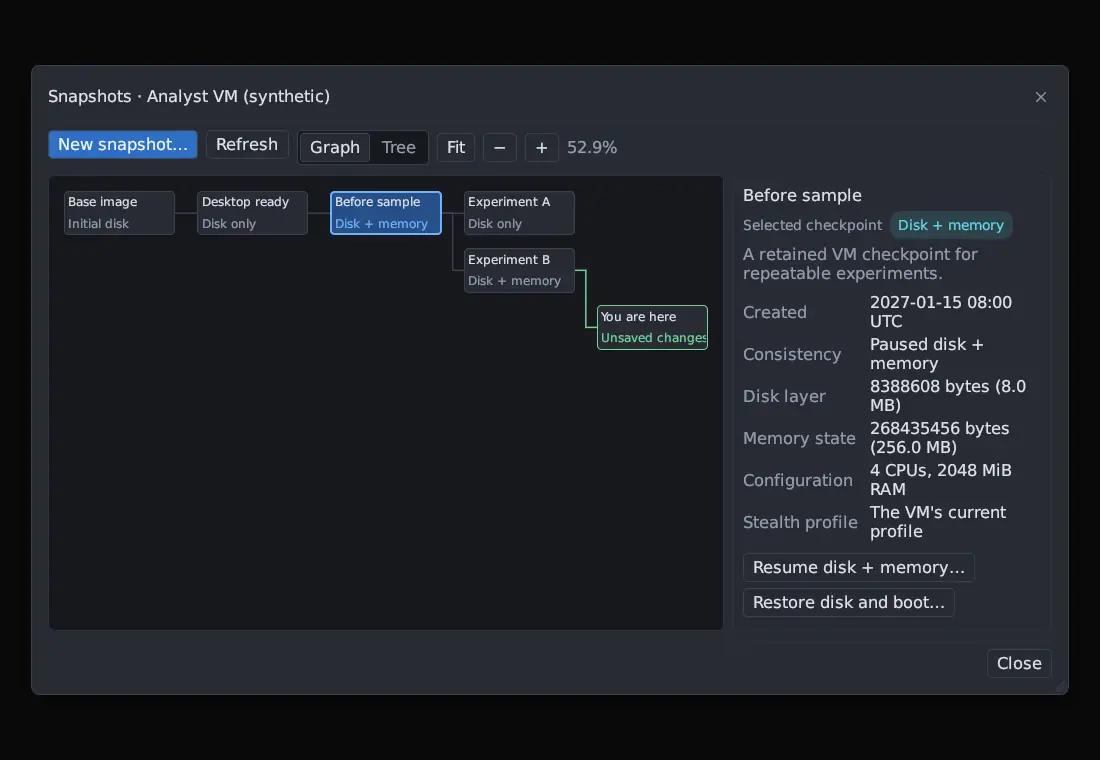
Full snapshots (disk and memory) and telemetry reconnect need a base with guest revision 14 or newer; older bases still cold boot and support disk checkpoints. Each snapshot keeps the stealth profile it was taken with New in 0.8.0. With the VM off, the Disks tab shows what is on its disk, a checkpoint or the base. The Snapshots page describes the window.
Every time you press Start, the VM begins a new boot with its own boot identity. Recordings are kept per boot, and the recording quota applies to one boot. Runs from earlier boots stay in Run History, Triage and the trace dropdown after the VM restarts.
Each boot seals its starting disk
Section titled “Each boot seals its starting disk”When a VM starts, Antinomie seals the disk as it was left under a fresh, empty layer. This is instant and copies nothing; the boot writes only into the new layer, so it cannot overwrite the state it started from. A plain restart of a used VM therefore has a readable starting state, just as a new VM does.
When the boot is over and its recording is saved, Antinomie copies the earlier bytes of the files the runs changed (and only those) from the sealed layer into the recording, then merges the layer back down at once. There is at most one extra layer, and only while the VM runs. From then on, those earlier bytes read from the recording alone, even after the base or a checkpoint is deleted. Per-file history and File Reconstruction use them.
- Two caps keep the copy small: 64 MiB per file and 1 GiB per run, set in Settings › Advanced (File activity: earlier bytes kept). A file over a cap keeps its size and SHA-256 and is listed as not captured.
- The copy is not counted in the recording quota.
- The layer is not a snapshot and never appears in Snapshots. Your snapshots are never merged or changed. If you take or restore one during the boot, the layer stays in the chain as that snapshot’s own.
- Several runs in one boot share the boot’s starting state. A boot started by a snapshot restore reads its checkpoint.
- If the app or the computer stops mid-run, the VM still boots, and the next start of the VM or of the app finishes the copy and the merge.
Because the merge must not overtake the copy, two actions wait for the previous boot’s recordings to be saved:
- Starting the VM again right away. If the previous boot’s layer is still
pending and its recordings are still being written, Start is refused with
the previous boot's recordings are still being saved; retry starting this VM after saving finishes; disk layers retained. Start again once saving ends. - Snapshot changes on a stopped VM. Creating, renaming, restoring or deleting a checkpoint first finishes the previous boot’s layer. The Snapshots window shows Waiting for saved recordings while it waits; a timeout (five minutes) or closing the app cancels the operation and keeps the disk layers. See Snapshots.
Run program launches a program from a Source: a Guest path already
in the VM, or an Upload of a host file, which is copied in as executable
first. It takes Arguments (one per line), a Working directory,
Environment (one NAME=value per line) and a User (Root, Normal
user or a custom UID and GID). A run is the launched root process and every
descendant. Each run gets a terminal window for input and output. The same
window offers optional extras:
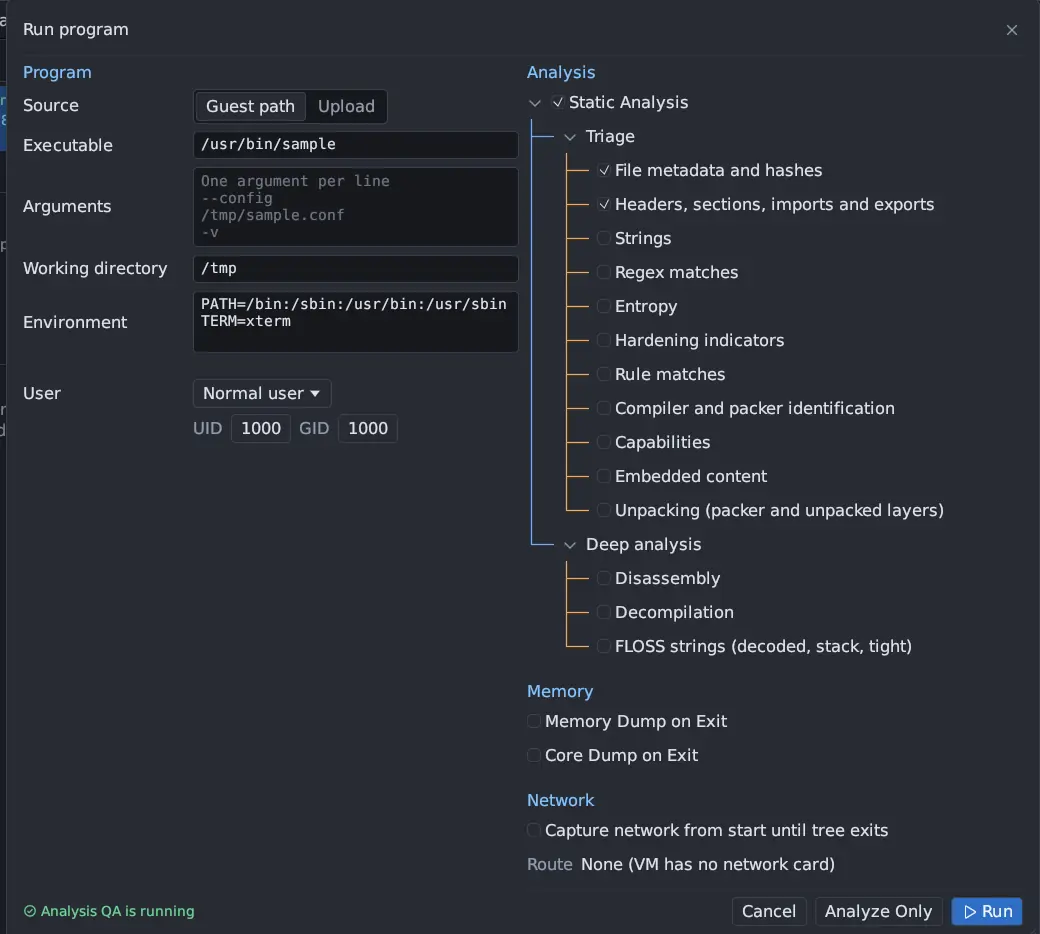
- Static Analysis: analyze the program file before it runs.
- Memory Dump on Exit and Core Dump on Exit: see Memory and core dumps. Core Dump on Exit has a Budget and a Deadline on a base built for Antinomie 0.7.0 or later; older bases keep 64 MiB.
- Capture network from start until tree exits: a network capture bound to this run. See Network capture.
- Route: on a Routed VM, where this run’s traffic goes; on any other VM the line names the VM’s fixed network. See Network routes.
- Debug on start: stop the program before its first instruction and open the Debugger on it.
- On a desktop base, Run in: App terminal, Guest desktop or Guest desktop terminal. Both desktop choices need the run’s user to be logged in on the VM display.
The footer has Cancel, Analyze Only and Run. Analyze Only runs the static analysis without launching the program.
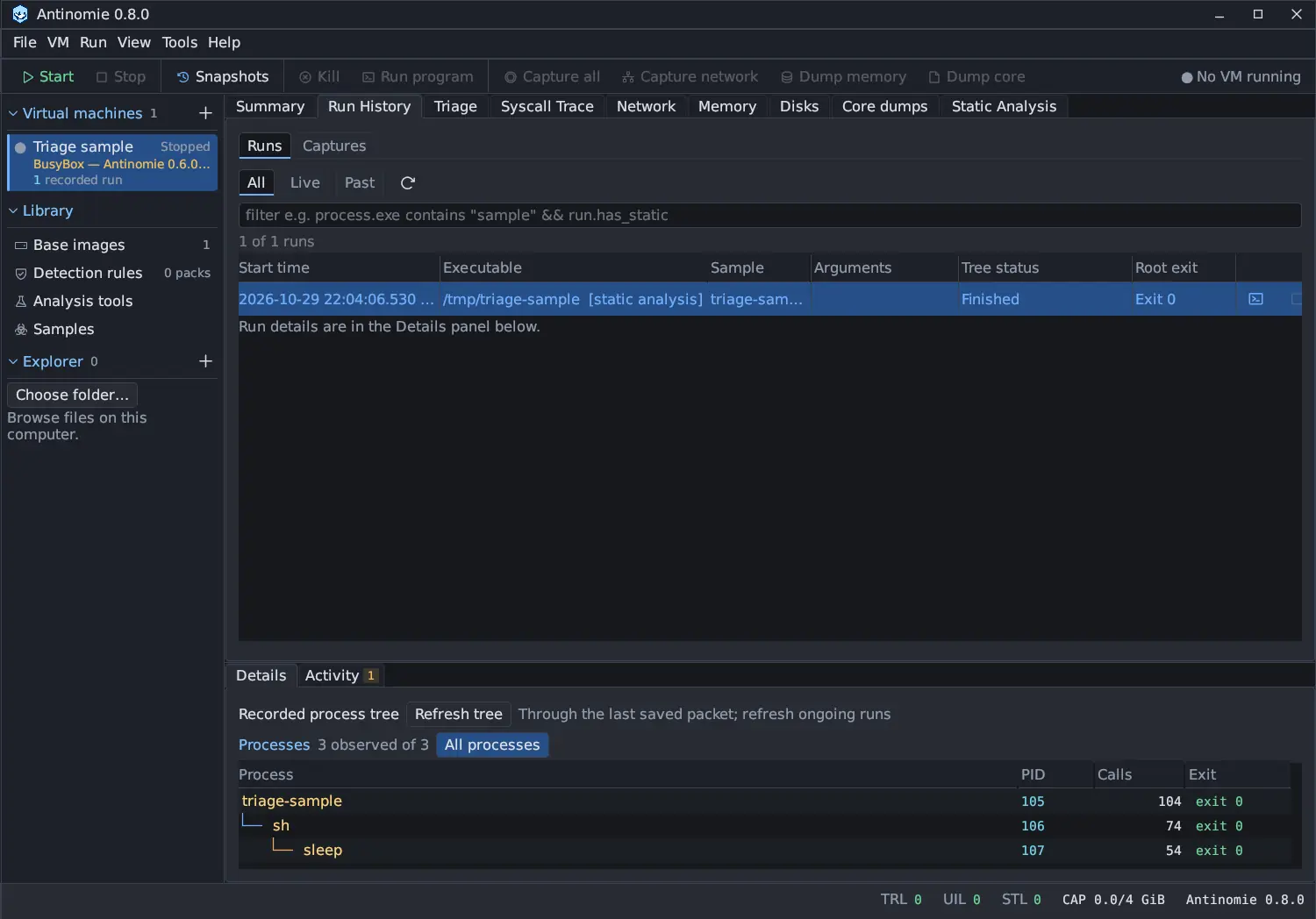
A run’s Tree status column shows its state: Running, Stop requested, Finished, Stopped, PTY closed, Recording ended or Unknown. Root exit shows how the launched root process ended, for example Exit 0 or Signal 9, or Unknown when the guest did not record it; descendants may still be running after the root exits. Whether the tree ended and whether everything was observed are separate facts: a run is Finished when its process tree ended, and missing observations are reported beside it as notes. See Recording incomplete. A boot admits at most 64 program launches.
The stop icon in a Run History row, or Kill on the toolbar, ends a run
and all its descendants while the VM keeps running. The guest sends SIGTERM
first; on a base built for Antinomie 0.7.0 or later, tasks still alive 4
seconds later get SIGKILL, and the hover text of the run’s Tree status says
Stop needed SIGKILL after the grace period. Closing a terminal window does
not stop the program.
If the transport to the guest reconnects during a run, the run keeps its id and stays one row in Run History, with a note per reconnect. Triage reads every part of it. Restoring a snapshot starts a new run.
Each run records the network route it used. New in 0.8.0 It also records the environment it started in (VM, base image, kernel, rule packs, tools and app version) and the machine its guest looked like.
Captures
Section titled “Captures”A capture records without launching anything. Capture all and Attach to process record syscalls of processes you did not start from Antinomie; see What gets traced. They are listed on the Captures tab of Run History. Network captures, memory dumps and core dumps have their own panels; see Network capture and Memory and core dumps.