

Detection rules
The Detection rules page installs and organizes the rules that Detection
scans use. Open it from the sidebar’s Library (its row shows the number of
installed packs, such as 3 packs; custom groups are not counted), from Tools →
Detection rules, or with the Detection rules button in
Triage → Detection. It opens as a tab of the main
area. This page describes Antinomie 0.8.0, which is in development; the current
release is 0.7.1.
Installed packs and custom groups are the only production rules for Detection scans, and only the ones you enable are used. Scans do not download rules or upload evidence.
Engine tabs
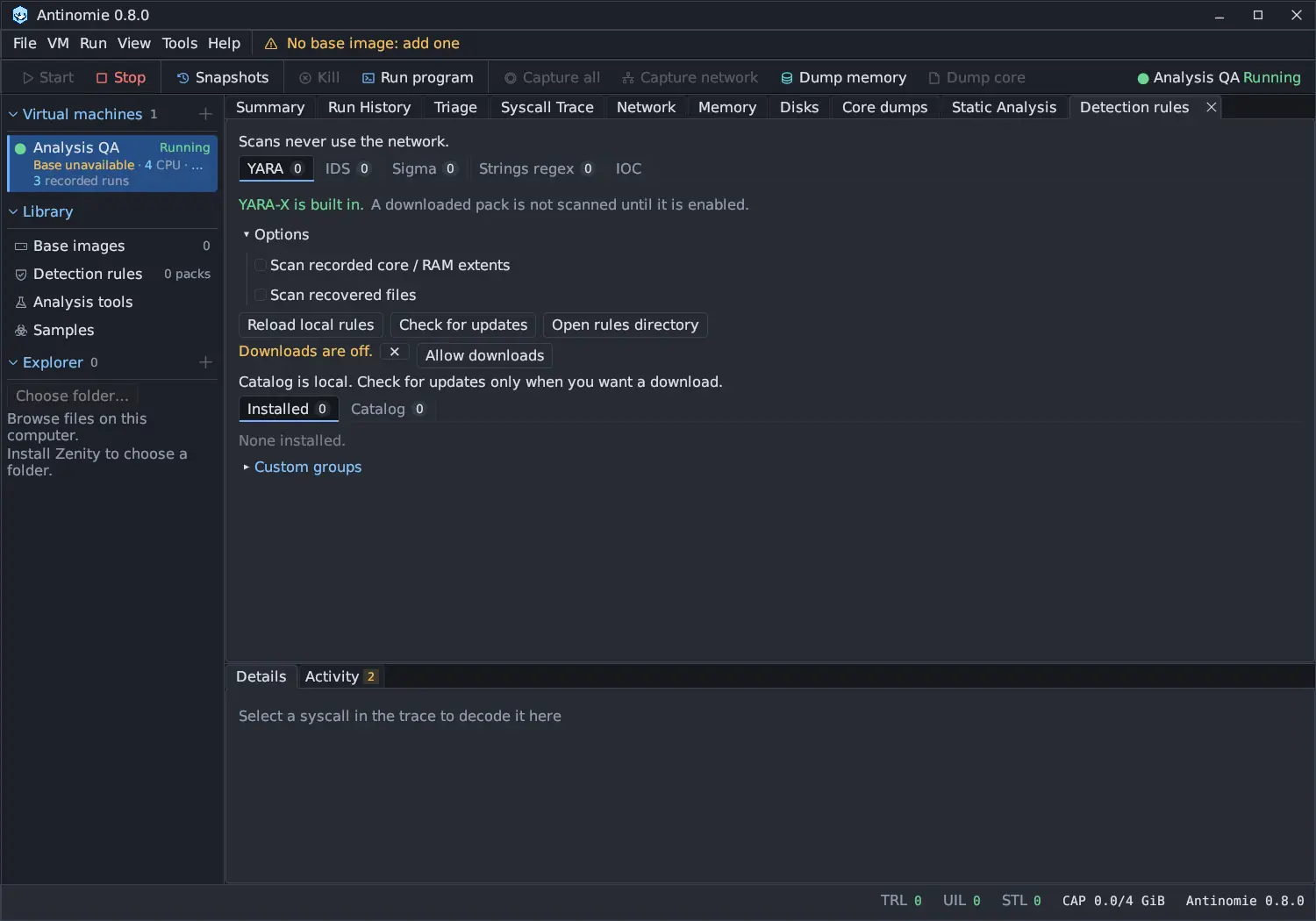
Section titled “Engine tabs”The page says Scans never use the network. at the top. It has a YARA, an IDS and a Sigma tab, each with the number of installed packs of that engine, then a Strings regex tab and an IOC tab (below). Each tab first says whether that engine can scan:
| Engine | Status you see |
|---|---|
| YARA | YARA-X is built in. A downloaded pack is not scanned until it is enabled. |
| IDS | Suricata is installed, or a warning with a Copy command button and App dependencies… |
| Sigma | pySigma is ready, with the Python it uses, or a warning with Install the Sigma tool…, which opens Library → Analysis tools |
A downloaded pack does not install its engine.
Under the status are the engine’s Options:
| Engine | Option |
|---|---|
| YARA | Scan recorded core / RAM extents, Scan recovered files |
| Sigma | Python with pySigma and its SQLite backend; empty uses Antinomie’s own Sigma tool |
If you used an older local rule path, it shows as Saved local path and stays in use until Forget; Import as custom group turns it into a managed copy.
The buttons below are Reload local rules (the rule selection also loads at startup without opening the page), Check for updates, Cancel while a job runs, and Open rules directory.
Inside each engine are two tabs, Installed and Catalog, each with a count.
Installed
Section titled “Installed”Installed lists the engine’s packs and custom groups in a sortable table:
| Column | Shows |
|---|---|
| On | A checkbox that enables the pack or group for scans |
| Pack | Its name |
| Version | The pack’s version, or rN for a custom group’s revision |
| Kind | Pack or Custom |
| State | Enabled, Disabled or Update available |
Select a row to work with it. A pack shows its name, version and rule count, Rollback (when an older version is kept), Export manifest, where it came from with Source, license and hashes, Remove, and Update when the catalog has a newer version. Remove deletes the pack and its retained versions from this computer; earlier scan results keep their own record.
Every rule of a pack
Section titled “Every rule of a pack”Below the selected pack or group, Rules lists all of its rules in a sortable
table with a filter (filter e.g. credential, matching the id, name, file,
severity, tags or reason) and a count such as 120 of 2094 rules:
| Column | Shows |
|---|---|
| On | Enables or disables this one rule; disabled for an incompatible rule |
| Rule | The rule’s name |
| Severity | The rule’s severity, when it has one |
| State | enabled, disabled or incompatible |
| File | The file the rule is in |
Click a rule to see its name, severity, state, and, where the rule has them, its Id, File, License, Source, Description, Tags, Evidence, References, Uses rules and Compatibility (the reason for an incompatible rule). Source text shows the rule’s own text, cut from the installed file, with Copy. In a custom group, Remove from group takes the rule out as a new revision.
Catalog
Section titled “Catalog”Catalog lists the packs on offer for the engine, once a catalog has been
checked; until then it says Unavailable: no catalog has been checked yet. Use
Check for updates. The sortable table has Pack, Version, Rules
(about N), Size, License and State (Available, Installed or
Update available).
Select a pack to see the catalog’s facts: its revision and about how many rules, Source, License, what it downloads and from which hosts, any notice, and its options. Under About this pack are the hosts it contacts, the license text, the pinned revision with its file and download counts, and what it needs. Download and install installs it (Update or Reinstall with this choice for an installed pack). The rule list is available only after install: nothing is downloaded to show it.
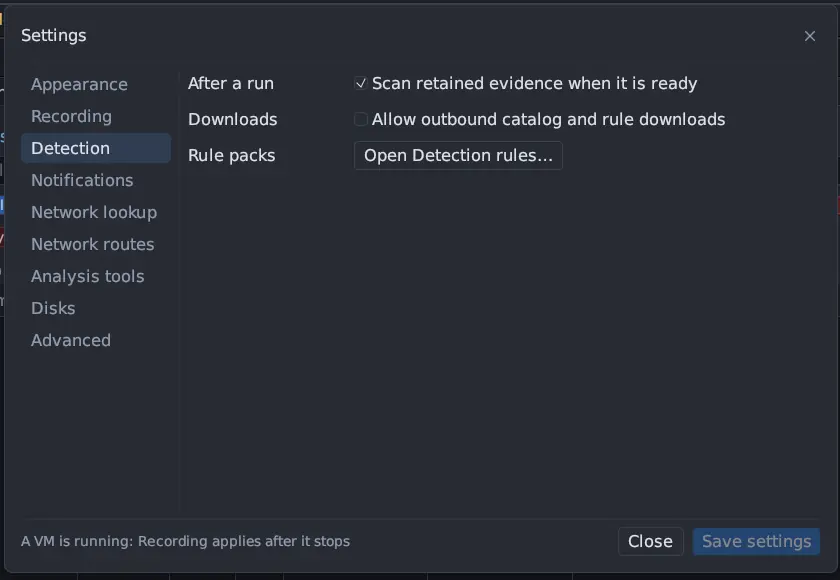
Downloads are off by default
Section titled “Downloads are off by default”The page reads its catalog only when you press Check for updates or install a pack, and only if Tools → Settings → Detection → Allow outbound catalog and rule downloads is on.
The catalog is published at
https://huggingface.co/buckets/MoreMorePwn/antinomie-rules/resolve/catalog.json.
It lists where each collection is published; it does not host the rules. When you
install a pack Antinomie:
- fetches each file from the publisher (GitHub, rules.emergingthreats.net, sslbl.abuse.ch), over HTTPS and only through the publisher’s own hosts, into a private staging folder under the rules folder;
- checks it against a pinned SHA-256 hash and refuses a pinned file that differs;
- filters it on your computer, for example by license; and
- installs the result as a pack. Downloaded content is parsed and never executed. A download you cancel changes nothing.
IDS → abuse.ch offers five Suricata packs from abuse.ch: ThreatFox, URLhaus (exact-URL HTTP rules), Feodo Tracker, SSLBL JA3 fingerprints and the SSL certificate blacklist; the aggressive variants are not offered. abuse.ch regenerates these files about every five minutes, so the tab shows how old each installed pack is, and Check compares the live file with the installed one (at most once in five minutes per pack). ThreatFox and URLhaus need the abuse.ch Auth-Key from Tools → API keys…. When abuse.ch serves the SSLBL JA3 rules file empty, that pack shows Retired upstream and cannot be installed.
Packs that the publisher updates in place (Emerging Threats and abuse.ch) install and are marked as different from the catalog. Each pack shows its source, license, pinned revision and the hosts it contacts, and each scan records them.
Rules from repositories that have no license file stay out of YARA-Forge packs unless you tick a per-pack option that warns they are all rights reserved. It is off by default.
The rules step of Getting started offers the same packs, with an engine tab and a row per pack. It still needs the explicit Allow downloads.
Custom groups
Section titled “Custom groups”Custom groups, below the Installed table, are your own rules. Give the group a name and tags, choose a file or folder, and press Import. Antinomie keeps a managed copy. Select a custom group in the table to give it a new name (Rename), new tags (Save tags), swap its files (Replace), add files (Add rules) or remove it (Delete), which disables it but keeps its files so older results keep their source.
Local rules only
Section titled “Local rules only”You can use Antinomie with no downloads at all. Import your own YARA, Suricata or Sigma files as a custom group and enable them. Rules stay on your computer.
Strings regex
Section titled “Strings regex”Strings regex holds the patterns that Static Analysis matches over a file’s strings for its Regex matches tab, and that Core dumps › Strings › Regex matches… uses. See Static Analysis.
![The Strings regex tab: Add patterns with a Name field (e.g. Campaign marker), a category menu set to Custom, a regular-expression field (such as evil[0-9]+\.example\.com) and Add; a Try on field to paste a string; and Built-in patterns with an On checkbox, Category, Type and Pattern for Network (IPv4, IPv6, Domain, URL, Email, Onion address, Telegram bot token, Discord webhook, Paste site, Tunnel service, Stratum pool), Crypto (Bitcoin, Ethereum and Monero addresses, Tox ID), Keys (SSH public key, PEM block, AWS access key id, GitHub token, JSON Web Token) and Linux behaviour (Download cradle, Download to a writable directory, Reverse shell, Persistence path).](/_astro/regex-tab.ZtLzgk0T.webp)
- Built-in patterns lists every pattern with On, Category, Type and Pattern. Untick one to stop matching it.
- Add patterns takes a name, a category and a regular expression (Rust regex syntax, matched against every string), all on one row, and Add.
- Try on shows which patterns match a string you paste, or says No pattern matches this string.
Scan again in a Regex matches list matches it again with the patterns as they are now.
IOC keeps abuse.ch datasets on your computer, so Triage’s IOC section can
match a run’s indicators offline: ThreatFox full.csv, the URLhaus dump and
payload list, Feodo Tracker’s ipblocklist.json, and the SSLBL JA3 and
certificate lists, six on by default (about 640 MB together). A seventh, URLhaus
recent.csv (the last 30 days), is off until you switch it on.
- Datasets change only when you press Download, Update or Download / Update all; nothing updates by itself, and nothing is fetched before you allow downloads.
- Each row shows its records, size, the date it was fetched and its age (a warning appears past 14 days), its terms and a switch. Feodo Tracker and SSLBL are CC0; ThreatFox and URLhaus are free under abuse.ch’s fair use and need the Auth-Key from Tools → API keys…. A dataset that needs the key is refused before any request when none is set.
- A download is saved whole or not at all: when one fails, the previous copy stays in use and the status line names the dataset that failed.
- The Auth-Key is never shown: it is part of the download address, which appears
as
/exports/****/everywhere. - The tab also lists the Known false positives you marked in Triage, which you can remove.
See Network for how a run’s indicators are matched.