

The sample library
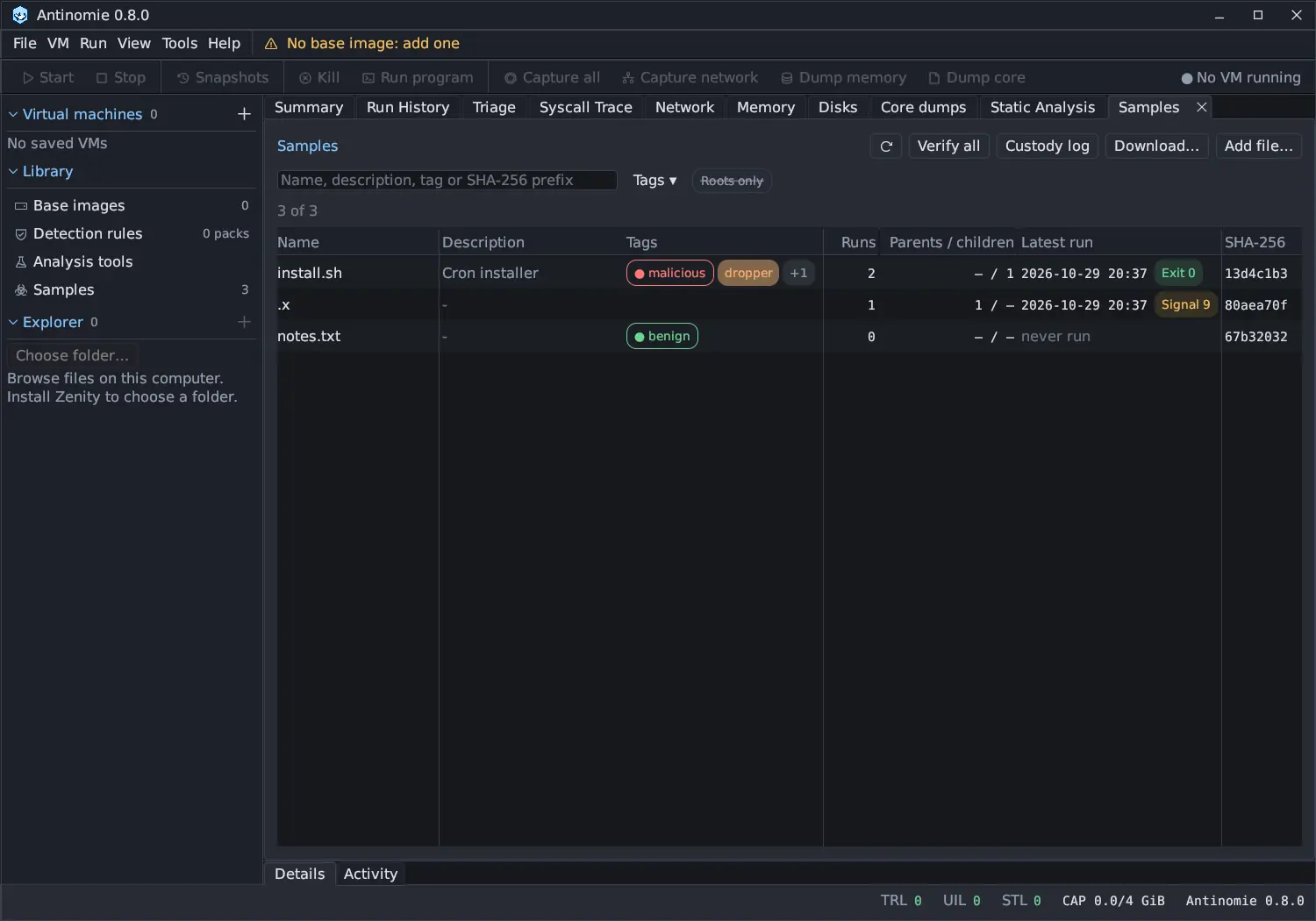
Library › Samples lists every sample Antinomie keeps, across all runs and VMs. Downloads from MalwareBazaar and MalShare, files you add from this computer, files you upload into a VM and files you promote from a run all go into this one library. Open it from the Samples row in the sidebar’s Library section; it opens as a Samples tab of the main area, with the number of samples beside the row.
What a sample is
Section titled “What a sample is”A sample is a file, identified by its SHA-256. The same bytes that arrive by two routes (downloaded once, uploaded later) are one sample with two origins. For each sample the library keeps:
- the file itself, in an encrypted archive: an AES zip with the password
infected, owner-only, decrypted only in memory; - a name, a description and tags;
- every origin: where the bytes came from (a download, a host path, a run);
- what was sent into which VM, and the runs that ran it;
- a custody log of everything done to or by it.
The library lives in samples/ in the data directory: one archive per sample,
in a folder named after the first two hex digits of its SHA-256, and
library.sqlite beside them for the records and the custody log.
A sample is read back from its archive, and its SHA-256 checked, every time it
is sent into a VM. A mismatch is refused. A run of a program the library sent
names that sample in its run record, so the run appears in the sample’s
window and Run History shows it in its
Sample column (filter with sample == NAME).
Adding a sample
Section titled “Adding a sample”There are four ways in.
Add file…
Section titled “Add file…”Add file… (top right of the page) opens the Add file dialog. In the sidebar’s Explorer, right-click a file and choose Add to Samples… to open the same dialog on that file.
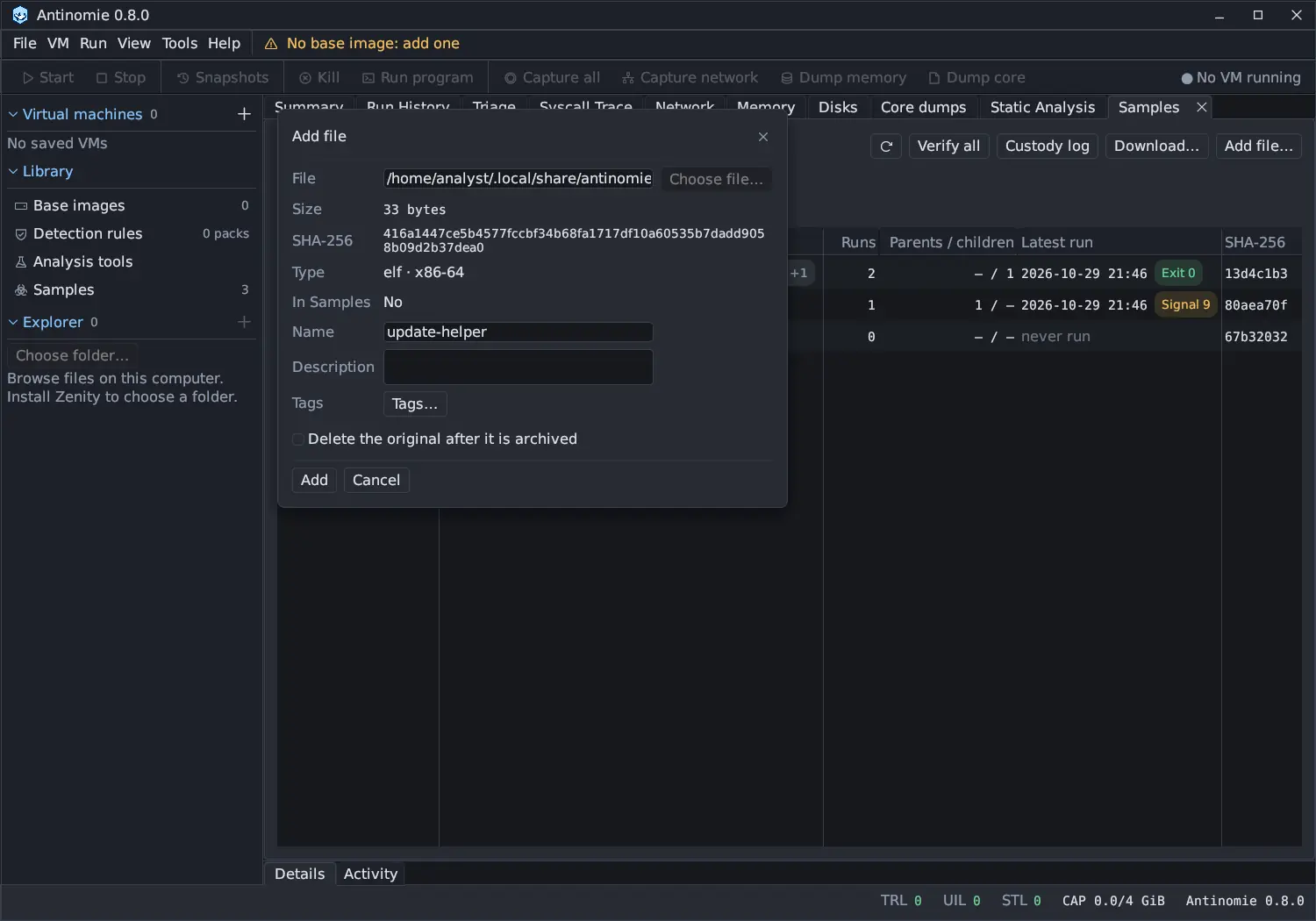
- Choose the file. Antinomie reads and hashes it, and shows its Size, SHA-256 and Type. It never runs or unpacks it.
- In Samples says whether the hash is already in the library. Yes: this adds an origin means the bytes are already there and only the new route is recorded.
- Set a Name, a Description and Tags… if you like.
- Tick Delete the original after it is archived to remove the file from your disk. It is deleted only after the archive was written, read back and its SHA-256 matched.
- Press Add. The toast says Added to Samples or Already in Samples: origin added.
Download…
Section titled “Download…”Download… opens the MalwareBazaar and MalShare search (also Tools → Download malware samples…). Downloaded samples land in the library.
Upload into a VM
Section titled “Upload into a VM”Every file you upload into a VM (Upload file…, Ctrl+U) is archived in the library first, up to 256 MiB; a larger file is sent without an archive. A file uploaded by mistake therefore stays in the library until you remove it.
Add to Samples… from a run
Section titled “Add to Samples… from a run”A file a run dropped or downloaded can be promoted to a sample of its own. In the sample window’s lineage graph, click a node for a file that is not in the library yet and press Add to Samples… (Read the file from a run’s saved disk and add it).
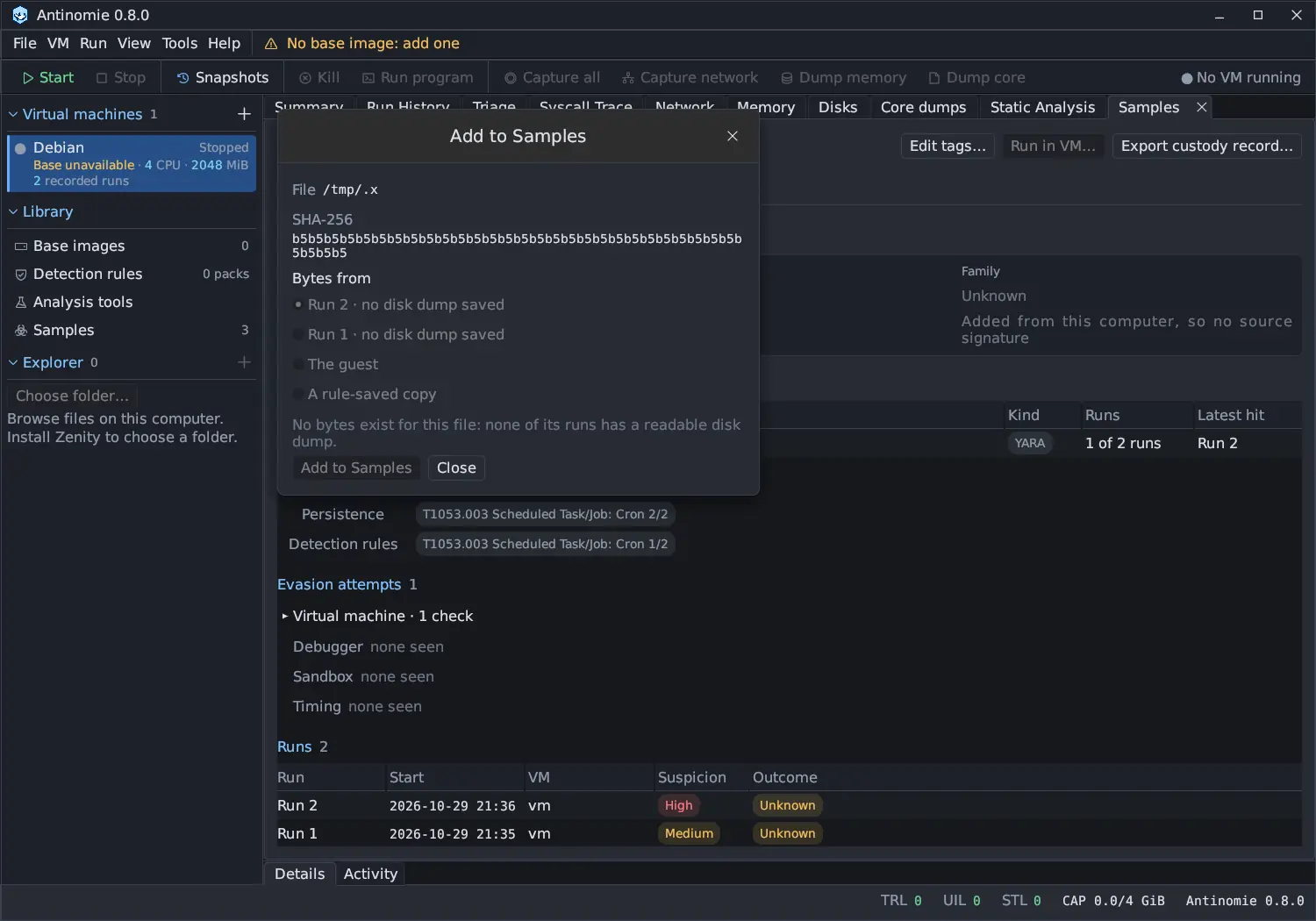
The dialog lists where the bytes could come from: each run the file was seen in, with the disk dump that run saved (Run N · disk dump …, or no disk dump saved). Make the dump in the Disks tab after the run; it is saved in the VM’s recording, and the dialog finds it there.
- Only bytes that exist are read. The guest and A rule-saved copy are listed but not offered (Reading a file out of a VM is not offered here). With no readable dump the dialog says No bytes exist for this file: none of its runs has a readable disk dump.
- The file is read from the dump and its SHA-256 compared with the one the run recorded. If it differs, the file changed after the run and it is not added.
- The new sample records the run, the guest path, the program that wrote it and the sample it came from, so it shows as a child in the lineage graph.
Finding samples
Section titled “Finding samples”The list has one row per sample, the sample with the latest run first.
| Column | Shows |
|---|---|
| Name | The sample’s name |
| Description | Your description, or - |
| Tags | The verdict and malware category; techniques and custom tags fold into +N |
| Runs | How many runs ran it |
| Parents / children | Samples it came from and samples it dropped, from the lineage |
| Latest run | The time of the latest run and how it ended (Exit 0, Signal 9, Running), or never run |
| SHA-256 | The first eight hex digits; ✗ missing when the archive is not in the library folder |
- The search box matches the name, description, a tag or a SHA-256 prefix.
- Tags ▾ opens the tag filter: click tags to keep only samples that have every selected tag. The button counts the selected tags; Clear empties the filter.
- Roots only keeps samples with no known parent.
- The line above the table says how many samples are shown, for example
3 of 3.
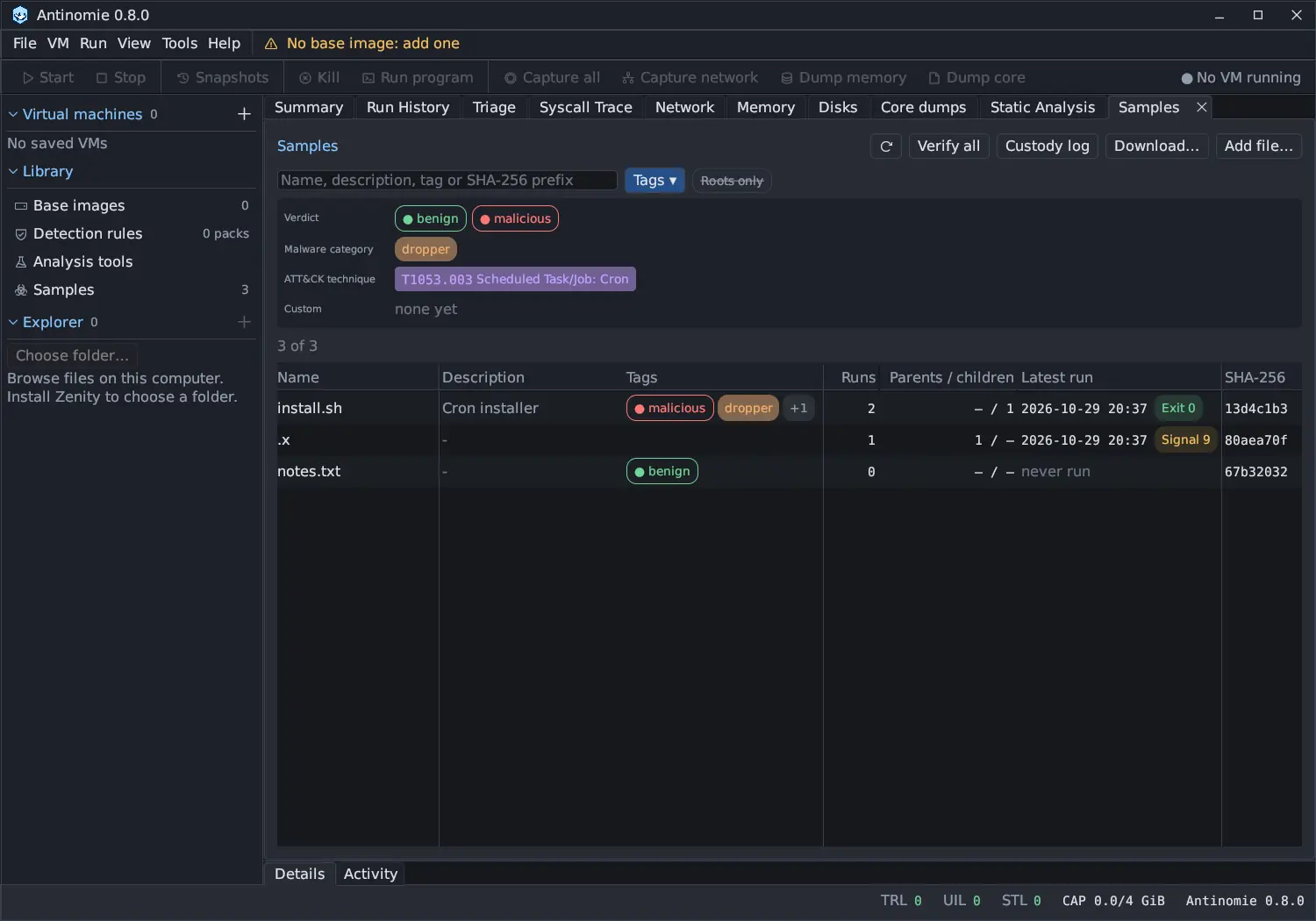
Double-click a row (or right-click and Open) to open its sample window. The right-click menu also has Edit tags…, Copy SHA-256, Copy name and Remove….
Verify all reads every archive back and compares its SHA-256, and a toast says how many were read and whether every SHA-256 matches. The refresh button reads the library and the runs again. Custody log opens the library-wide custody view.
Verdict and tags
Section titled “Verdict and tags”Edit tags… (in the list’s menu or the sample window) opens Edit tags: NAME. Tags come in four groups:
| Group | Values |
|---|---|
| Verdict | malicious, suspicious, benign, unknown |
| Malware category | miner, botnet, backdoor, rootkit, ransomware, dropper, loader, infostealer, worm, proxy |
| ATT&CK technique | Search by ID or name, for example T1053 or cron. Techniques Triage mapped for the sample’s runs are offered under From Triage. |
| Custom | A New tag name with one of nine theme colours, then Add |
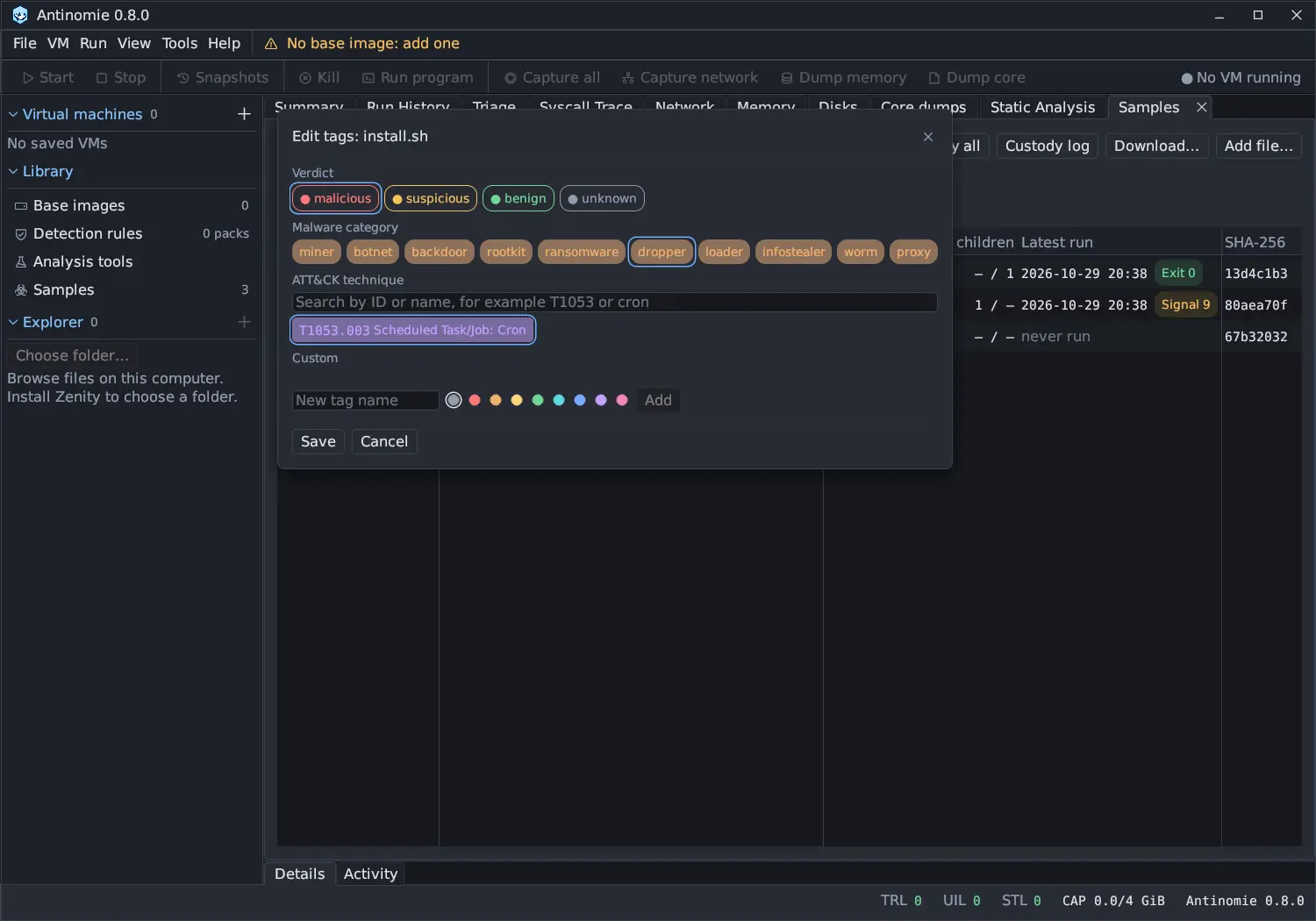
Press Save. The verdict is your own call: Antinomie never sets it. The sample window shows it as Your verdict tag, beside what Triage observed. Every change is an Edited entry in the custody log.
Removing a sample
Section titled “Removing a sample”Remove… asks Delete the archive of NAME? and explains that its hash, origins, tags and events stay, and that adding the same file again restores it. After Remove, the sample stays in the list with its record and custody log, which gains a Removed entry; its window says The archive was removed, and Run in VM… is unavailable.
Removing is the lighter action. A full purge, which also deletes the record and the custody log, is a separate operation that the library index chain records, so a purged log is accounted for rather than reported as missing. The Samples page offers Remove… only. See Custody log.
Samples from earlier versions
Section titled “Samples from earlier versions”On first start, 0.8.0 moves the archives and records that Tools → Malware
samples kept in earlier versions into the library. The old JSON records are
kept in samples/legacy/, and the samples are marked as recorded before the
library. Nothing is lost, and the move is safe to repeat.